It might seem like an extreme beginner's doubt, the fact is that justificar el texto en el editor de WordPressWordPress es el software de blogs líder en el mundo, y es concretamente fácil de utilizar y adaptable. Con WordPress, es factible crear con éxito sitios web con la ayuda de funciones ya predefinidas, sin mucho esfuerzo, y para proporcionar contenido como texto, imagen y vídeo. No se requiere conocimiento de HTML. WordPress además facilita la gestión y el mantenimiento de contenidos extensos. Al mismo tiempo de su fácil manejo, plus (especially in the latest versions) this is not something you can do with the options by default that come with the editor.
In this article we explain how to justify the text en el editor de WordPress utilizando distintos métodos, al mismo tiempo te mostramos algunas cuestiones importantes que tienen que ver con el justificado del texto y del contentsEl contenido puede ser muy difícil de definir con precisión. Es una definición que se refiere a las declaraciones contenidas en un documento o publicación de cualquier tipo y puede incluir las tecnologías de la información y la comunicación. Esto cubre todos los tipos de medios como imágenes y texto. A parte de esto, en el campo de la optimización de motores de búsqueda, los términos duplicar contenido, contenido único, plus web y que pueden marcar una gran diferencia en la forma en la que presentas el contendido en tu web o BlogEl término blog se usa para describir un diario virtual en Internet. El autor de un blogger puede publicar posts sobre cualquier tema. Los posts suelen estar presente de forma cronológica. El estilo de redacción de un blog suele ser informal y se escribe en primera persona. No obstante, además son posibles otros estilos, por ejemplo en el caso de los periódicos online, en los que la atención se centra plus de WordPress, empezamos.
Why can't I justify the text in WordPress directly?
This is a fairly legitimate question that many users have had at some point.
"Why can't I justify text in WordPress with the push of a button like I do in Word or Google Docs?"
Well, the answer might surprise you.
It turns out that the WordPress development team decided (since version 4.7) to suppress the justify button that was in the editor options panel for a reason, pay close attention that this data interests you:
According to the WordPress.Org developers the justification was removed from the editor because justified texts are not highly recommended for use on the web.
As you read it:
The blocks of justified text pueden ser un problema a la hora de visualizarlos desde distintos browsersConcepto de Navegadores¿Qué son los Navegadores?Los Navegadores son herramientas informáticas que utilizamos para, normalmente, navegar por Internet y visitar cualquier página web, al mismo tiempo de para hacer otras tareas como ver documentos, observar vídeos o reproducir contenido multimedia de cualquier tipo. Son un tipo de software sencillamente usual y bastante utilizado hoy en día.Insistimos en que es algo que se utiliza con mucha frecuencia, puesto que moverse por Internet plus,
It turns out that there are hundreds of web browser options out there and each of them displays the justified content of different way.
That means that what looks very good on the computer where you design or edit the content of your blog may look bad on your visitors' screens.
Of course, all that will depend on many factors:
- BrowserUn navegador (además: browser) es una herramienta informática que te permite ver documentos y datos y navegar por la red. Los navegadores pueden mostrar distintos tipos de recursos de información; principalmente documentos HTML, a pesar de todo, además son posibles otros tipos de archivos y contenido multimedia, como PDF, JPEG, MPEG, GIF o el lenguaje de meta marcado. A través el uso de complementos especiales y la configuración respectivo, los plus
- Device
- Device size
Those are variables that you don't control.
That is why the most advisable thing, as you can suppose, is to leave the text without justification.
But of course, it always happens that at some point in certain very specific sections of the web requires a pinch (or maybe two) of justified text.
That is why we offer you below some effective methods to justify the text in WordPress.
How to justify text in WordPress editor with classic editor
We have to say it:
The "new" Gutenberg editor is not to everyone's liking.
The most veteran have it disabled from their websites (or directly work with a version of WordPress) if you are one of those, then you are in luck because there is a very simple way to justify the text from the WordPress editor if you have at your disposal the classic editor, take note:
All you have to do is use a simple keyboard command:
- If you use Windows the keyboard shortcut to justify text in WordPress is: Ctrl + Alt + J
- If you use Mac the keyboard shortcut to justify text in WordPress is: Ctrl + Option + J
As you can see, it is quite easy.
Justificar texto en el editor clásico usando CSSConcepto de CSS¿Qué es el CSS?CSS es un lenguaje de programación que se usa para definir el estilo y el aspecto de un documento que se ha escrito mediante de un lenguaje de etiquetas, como HTML. Conocido además como hojas de estilo en cascada, es el que se emplea para dar colores, indicar tipos de letra o inclusive resaltar aspectos como el espacio entre items para dotar de estilo a plus
This is another fairly simple option if you work with the classic WordPress editor, all you have to do is open the code editor and use the next line of code:
<p style="”text-align:" justify;”> SUBSTITUTE THIS LINE WITH THE TEXT YOU WANT TO JUSTIFY </p>
In this way you can justify the text you want and later return to the visual editor when you have finished.
Now, if in your case you use the Gutenberg editor on your WordPress website at the same time there are other methods to justify text, pay attention.
Justify text in the classic editor using Advanced Editor Tools
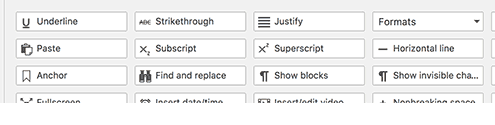
Otra manera sencilla de justificar texto si utilizas es editor clásico es con un pluginConcepto de Plugin¿Qué es un Plugin?Un Plugin es un fragmento o componente de código hecho para ampliar las funciones de un programa o de una herramienta. En el ámbito del marketing digital, especialmente dentro del marketing de contenidos, es algo que se utiliza con mucha frecuencia dentro de entornos como WordPress, puesto que sirven al momento de contar con añadidos que hagan mucho más cómoda y completa la experiencia de plus.
There are many plugin alternatives in the repository to access the justify button from the editor, but one of the best is Advanced Editor Tools before called: TinyMCE Advanced Plugin.
What Advanced Editor Tools Plugin does is enable different options so that you can always work on your text with a couple of clicks.
Working with Advanced Editor Tools is quite simple, you just have to install it and then select the options that you want to appear in the main part of the editor options bar.
How to justify text in WordPress editor with Gutenberg editor
For many users, Gutenberg is of great help because it facilitates the editing of content and the integration of items through blocks and all without the need to install code.
But you should know that the shortcuts or commands Ctrl + Alt + J or Ctrl + Option + J that work on Windows and on Mac with the classic editor, no longer work with Gutenberg.
Although if you have Gutenberg at your disposal and want to justify the text, here are these options:
Justify text in WordPress with the Gutenberg Page Building Toolkit

This plugin is fantastic because it allows you to access various options and resources that are not available by default in the Gutenberg editor.
The procedure to install it is the usual one:
You can download it from the WordPress repository or install it from your desktop: plugins - new.
Just by activating it you can justify text from the options panel at the top of the editor.
And the best of all:
The Gutenberg Page Building Toolkit plugin speaks again the commands or keyboard shortcuts (yes, the same keyboard shortcuts of the classic editor).
That means that at the same time you can justify the text using:
- CTRL + ALT + j (on Windows)
- Ctrl + Option + J (on Mac)
Another option to consider:
Another alternative that could be a bit drastic for some is:
Disable the Gutenberg editor and return to the classic version of the editor.
To do that you just have to install this plugin:
Disable Gutenberg

In a couple of clicks you will be working with the classic editor and you will be able to justify the text using only keyboard shortcuts.
Of course, we must say that this is the tip of the iceberg because there are still more alternatives, if you want to know more: sign up for the best online WordPress course in Spanish.