Aprende en este tutorial de CursoWpress.com a vincular Google analyticsConcepto de Google Analytics¿Qué es Google Analytics?Google Analytics es una de las herramientas SEO gratuitas y más populares al momento de realizar la analítica de una web. Es un panel web que se emplea para conocer el tráfico web de una página, el volumen de usuarios que se mueven en tiempo real, la procedencia de las visitas y toda esa información útil para establecer el comportamiento de una página con plus with Google Tag ManagerConcepto de Google Tag Manager¿Qué es Google Tag Manager?Google Tag Manager es una herramienta lanzada por el propio Google en el año 2012 con la finalidad de hacer más fácil a los editores y dueños de portales online la administración y manejo de las etiquetas de sus webs. Disponible de forma absolutamente gratuita, es uno de los items clave para el desarrollo y la optimización de las páginas.A pesar de plus y sácale provecho a las herramientas de Google.
Welcome to yet another installment in the Google Tools tutorial saga.
If you already installed Google Tag Manager how we teach you in our tutorial:
Cómo instalar Google Tag Manager en WordPressWordPress es el software de blogs líder en el mundo, y es concretamente fácil de utilizar y adaptable. Con WordPress, es factible crear con éxito sitios web con la ayuda de funciones ya predefinidas, sin mucho esfuerzo, y para proporcionar contenido como texto, imagen y vídeo. No se requiere conocimiento de HTML. WordPress además facilita la gestión y el mantenimiento de contenidos extensos. Al mismo tiempo de su fácil manejo, plus
Maybe it's time you started linking some tool with the Tag Manager.
The first thing we will do is link Google analytics with Google Tag Manager.
In case you missed our article on how to install the GTM in WordPress you can well take a pass through it full tutorial.
However. If you already have the Google Tag Manager ready it's time to roll up our sleeves and get down to business.
Link Google Analytics with Google Tag Manager
To link Google Analytics with Google Tag Manager we have to:
- Create a Google Analytics tag
- Configure the Google Analytics tag
- Create a trigger for our GA tag.
Creating a Google Analytics tag with Google Tag Manager
Starting
- We log in in our Google Tag Manager account.
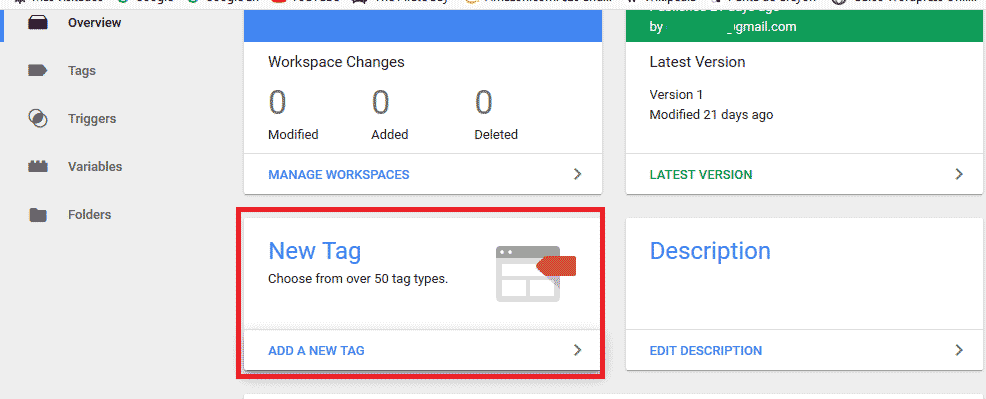
- We locate the box New Label and click on the button: Add New Label.
- A new window. In it we will give Name to our new label. It can be anything that helps you remember what specific function that tag does.
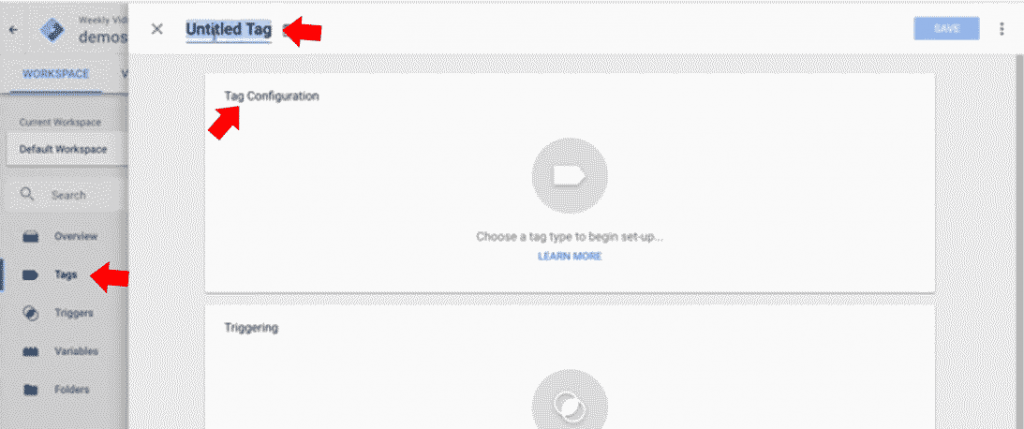
- Now we have to configure the tag that we just created. For that we click on the button: Label Settings.
Choosing the Analytics version
- In the section for choose the type of label we have several options. What concerns to Google analytics we will meet:
- Universal Analytics
- Classic Google Analytics.
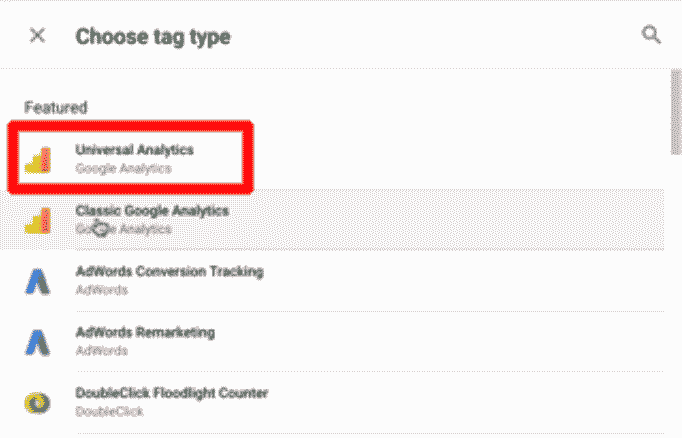
- It's our turn choose an option. How do you know which one to choose?
We have to select the form of Analytics with which we work in our web. If it is a new Analytics property, most likely it is Universal Analytics. There is a way to understand and be sure:
- Go into: Google com/
- Log in with your account
- Look for the option of: Manage
- Follow the following route:
Property> Tracking Information> Tracking Code.
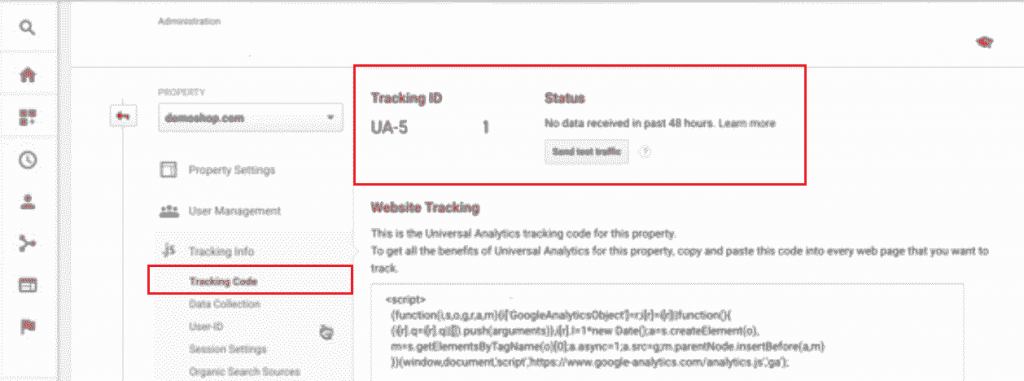
In tracking code we will meet our Tracking ID who will tell us if we are working with Universal Analytics. How? Easy. If our tracking ID begins with UA it means that we do work with Universal Analytics.
Upgrading to Universal Analytics
In case your property is not working with Universal Analytics it's easy to update.
You just have to follow the following route in your account Analytics:
Properties> Universal Analytics Update
Setting up our GA tag in GTM
Now we come back to the Tag Manager. To configure our label, which in our case is Analytics.
- In label settings An option will appear that says: Tracking type. There we select the option: Page view.
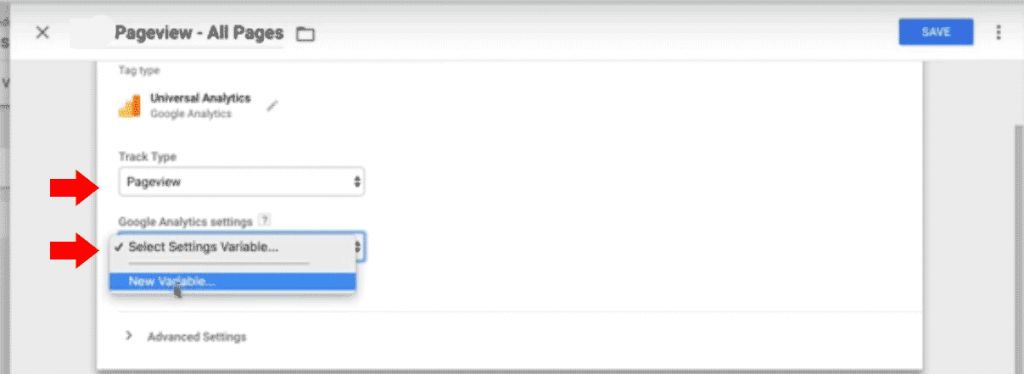
- After in Google Analytics settings we select: New variable.
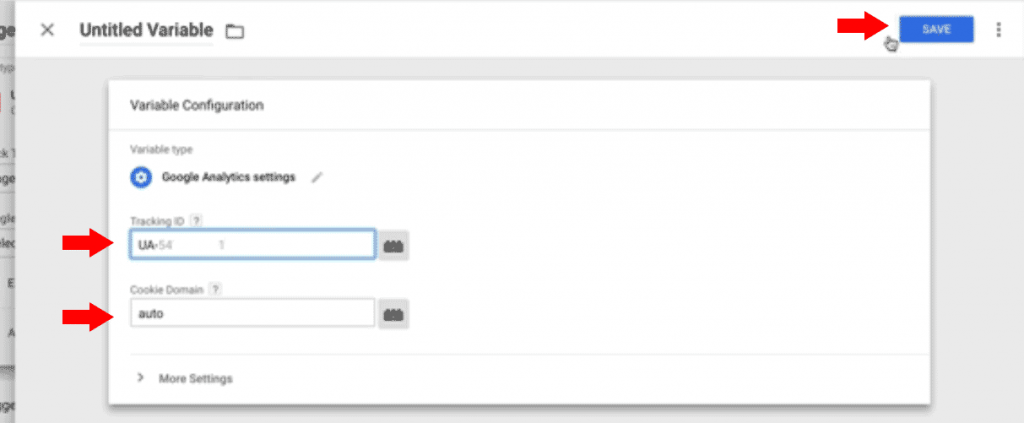
- A new window will appear, it is the window of the new variable. There we enter our Tracking ID.
Setting cookies
- Once our Tracking ID The next data to configure has to do with the cookies. The idea is to be respectful of the law (yes, the GDPR) and their privacy policies. To do this in the section domainUn dominio es una sección de Internet con direcciones que comparten un sufijo común o están bajo el control de una organización o individuo en particular. Está organizado jerárquicamente. Tanto los objetos físicos como los virtuales pueden ser direccionados con el nombre de dominio. Estos objetos pueden ser webs, ordenadores en red o servicios, como impresoras, faxes o servidores de correo. Cada objeto está referenciado por una dirección IP única, plus of the cookieUna cookie es un registro que es almacenado por un servidor web en el disco duro del usuario. El archivo recibido es una combinación de caracteres formada por números y letras, que asigna una cierta identidad al usuario (cliente). No podrán exceder un tamaño máximo de 4 KB y contendrán, por ejemplo, información sobre la extensión de la visita o sobre lo que el usuario haya pulsado. Cuando el cliente plus we place the option car. Now we click on: more options and in fields to configure we define the following parameters:
- We save the changes.
- We give the variable a name. We click the Save button.
Create a trigger for our GA tag
Once our tag is created and configured in conclusion of linking Google Analytics with Google Tag Manager we must create a trigger. Too easy.
- We click on the button activation.
- We will find an activator that comes by default. It is a page view activator.
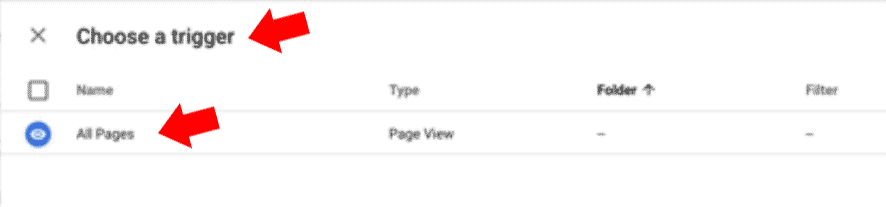
- We select the option: All pages.
- We click on the button: Keep.
- Ready, we already achieved link Google Analytics with Google Tag Manager.
We already link Analytics with Google Tag Manager and now what?
We can test the state of our label. To do this in the Google Tag Manager we place the button: Preview.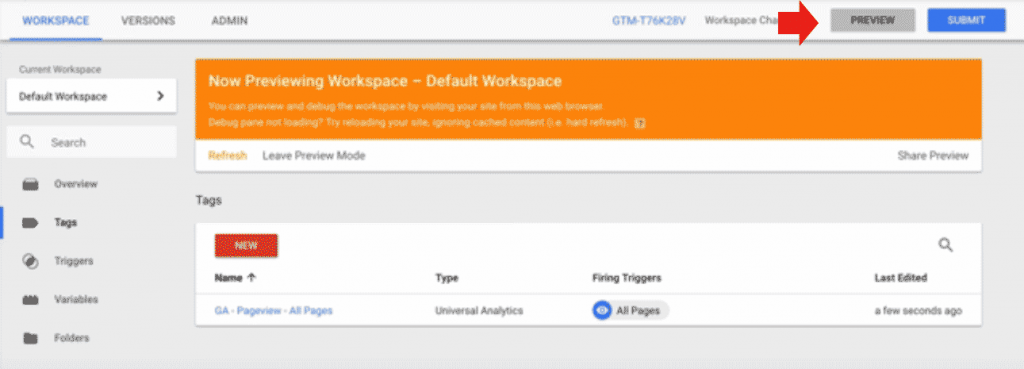
Now open your website in otra pestaña del mismo browserUn navegador (además: browser) es una herramienta informática que te permite ver documentos y datos y navegar por la red. Los navegadores pueden mostrar distintos tipos de recursos de información; principalmente documentos HTML, a pesar de todo, además son posibles otros tipos de archivos y contenido multimedia, como PDF, JPEG, MPEG, GIF o el lenguaje de meta marcado. A través el uso de complementos especiales y la configuración respectivo, los plus where do you have the Session of Tag Manager open. Look at footerUn footer o pie de página es una línea o bloque de texto que aparece en la parte inferior de una página o documento separado del texto principal. Los footers incluyen notas en el título de la página, o navegación dentro del documento. En los sitios web, los pies de página son además un área especial que está separada del cuerpo principal y el encabezado. Por lo general, contienen información plus of your website: You will see a panel that indicates the tags that are running.
If you followed each of the steps in the tutorial you will find that the label of Universal Analytics.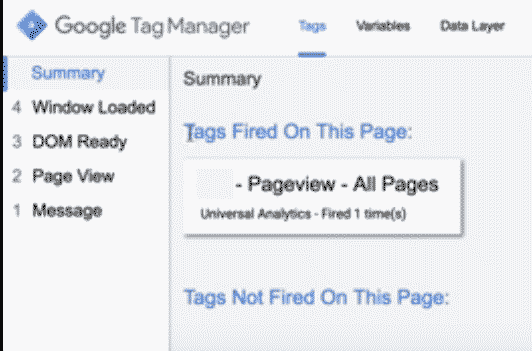
So in conclusion we just have to exit preview mode. And press: To post.
Hey, this is just the beginning, you can go on learning with us. For this we have prepared the best online WordPress course in Spanish. What are you waiting for to sign up?