
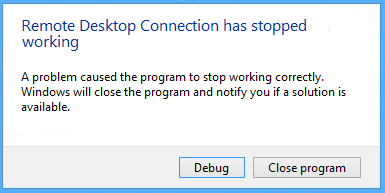
A problem caused the program to stop working correctly: This error can appear while running any application, program or game and occurs with almost all versions of Windows, be it Windows 10, 8 or 7. Although the error may make you believe that This error is associated with the program itself, but the problem lies with your Windows.
A problem that caused the program to stop working correctly is failing when a Windows process detects that a loop that was supposed to exit is not doing so. Now there can be an infinite number of reasons why you may be getting this error but we have put together a small list that can help you identify the problem with your Windows.
Reasons you may receive the error message - “A problem caused the program to stop working properly. Windows will close the program and notify you if a solution is available.
- Compatibility issue
- Screen resolution problem
- Update Edition KB3132372
- Corrupt or outdated graphics card driver
- Antivirus firewall problem
- Outdated DirectX
- Problema con el directorio de SkypeSkype es una aplicación que permite principalmente la telefonía por Internet por medio de de VoIP (Voz sobre IP). La app además permite el envío de mensajes, imágenes y archivos en distintos formatos. El programa está habilitada de forma gratuita para varios dispositivos como ordenadores, smartphones o tablets. Skype es una subsidiaria de Microsoft desde 2011. Información general La app Skype fue fundada en Luxemburgo en 2003 por Niklas Zennström plus
- Image acquisition services (WIA) not working
- EVGA Accuracy is on
- Data Execution Prevention is enabled
A problem caused the program to stop working properly
Method 1: Run the program in Windows compatibility mode
1.Right-click the program / app icon and select Properties.
2.Select the Compatibility tab in the Properties window.
3.Next, in compatibility mode make sure to check the box "Run this program in compatibility mode for:" and then select Windows 8.
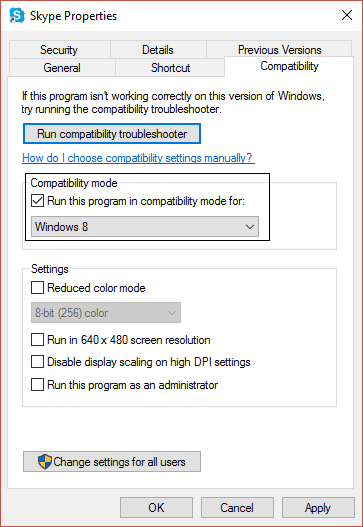
4.If it doesn't work with Windows 8, please try Windows 7 or Windows Vista or Windows XP until you find the correct compatibility.
5.Click Apply and then OK. 6. Now try again to run the program / application that was giving the error - it should now work without problems.
Method 2: Uninstall update KB3132372
1.Press Windows Key + X and then click Control Panel.
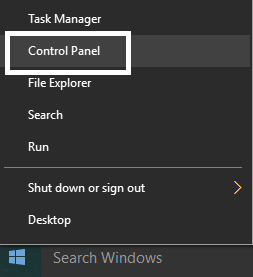
2.Now click Programs and then View installed updates.
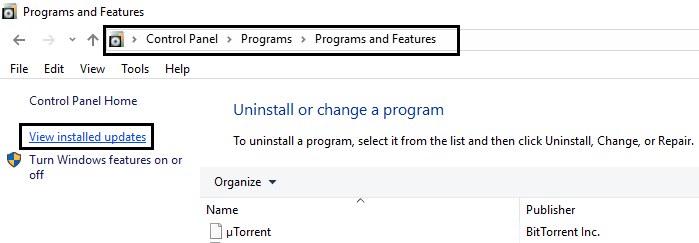
3. Next, find the Security Update for Internet Explorer Flash Player (KB3132372).
4.Once you've found it, make sure to uninstall it.
5.Restart your PC and see if you are able to fix a problem that caused the program to stop working properly.
Method 3: Rename the Skype folder
1.Press Shift + Ctrl + Esc to open Task Manager and find skype.exe, then select it and click End Task.
2.Now press Windows key + R and type %appdata% and then hit enter.
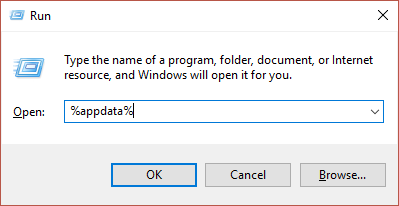
3.Locate the Skype directory and right-click on it and select rename.
4.Then rename the Skype directory to Skype_old.
5. Once again, press Windows key + R and type %temp%skype and then press enter.
6.Locate the DbTemp folder and delete it.
7.Restart your PC and start Skype again. This should have resolved the "A problem caused the program to stop working properly" error in Skype.
Method 4: Update your graphics card drivers
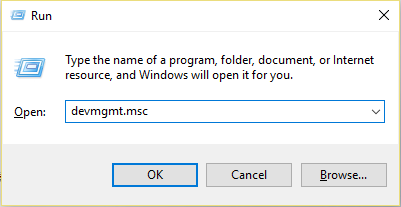
1.Press Windows key + R, then type "devmgmt.msc" and hit enter to open Device Manager.
2.Expanda el adaptador de pantalla y haga clic con el botón derecho del ratón en el controlador de la tarjeta gráfica y seleccione «Actualizar el softwareConcepto de Software¿Qué es el Software y cuál es su función?Un Software es la parte lógica, o más bien el soporte lógico, de cualquier sistema de tipo informático. Sea un PC, un teléfono teléfono celular o inclusive una tablet, es todo aquel programa que se ejecuta en él gracias a la coordinación de la parte física, es decir, el hardware, para llevar adelante alguna tarea concretamente o un recopilatorio de plus del controlador».
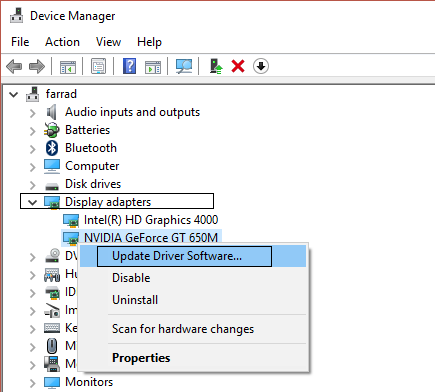
3.Now click "Search automatically for updated driver software" and let the wizard automatically update your graphics card drivers.
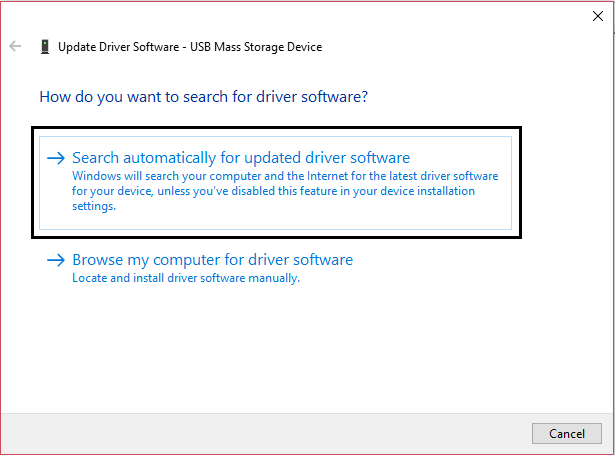
4. If the problem persists, repeat steps 1 and 2.
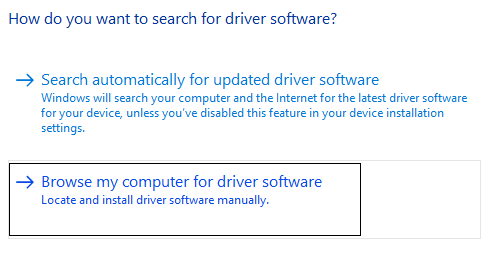
5.Then select "Browse my computer for driver software".
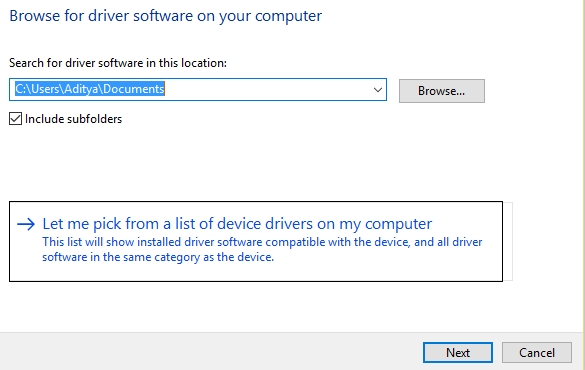
6.Now click on "Let me choose from a list of device drivers on my computer."
7.Select the driver associated with your graphics card and click Next.
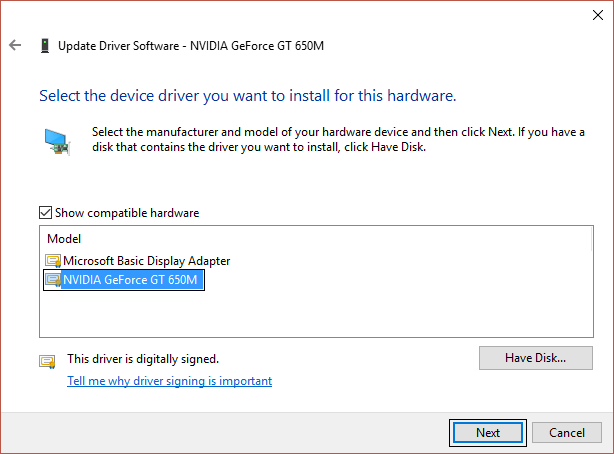
8.Restart your PC to save the changes.
Método 5: Restablecer la configuración del Comodo FirewallConcepto de Firewall¿Qué es el Firewall?El Firewall es un hardware o software que protege a un equipo de accesos no autorizados desde una red de terceros. Además se le conoce como cortafuegos y actúa como una pared entre el Internet y el PC. Es el que monitorea el tráfico de una red y limita la entrada o salida de datos. Funciona bajo ciertas reglas que permiten autorizar una conexión, bloquear plus
1.Type Comodo in Windows search and click Comodo Firewall.
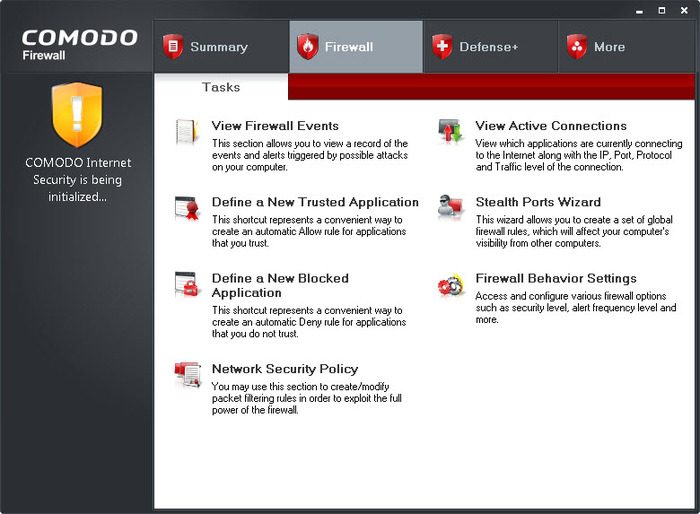
2. Click Tasks in the upper right corner.
3. Next, navigate like this: Advanced Tasks> Open Advanced Settings> Security Settings> Defense +> HIPS> HIPS Settings.
4.Ahora encuentra Detectar inyecciones de código de barsLas trailing slashes son las barras que aparecen al final de una URL ( "https://es.ryte.com/" ) y representan un directorio. Si la URL no finaliza con una barra representa un archivo. No obstante, esto son solo guías, no un requerimiento. No obstante, usar una barra como representación de un directorio ha sido aceptado como estándar con el tiempo. Uso de las barras "https://es.ryte.com/" y SEO A pesar de que dichas plus y selecciona Exclusiones.
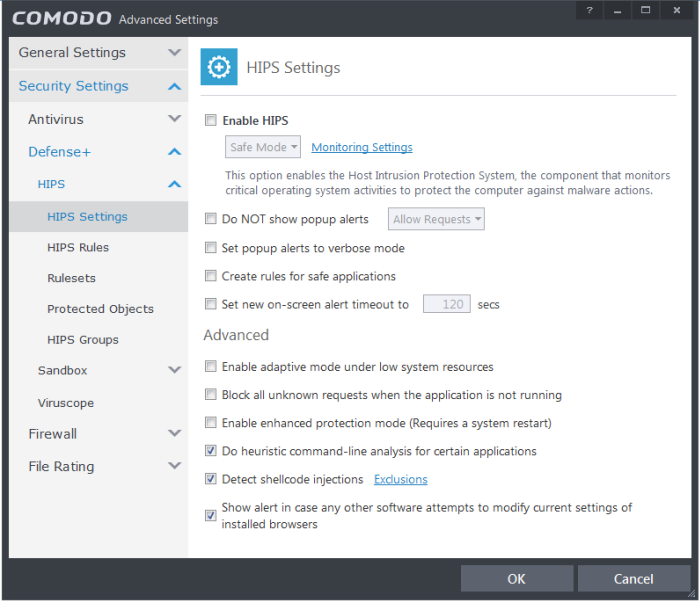
5.Click the arrow under Manage Exclusions, then select Add and then Files.
6.Now navigate to the following location in the Add Files Window:
C: Program Files (x86). Google Chrome application.
7.Double-click chrome.exe and then click OK.
8.Click OK and then close everything and see if you are able to Fix A problem caused the program to stop working correctly error.
Method 6: Update DirectX
DirectX can be updated by updating your Windows, which can be done:
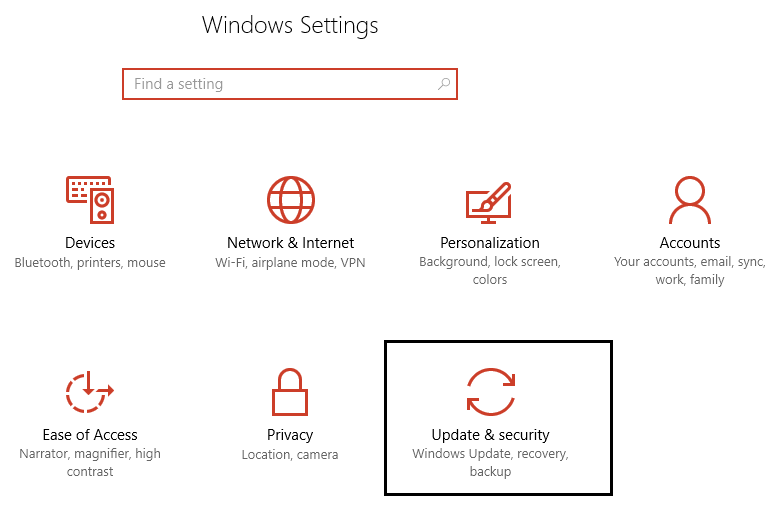
1.Type the settings in the Windows search bar and click Settings.
2.Ahora haz clic en «Update &Concepto de AMP¿Qué es el AMP o Accelerated Mobile Pages?El AMP, abreviatura de Accelerated Mobile Pages, es una propuesta que empezó a tomar forma en el año 2016 con la finalidad de mejorar la usabilidad, lectura y, en general, la experiencia de los usuarios de teléfono celular dentro de cualquier página web. Emprendida por Google con un aperturismo total (es de código abierto), lleva en activo desde entonces para facilitar plus; Security».
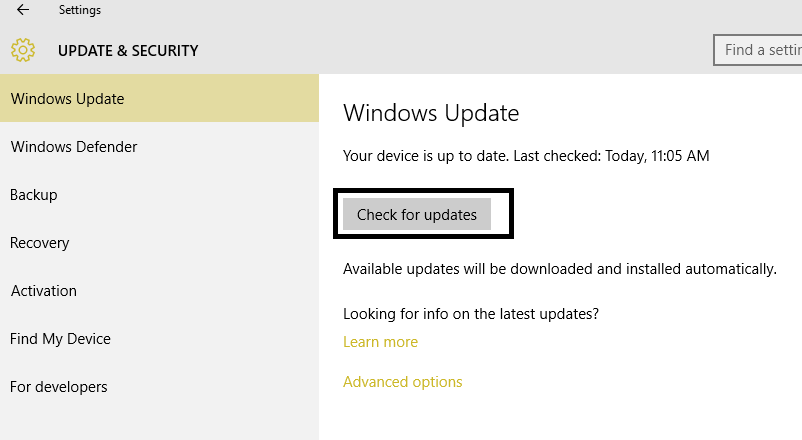
3. Then click "Check for Updates" to automatically update DirectX.
4.Si quieres actualizar manualmente DirectX, sigue este linkConcepto de Dominio¿Qué es un Enlace?En Internet, un link, además conocido como enlace o hipervínculo, es cualquier texto o imagen que se encuentra en una página web y en la que el usuario puede pulsar o clicar para ser dirigido a otro contenido distinto. Es el principal medio de “desplazamiento” en la red, puesto que se encuentra presente en prácticamente cualquier portal que visites a día de hoy, inclusive en plus.
Method 7: Remove Norton virus
One of the things that users have in common that they experience the error "A problem caused the program to stop working properly" is that they were all using Norton Antivirus. Therefore, uninstalling Norton antivirus might be a good option to fix this problem.
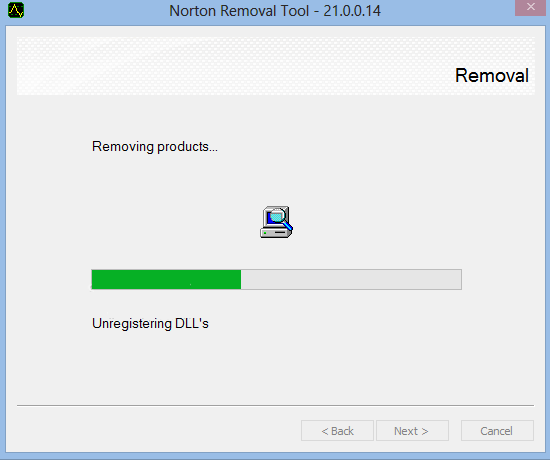
You can remove Norton Antivirus from Control Panel> Programs> Norton or you should try the Norton Uninstall Tool, which completely removes Norton from your system. If you don't have Norton, try disabling your current antivirus software or firewall.
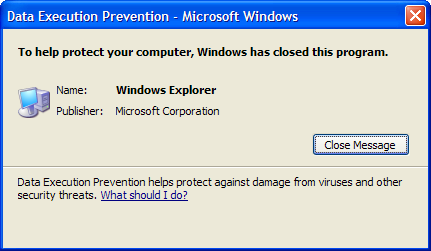
Method 8: Disable Data Execution Prevention
La Prevención de Ejecución de Datos (DEP) es un conjunto de tecnologías de hardwareEn informática, el término hardware se refiere a cualquier componente de un sistema informático que sea un objeto físico real, al contrario que el software que existe en forma digital. Esto incluye el disco duro y las unidades incorporadas, es decir, todos los componentes que son "duros", de ahí su nombre. Desarrollo El desarrollo del hardware informático comienza con la creación de los primeros ordenadores y tiene su verdadero origen plus y software que realizan comprobaciones adicionales en la memoria para ayudar a evitar que se ejecute código malicioso en un sistema. Aunque DEP puede ser extremadamente beneficioso, en algunos casos puede causar un problema en Windows. Por lo tanto, puede considerar la posibilidad de deshabilitar DEP para esta instancia en particular y puede ser capaz de arreglar un problema que causó que el programa dejara de funcionar correctamente, pero si todavía está atascado, entonces vuelva a habilitarlo.
Method 9: Start the Windows Image Acquisition (WIA) service
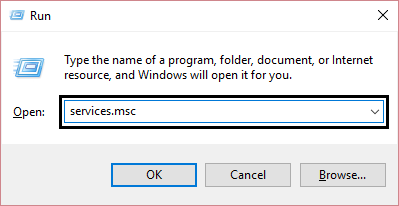
1.Press Windows key + R, then type "Services.msc" and press enter.
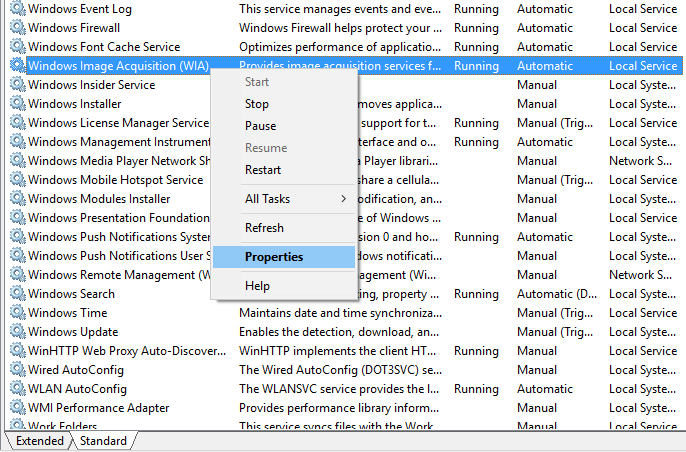
2.In the services window find the Windows Image Acquisition (WIA) service and right-click on it and select Properties.
3. Make sure the startup type is set to automatic if not then set it.
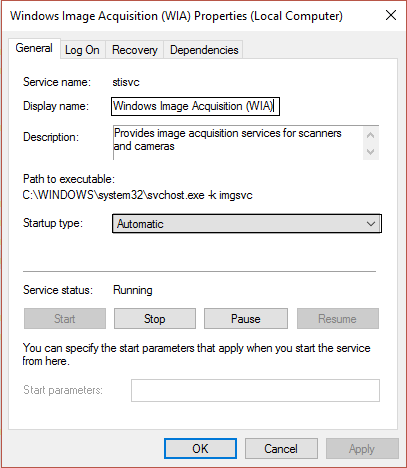
4. Next, click on the Recovery tab and then under First Failure select "Restart Service" from the drop-down menu.
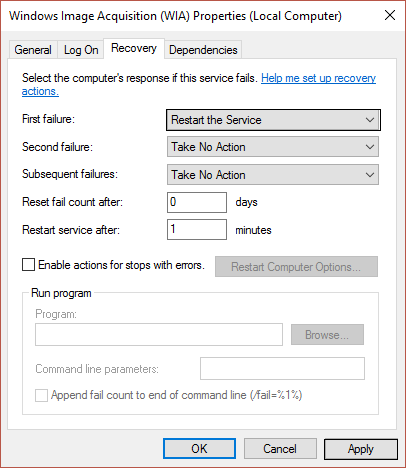
5. Click Apply and then Ok.
6. Make sure the WIA services are working or right-click it again and select Start.
Method 10: Power off the EVGA Precision
Many gamers use EVGA Precision to get the most out of their graphics card, but sometimes this is the main cause of the "A problem caused the program to stop working properly" error. To fix this, you need to uncheck all the OSD items (frame time, FPS etc) and the error can be resolved.
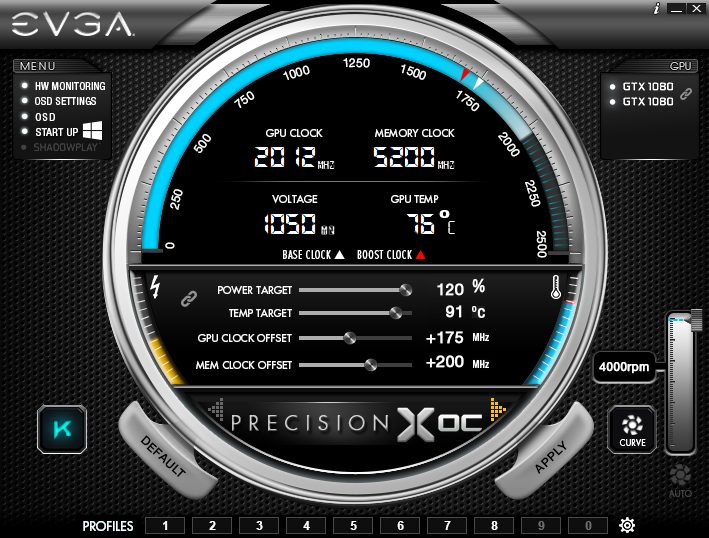
If it still doesn't solve the problem, rename the PrecisionX folder. Navigate to C: N-Program Files (x86) N-EVGAN-PrecisionX 16 and rename PrecisionXServer.exe and PrecisionXServer_x64 to something else. Although this is not an effective solution, but if it works, then what is the harm?
That's all you've managed to fix a problem that caused the program to stop working properly, but if you still have any questions about this guide, feel free to ask them in the comment section.









