
 es un protocolo que permite determinar una conexión segura entre el servidor y el cliente, que no puede ser interceptada por personas no autorizadas. En resumidas cuentas, es la versión segura de el http (Hyper Text Transfer Protocol) Cómo funciona Una conexión HTTP estándar en Internet puede ser fácilmente secuestrada por partes no autorizadas. El propósito de una conexión HTTPS es evitar esto: encriptar<span class="glossaryai-more-link"> <a href="https://rmarketingdigital.com/en/wiki/https/" data-wpel-link="internal">más</a></span></span></span></span></span>://rmarketingdigital.com/wp-content/uploads/2021/04/puntero-windows-10-5591617.jpg)
<noscriptNoScript es un complemento del navegador para Mozilla Firefox, que impide que se cargue en las páginas web contenido como JavaScript, Flash o iFrames. Su objetivo es incrementar la seguridad durante la navegación y quitar la promoción comercial más molesta al cargar sitios web. El términoNoScript tiene un significado distinto en la programación HTML. Cuando JavaScript está desactivado, la etiqueta <noscript> o </noscript> asegura que el usuario pueda ver el plus>

In Windows 10 There is the opportunity to configure the mouse pointer through a very simple procedure to perform and that will allow you to better customize your desktop. If you are thinking of change Windows 10 pointer By default and to give a fresher point to your environment, this guide interests you.
Modify the appearance of the pointer may have more than aesthetic utility, sobre todo en entornos donde el hardwareEn informática, el término hardware se refiere a cualquier componente de un sistema informático que sea un objeto físico real, al contrario que el software que existe en forma digital. Esto incluye el disco duro y las unidades incorporadas, es decir, todos los componentes que son "duros", de ahí su nombre. Desarrollo El desarrollo del hardware informático comienza con la creación de los primeros ordenadores y tiene su verdadero origen plus de la computadora tiene un monitor o pantalla de dimensiones reducidas o cuando el contraste de color no está totalmente definido.
To change the pointer in Windows 10, the first thing we will do is go to the configuration chapter of our interface. There are several alternatives to do it, one of them through the Windows 10 Main Bar Finder. To use this method, we will click on the system button and type "pointer", later choosing the option of Change the appearance or speed of the mouse pointer.
In spite of everything, maybe it's easier clicking with the right button of the mouse on any free part of the desktop and then clicking again, even if this time with the left button, on the option Personalize. This will open a window and on the left side of it you can see several options that we can select from.
In our case, what we want is to change the mouse pointer in Windows 10, which means that we will have to click on the option to Topics and we will be presented with a new window with the alternatives to select.
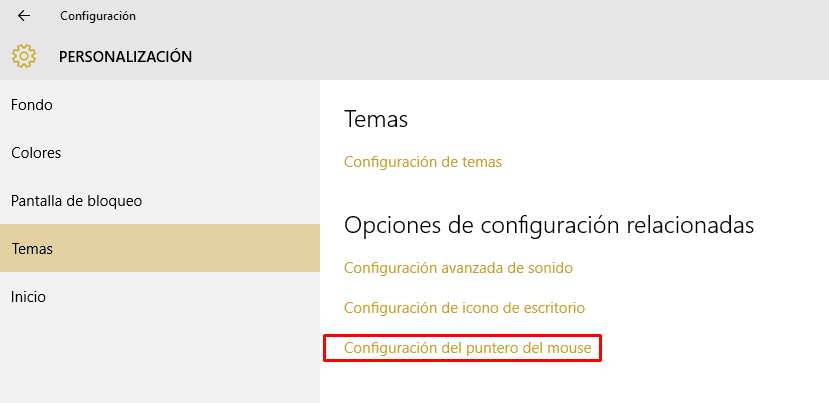
Next we will click on Mouse pointer settings and a new window will open like the next one:
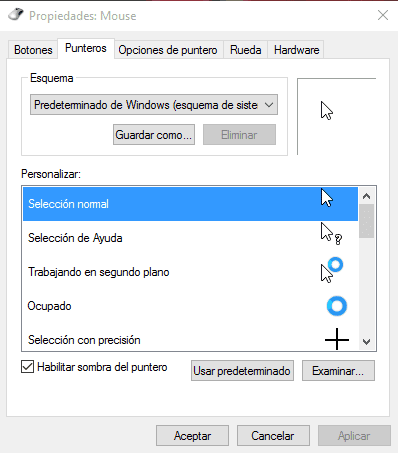
Once here, we just have to choose, for each of the possible actions, the changes we want, thus adapting the appearance of the cursor to our liking.









