Let me show you how to add alternate row colors to Power BI table report with a practical example.
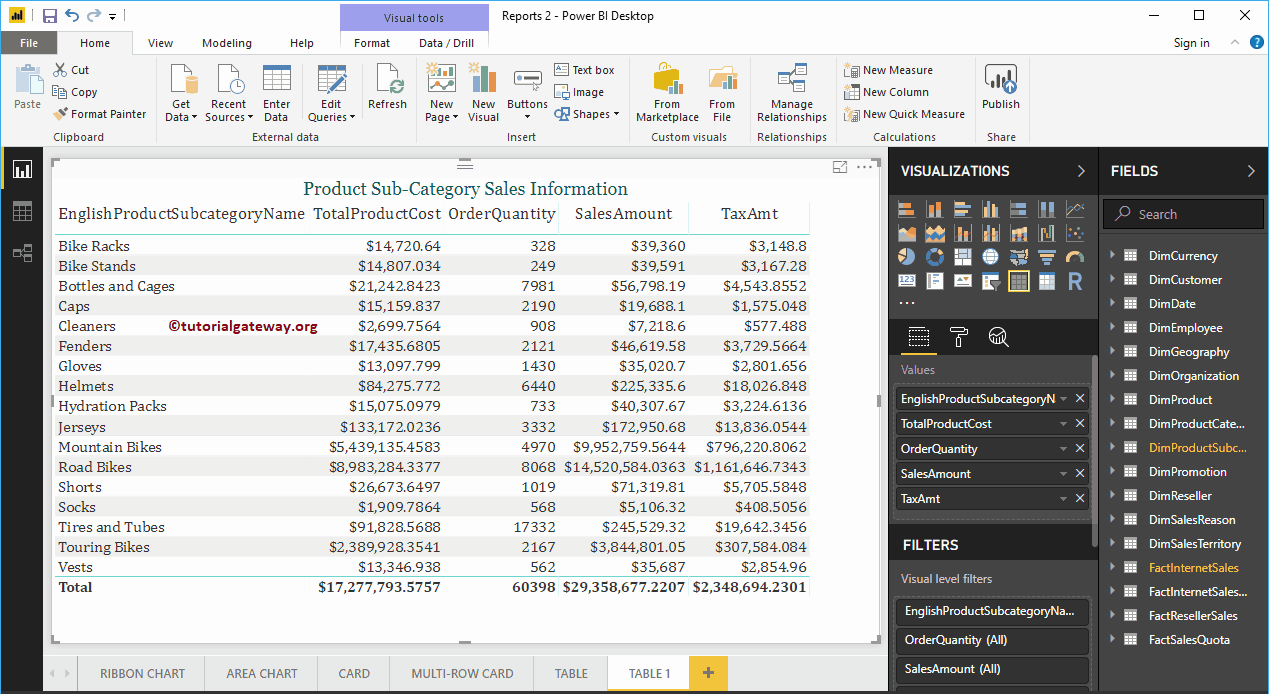
For this demo of adding alternate row colors to the Power BI table, we are going to use a table that we created in our previous post. I suggest you refer to the Create a table article to understand the same.
 <noscriptNoScript es un complemento del navegador para Mozilla Firefox, que impide que se cargue en las páginas web contenido como JavaScript, Flash o iFrames. Su objetivo es incrementar la seguridad durante la navegación y quitar la promoción comercial más molesta al cargar sitios web. El términoNoScript tiene un significado distinto en la programación HTML. Cuando JavaScript está desactivado, la etiqueta <noscript> o </noscript> asegura que el usuario pueda ver el plus>
Add alternate row colors to the Power BI table sample
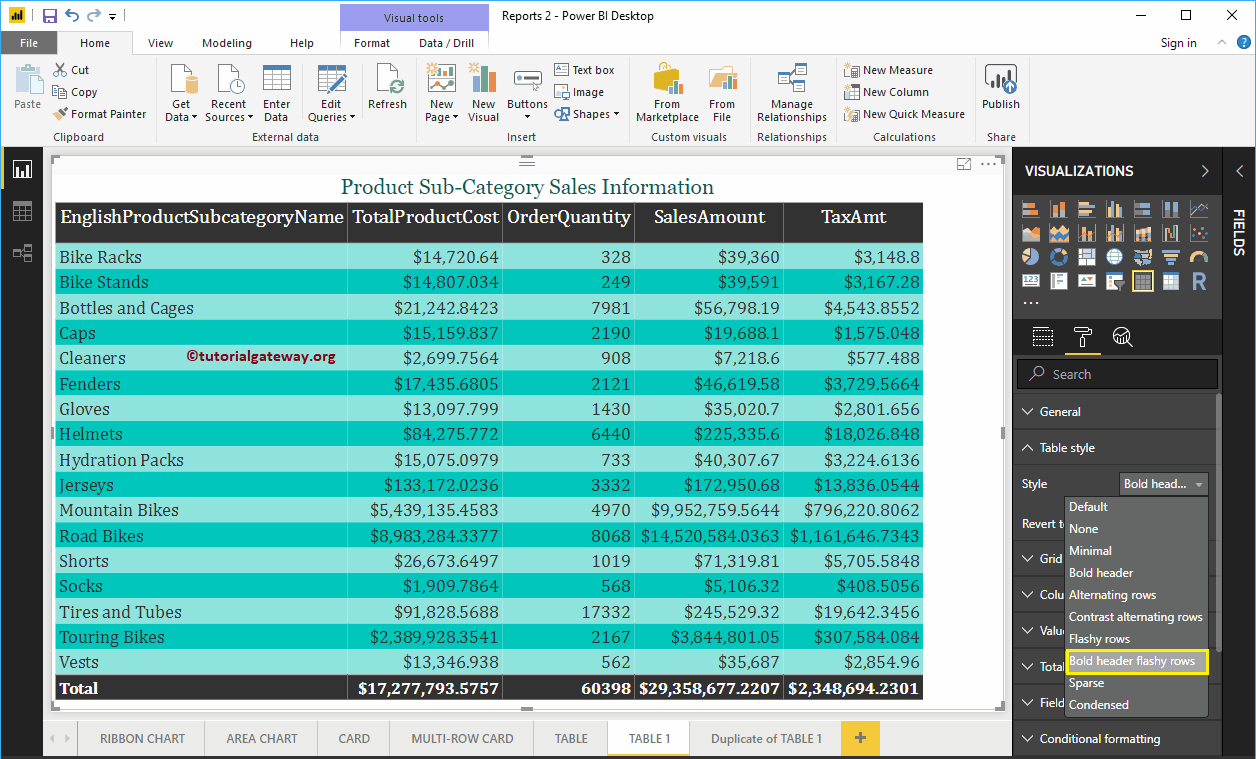
Click on the Format to see the list of available formatting options. Then navigate to Table style section to add alternate row colors to the table report.
In the following Power BI screenshot, you can see the list of styles that are available to design this table.
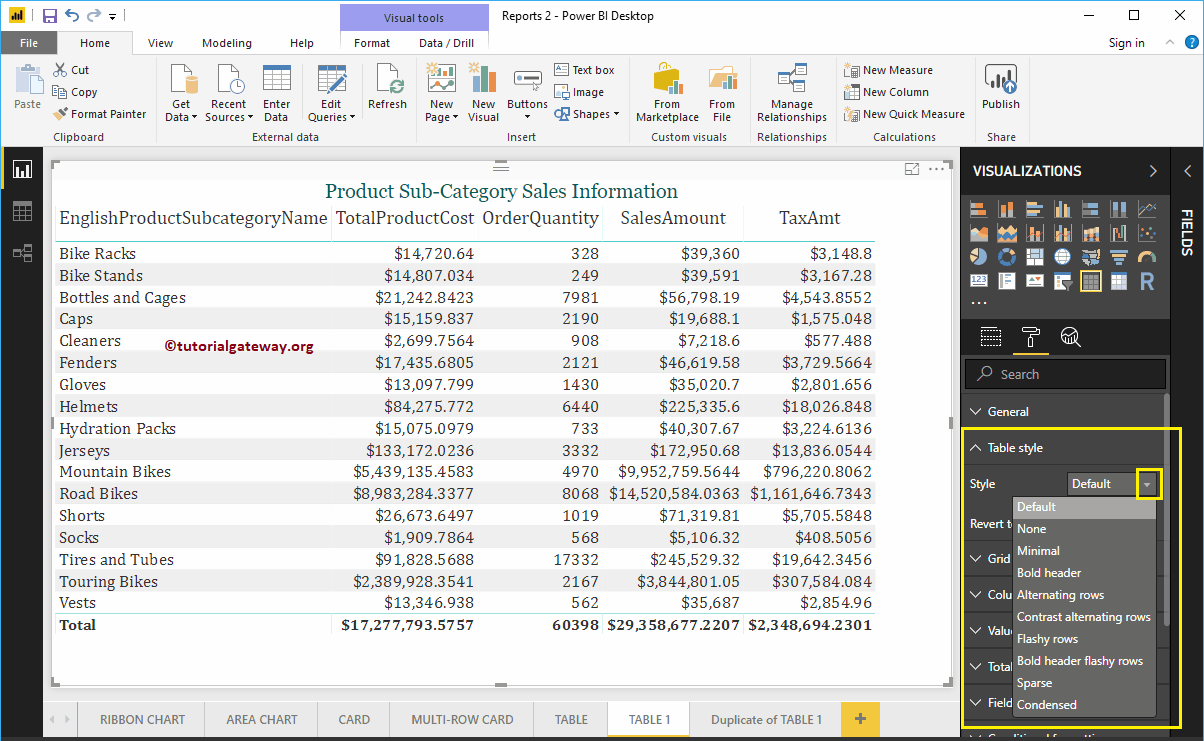
Please select the Alternate rows drop-down list option to add alternate row colors. Remember, this is the default option for any table.
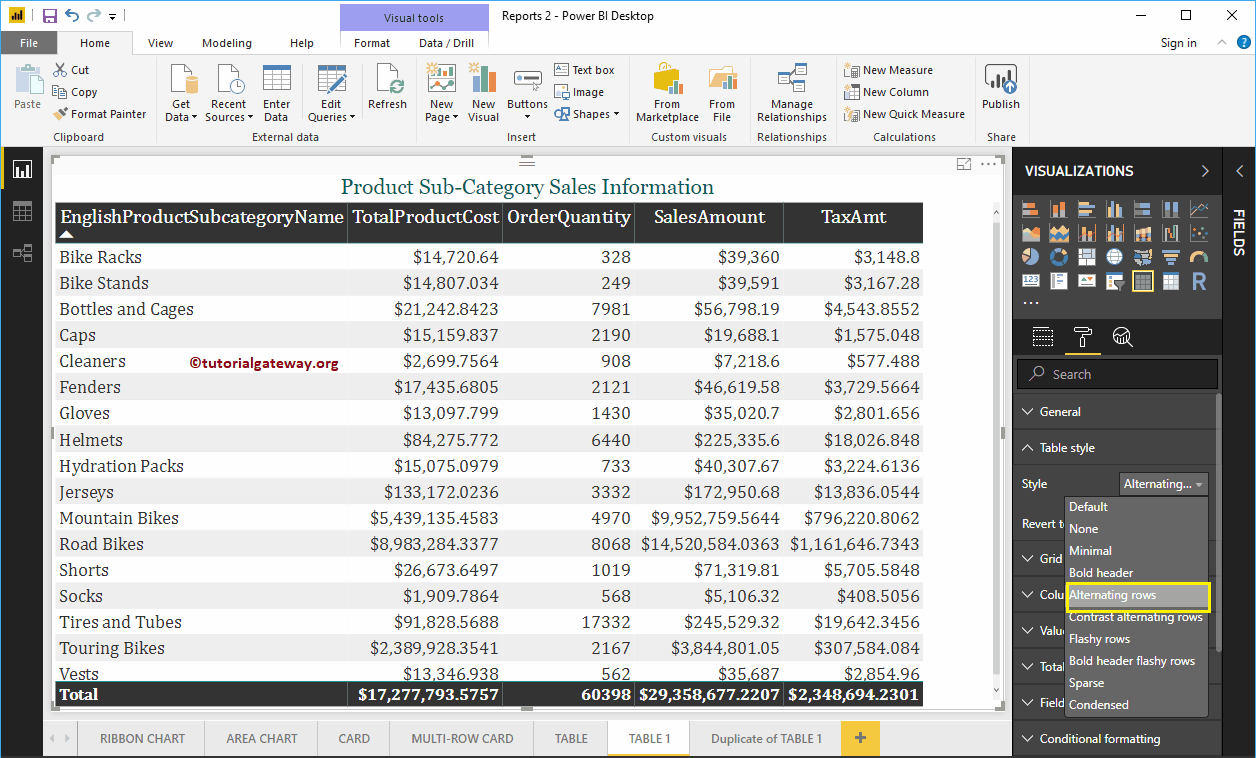
Let me select the Alternate Row Contrast option
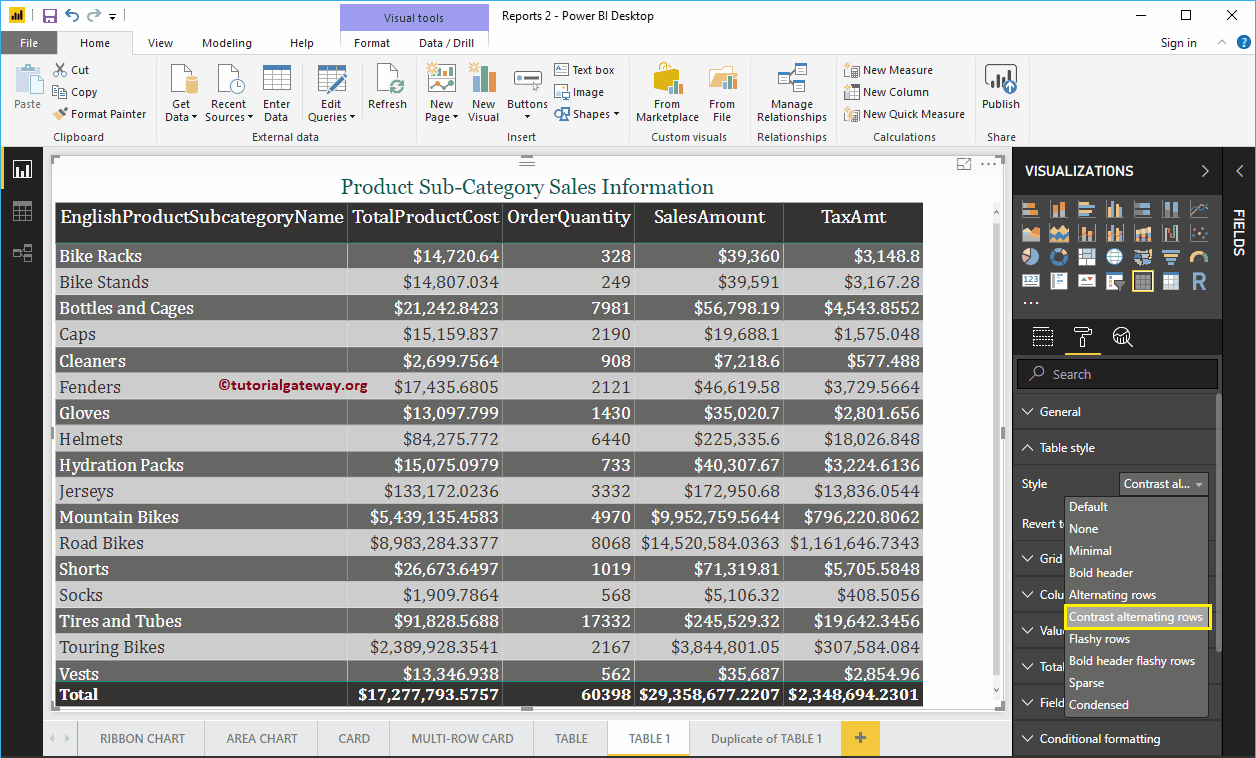
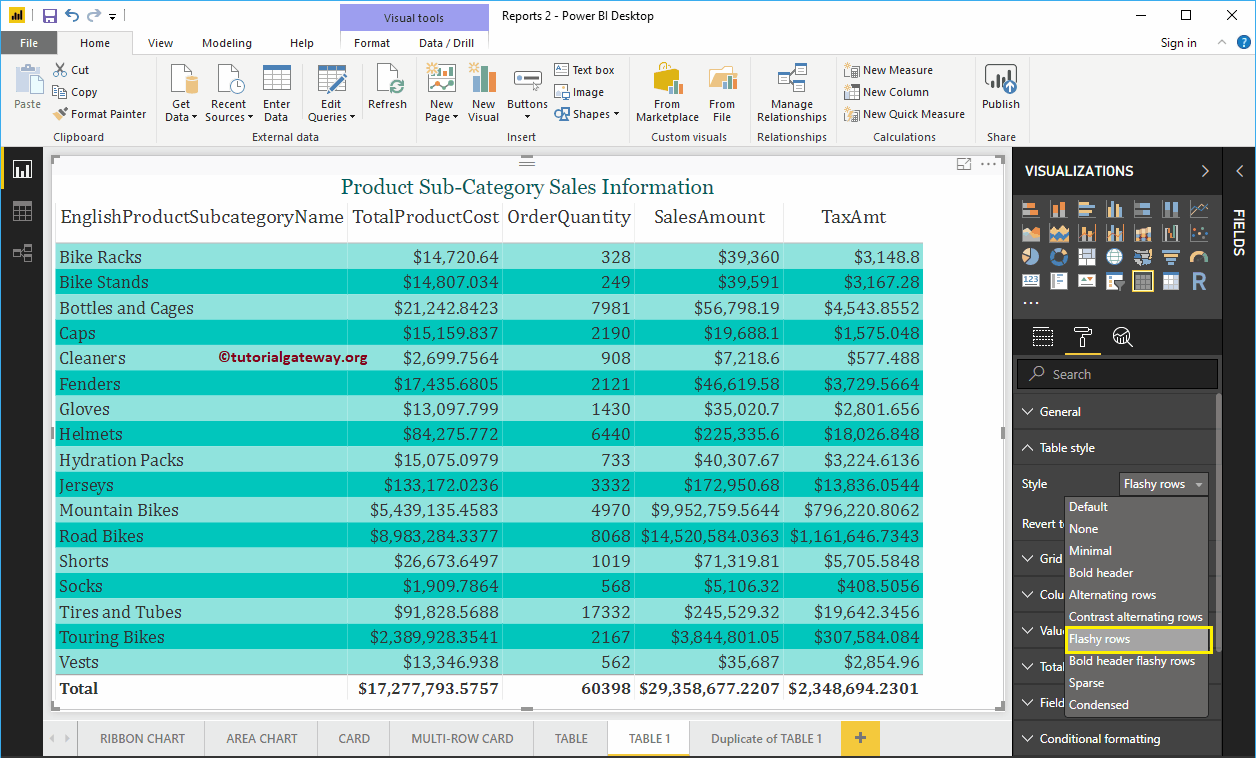
If you select Striking rows, then Power BI assigns the following colors.
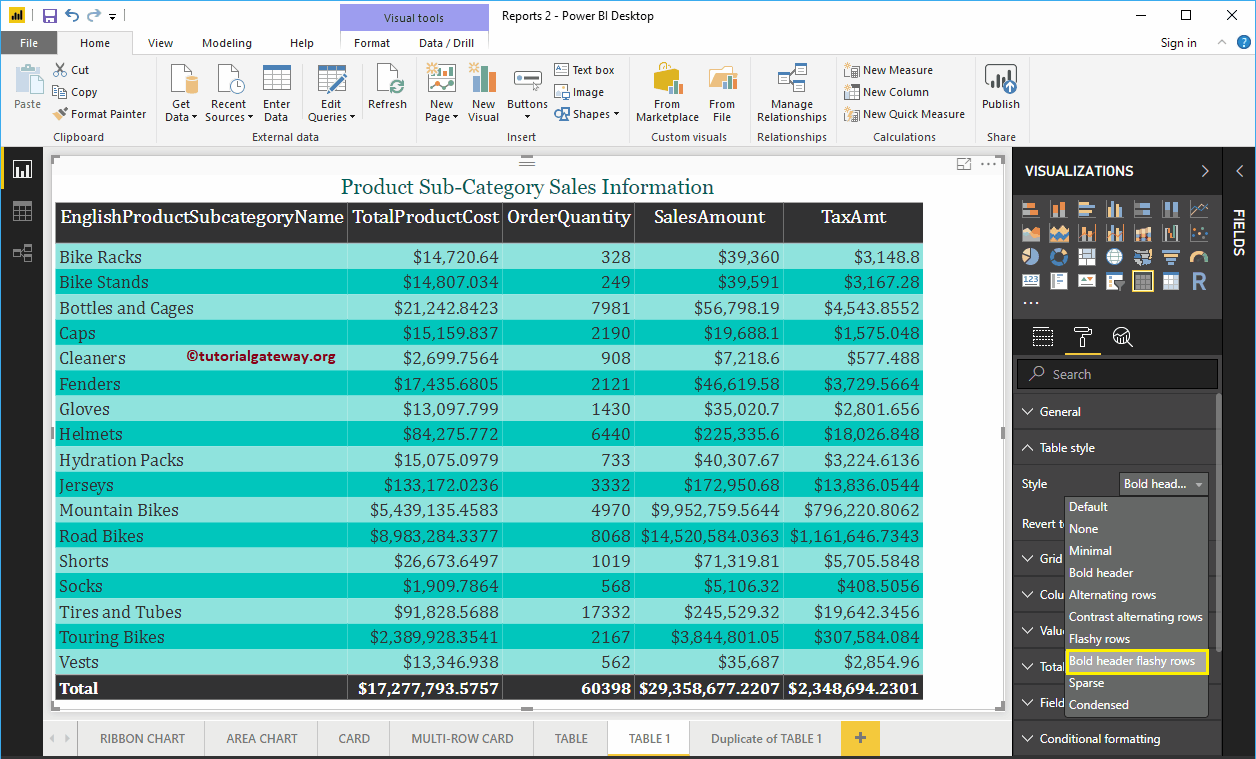
If you select Bold header Striking rows, luego, Power BI asigna un color negro a los headersConcepto de Encabezados¿Qué son los Encabezados?Los Encabezados, además conocidos como headers en inglés, son una parte fundamental del diseño de cualquier web, dado que consiste en la parte principal que se ve de esta al acceder, la parte de arriba de cualquier página. El lugar más visible y al que todos los usuarios que visitan un lugar de Internet acceden cuando entran en él, pudiendo tener así una imagen rápida plus y colores verdes llamativos para alternar filas.
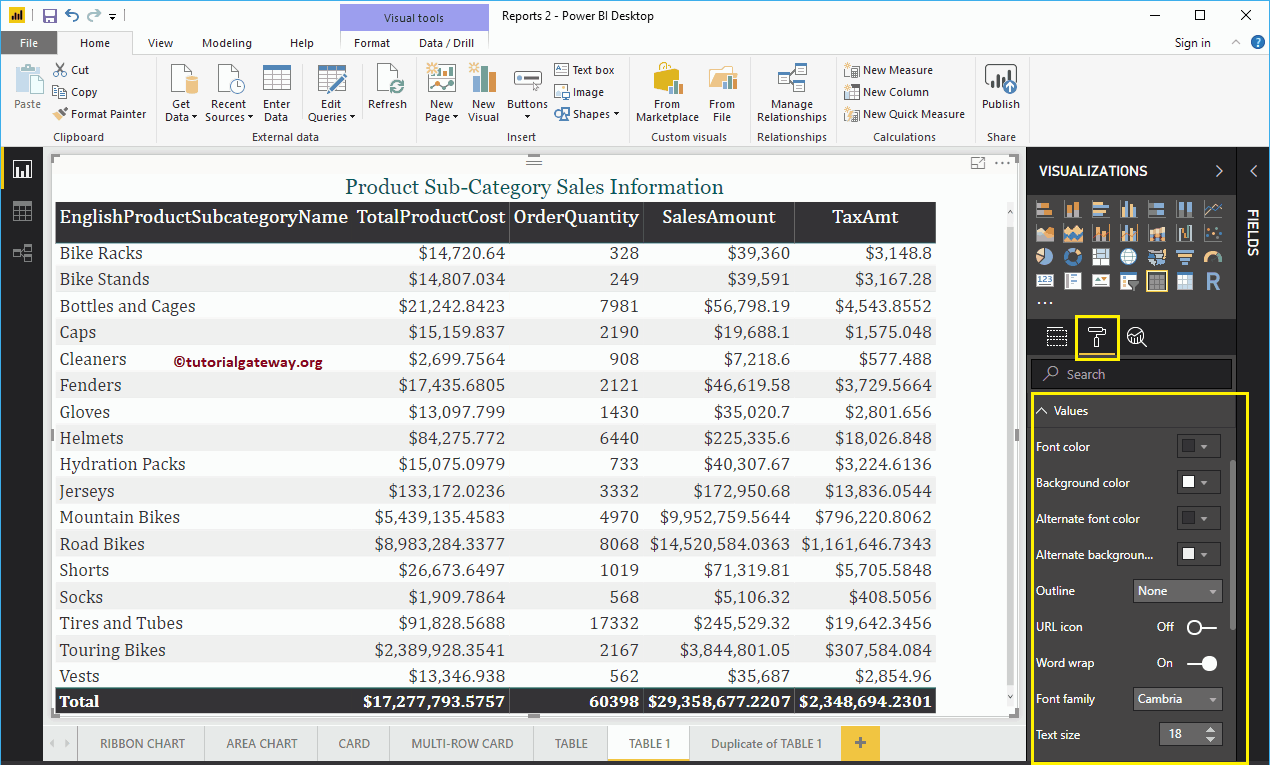
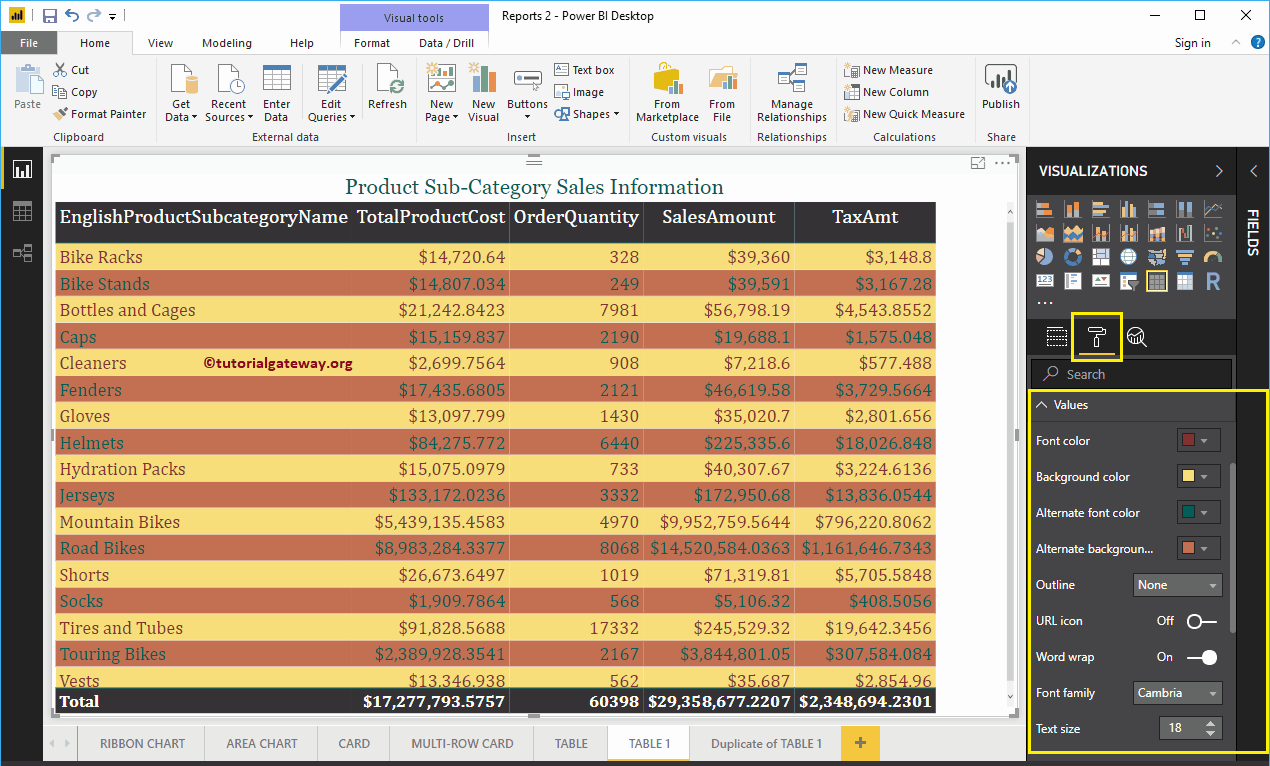
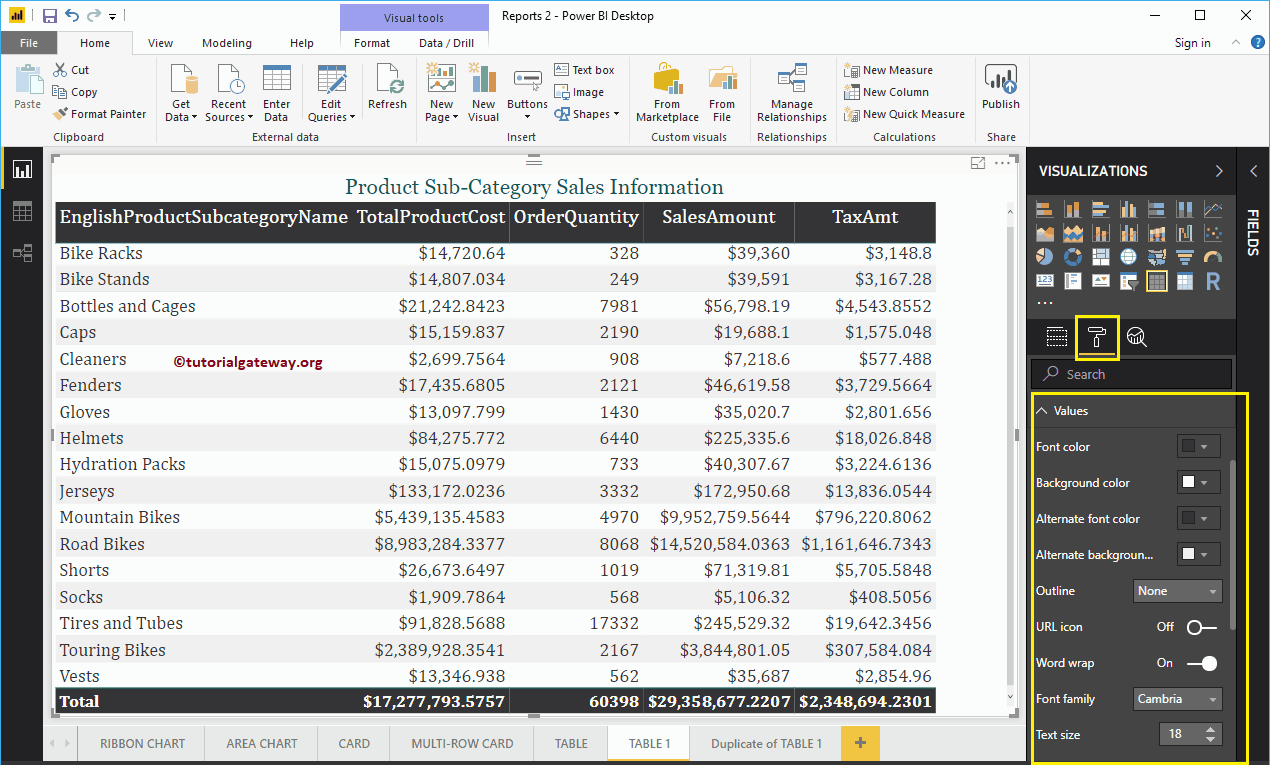
For now, we're sticking with the default option (alternate rows). Then go to Values section to format the colors according to your requirement.
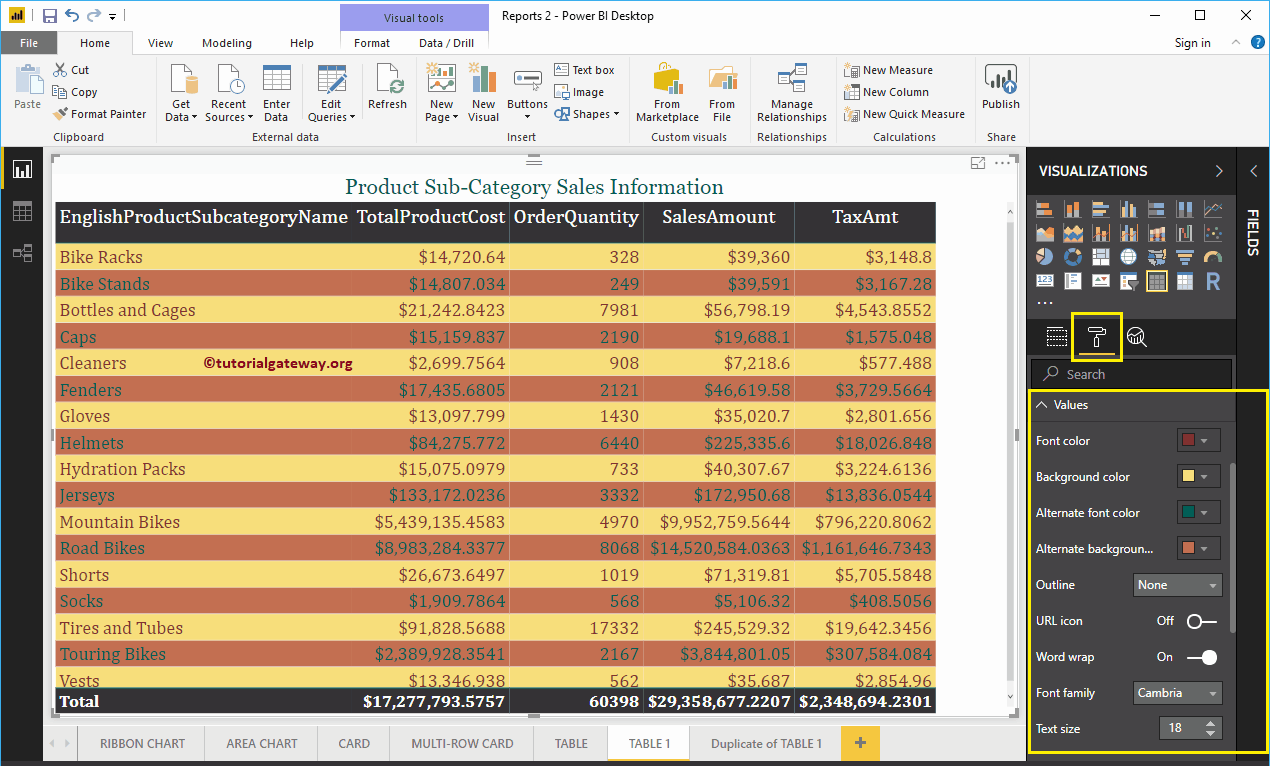
As you can see in the screenshot below, we changed the ForeColor and Back color of the odd and even rows. Here, we also change the font family to Cambria and the text size to 18
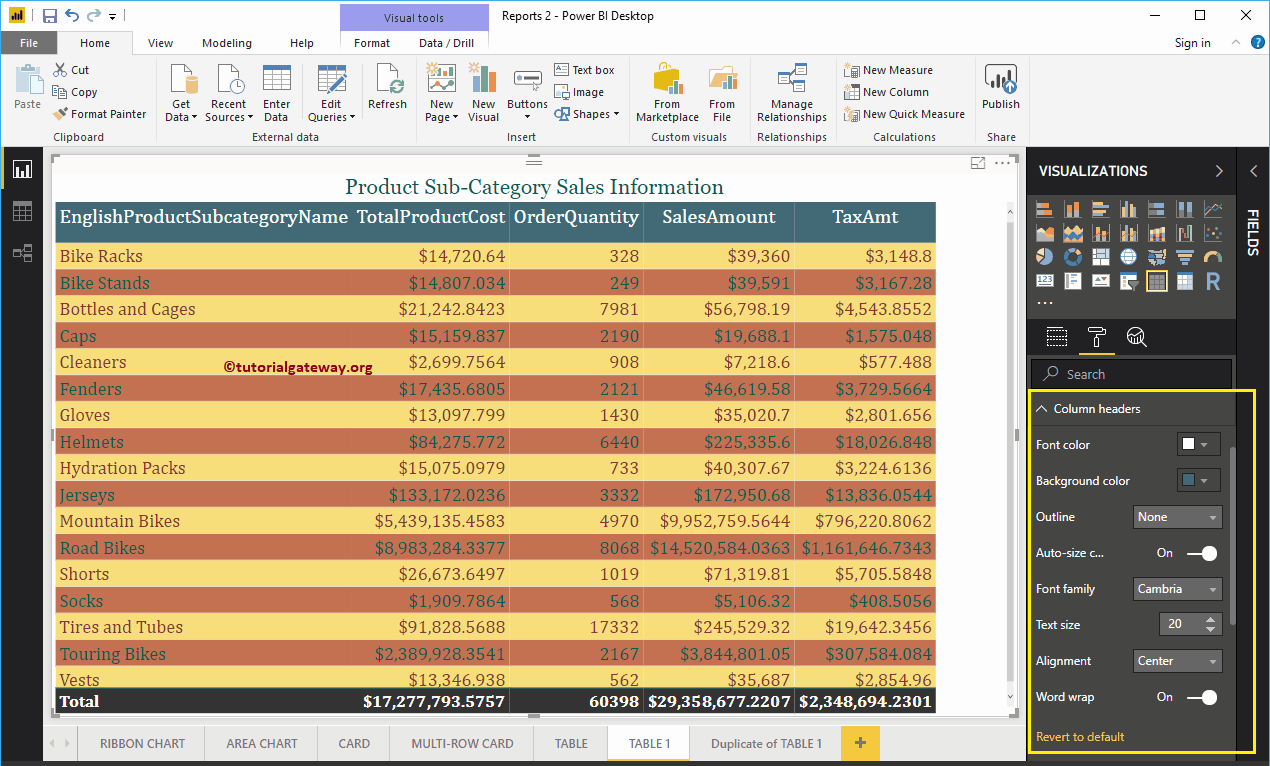
Then go to Column headers to alter the header colors.
As you can see in the screenshot below, we changed the font color to white, the background color to green. And the font family to Cambria, the text size to 25 and the alignment of the header text to the center.
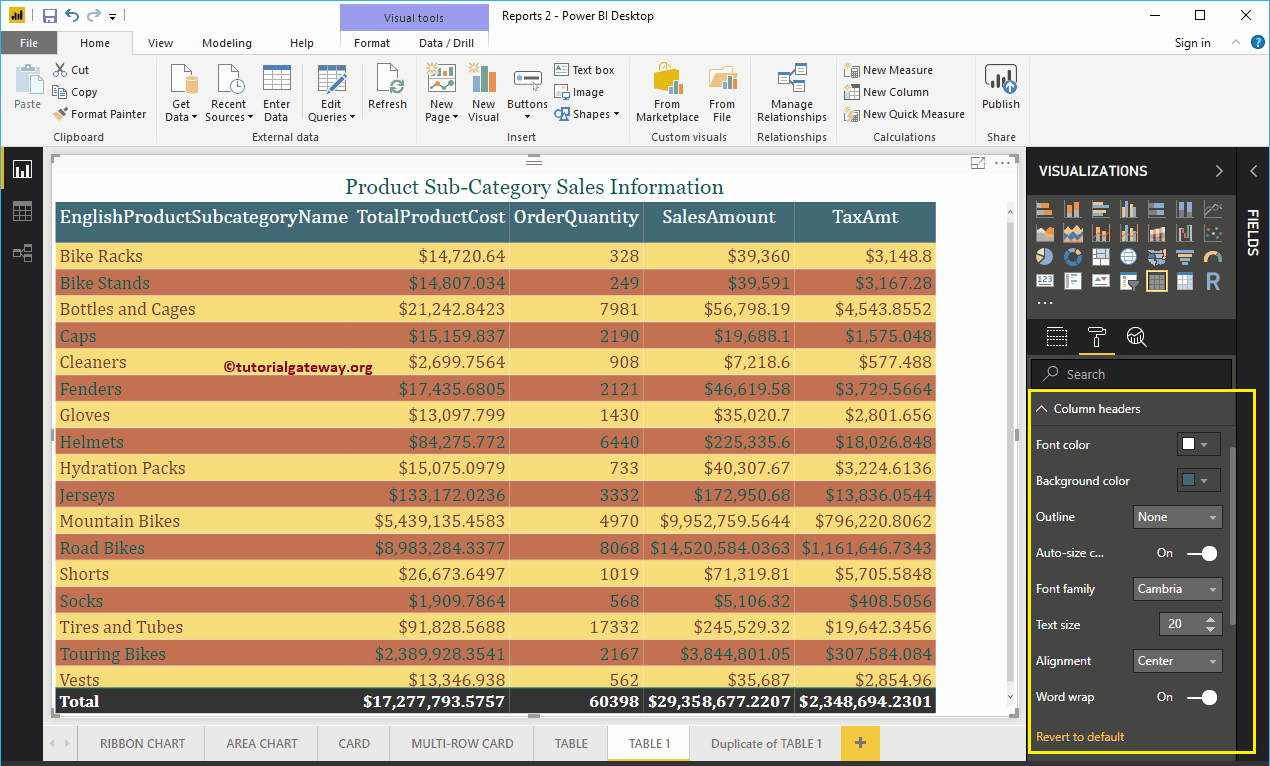
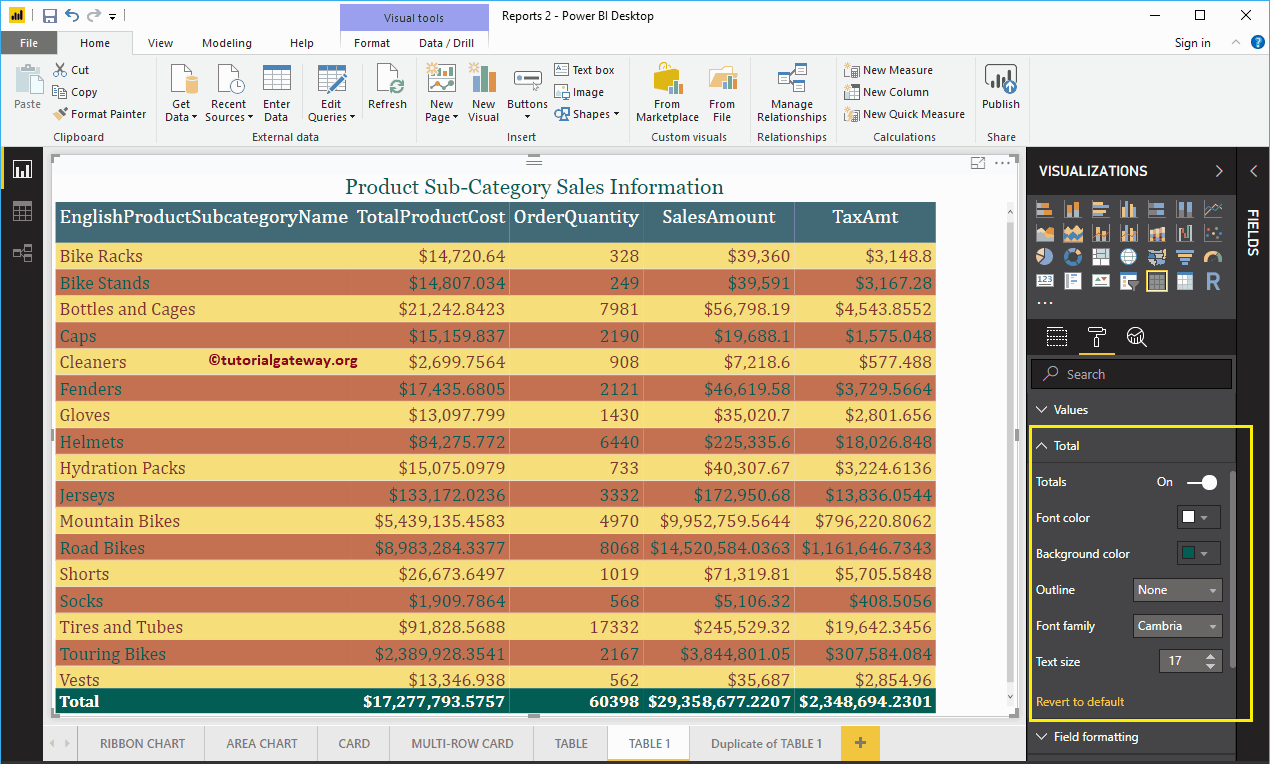
Then go to Total section to modify the text and background color of Total.
As you can see in the screenshot below, we changed the Totals font color to white, the background color to green, the font family to Cambria, and the text size to 17.
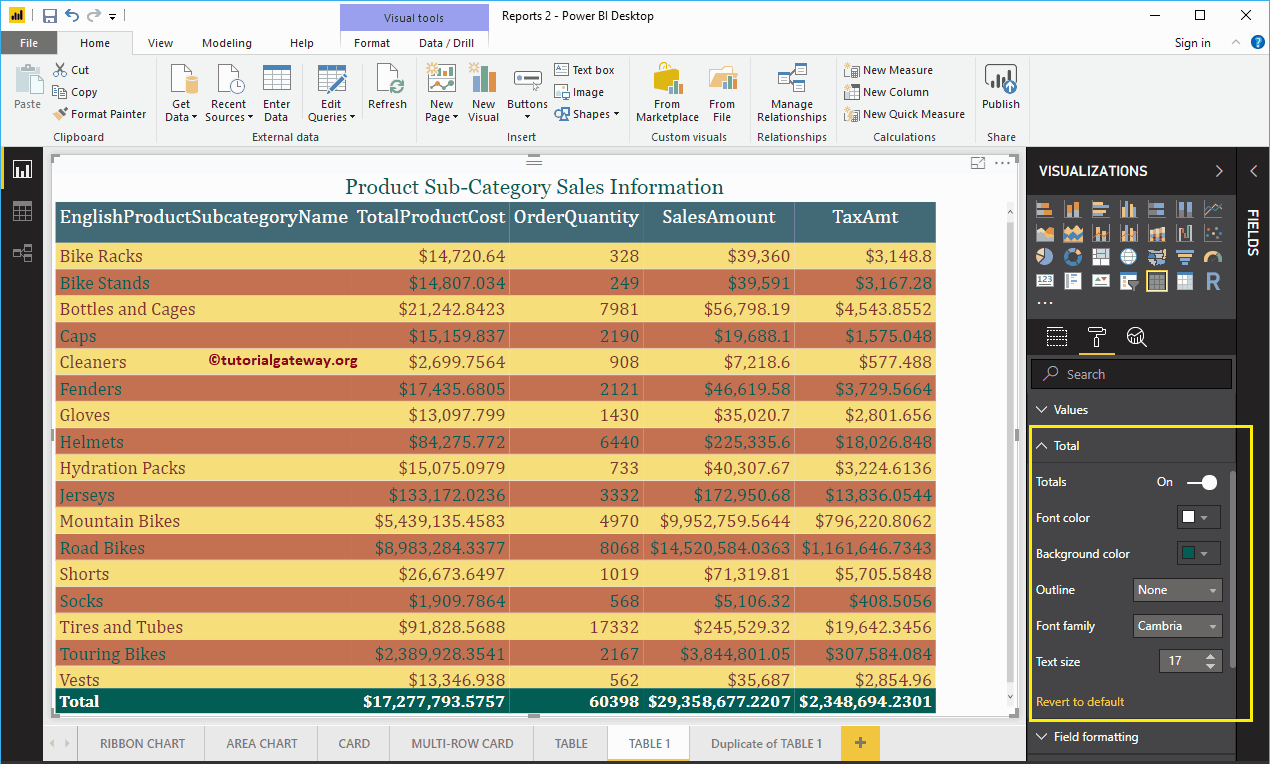
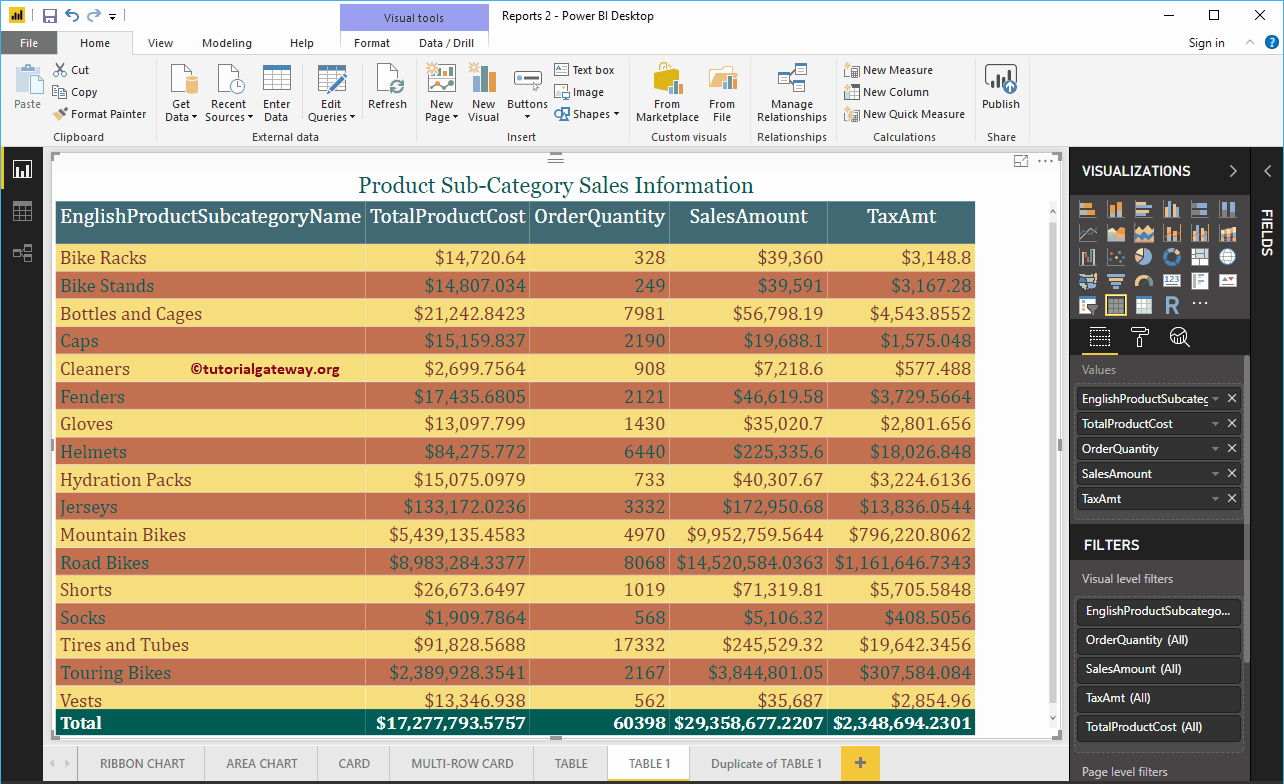
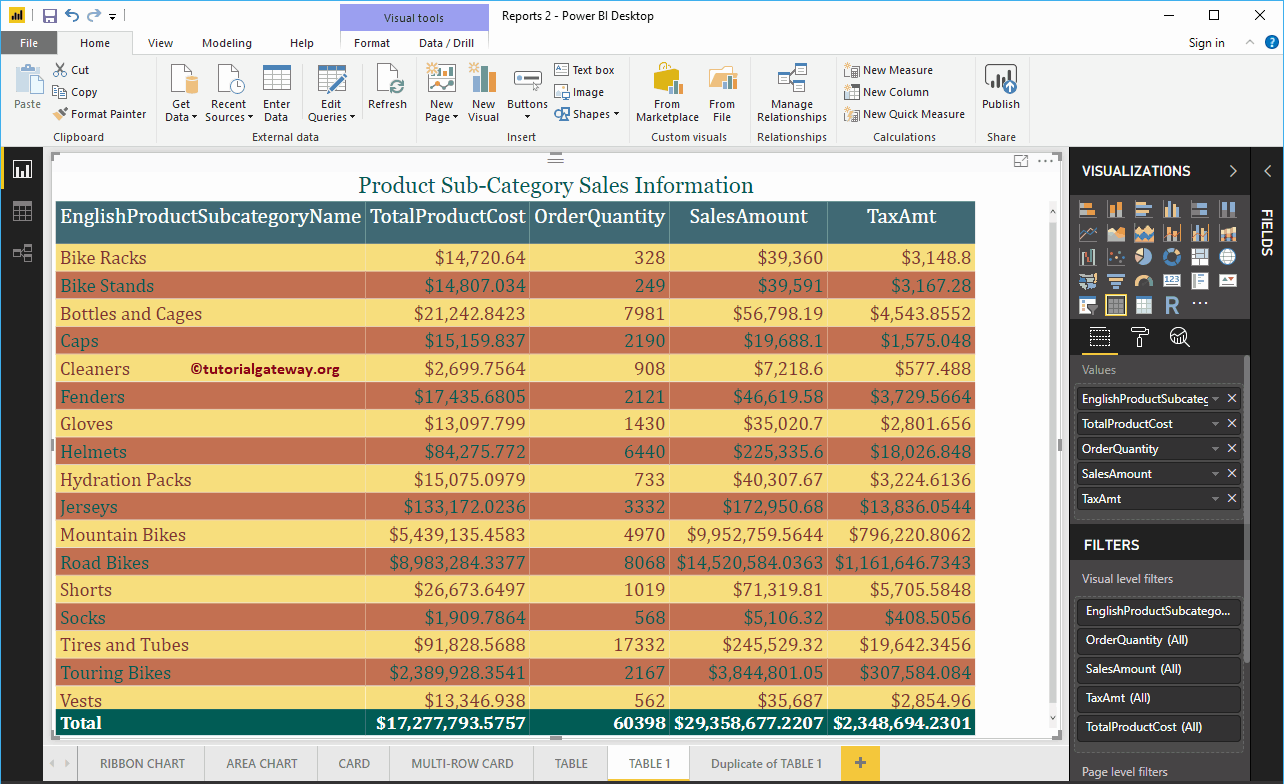
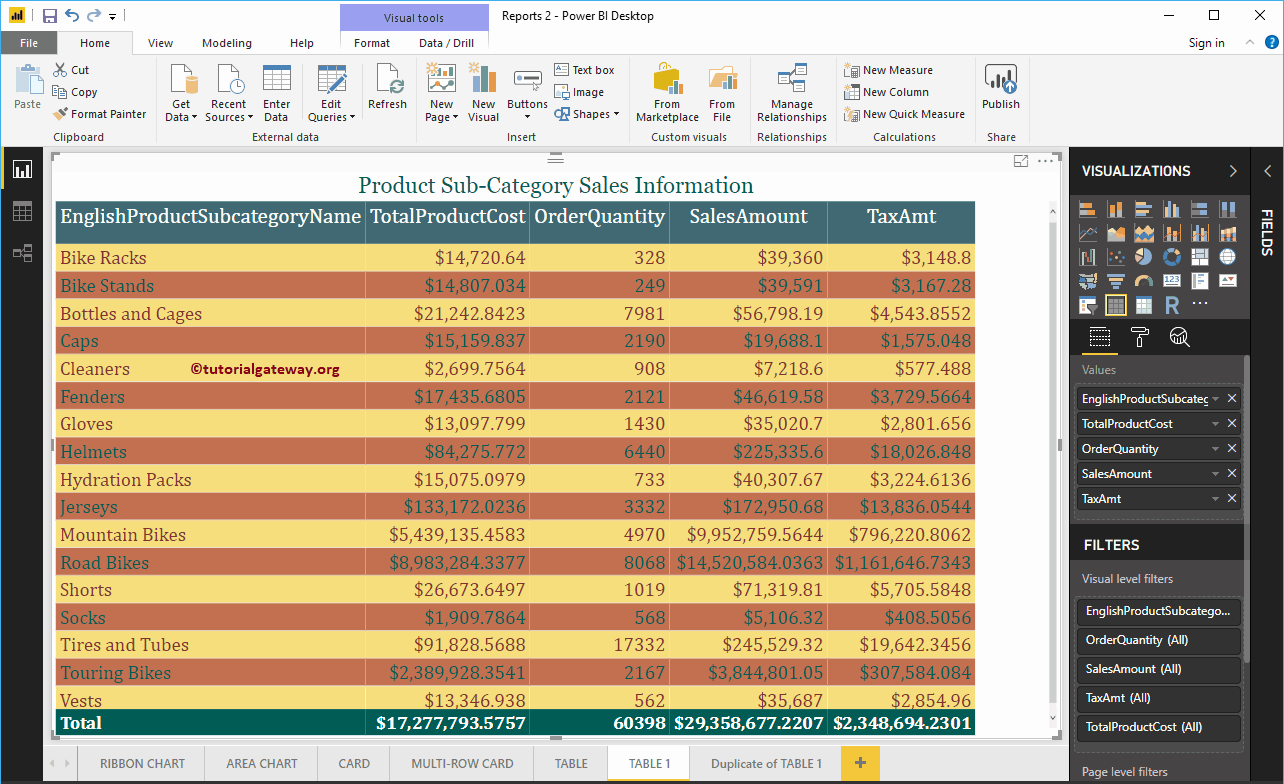
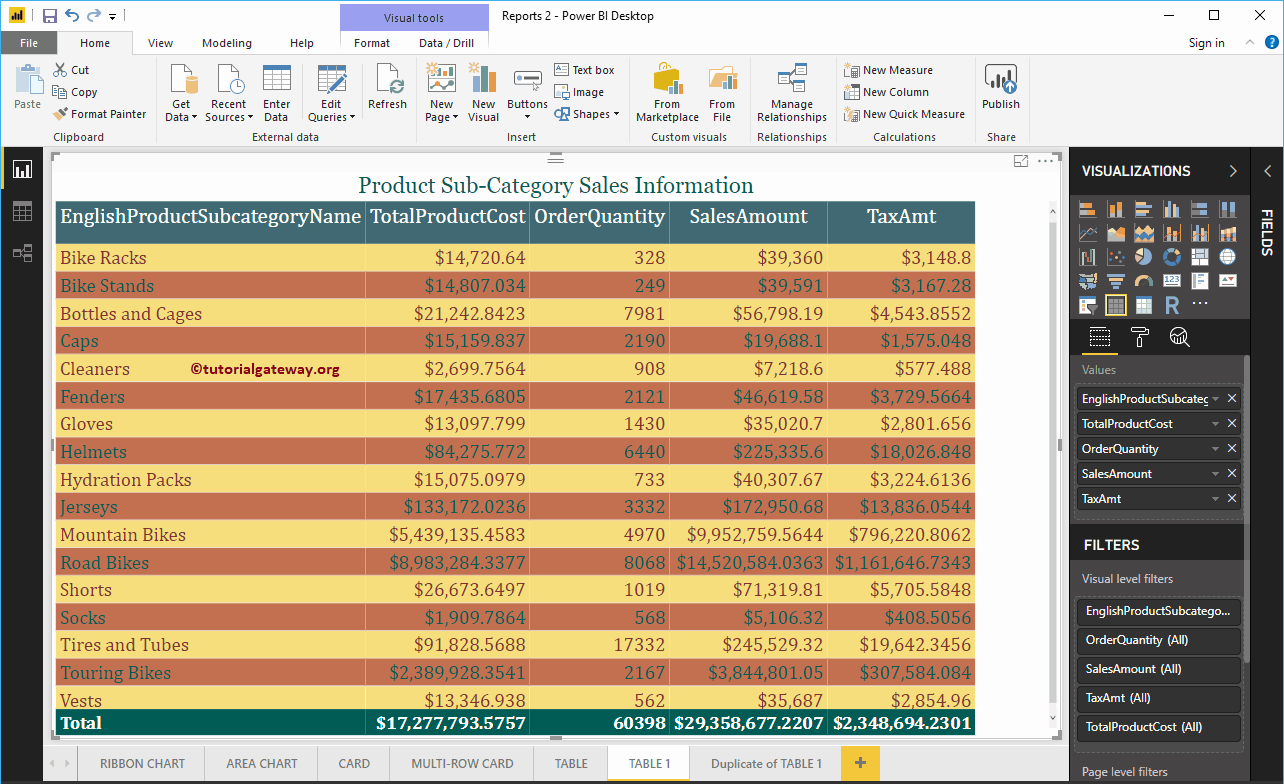
Finally, you can see the alternative colors.