
 es un protocolo que permite determinar una conexión segura entre el servidor y el cliente, que no puede ser interceptada por personas no autorizadas. En resumidas cuentas, es la versión segura de el http (Hyper Text Transfer Protocol) Cómo funciona Una conexión HTTP estándar en Internet puede ser fácilmente secuestrada por partes no autorizadas. El propósito de una conexión HTTPS es evitar esto: encriptar<span class="glossaryai-more-link"> <a href="https://rmarketingdigital.com/en/wiki/https/" data-wpel-link="internal">más</a></span></span></span></span></span>://rmarketingdigital.com/wp-content/uploads/2021/04/conectarse-a-una-red-wifi-con-windows-10-1-7187438.jpg)
<noscriptNoScript es un complemento del navegador para Mozilla Firefox, que impide que se cargue en las páginas web contenido como JavaScript, Flash o iFrames. Su objetivo es incrementar la seguridad durante la navegación y quitar la promoción comercial más molesta al cargar sitios web. El términoNoScript tiene un significado distinto en la programación HTML. Cuando JavaScript está desactivado, la etiqueta <noscript> o </noscript> asegura que el usuario pueda ver el plus>

The problem that Windows has always faced and will continue to do in the future, unlike macOS, is that the guys at Microsoft must create an operating system that is compatible with all models of graphics cards, networks, wireless connections, bluetooth, cards. sound. , fingerprint reader, integrated cameras ... and it is likely that from time to time one of the drivers updates or begins to fail and we cannot find out what the problem is that is affecting it. In these cases, if after reinstalling the control over and over again, both the one provided by Windows and the manufacturer itself, the best we can do is reset the settings.
The Internet connection is usually, together with the graphic, one of those that usually presents more problems. In the case of the Internet connection, the easiest method to try to fix the problem without accessing and looking for what may be the cause that does not allow us to connect to our network or directly to the Internet, is to reestablish the connection.
When resetting network settings, all passwords, settings and others that we have stored will be completely removed and Windows will start to install it again as if it were new. Therefore, any alternative settings that we would have used will be completely removed, as Windows will use automatic connection protocols to try to fix the problem.
Restart the network adapter of our Windows 10 computer
- First of all we will go to the configuration alternatives, which we find in the start menu through the gear wheel.
- From the different options that appear, we select Network and Internet.
- Next, we are going to Reset the network.
- On the screen that appears next, click Reset Now.
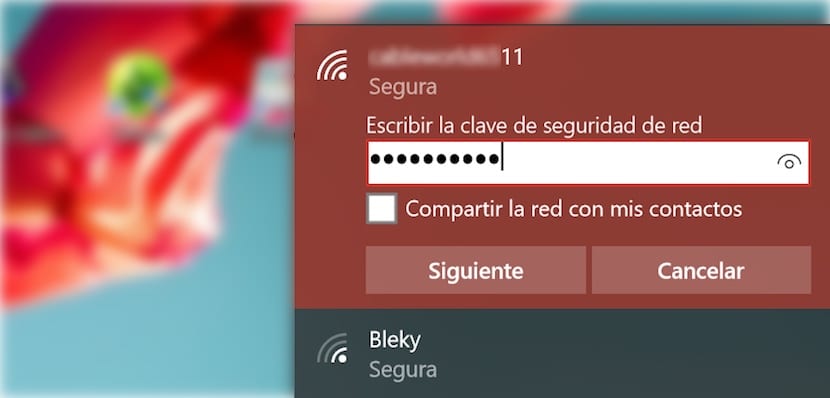
At this point we will see how the network icon flashes and changes its drawing. When the Wi-Fi symbol with an asterisk reappears, click on it and select the Wi-Fi network to which we want to connect, enter the password and that's it.









