Create a popup that blends seamlessly with your product archive pages, making the popup feel like a natural design element.
You will learn how to create a pop-up window that:
- It integrates naturally with your website
- Shown on its corresponding category / product archive page
Design product file templates
- Go WooCommerceConcepto de WooCommerce¿Qué es WooCommerce?Woocommerce es el nombre de un plugin sin costes pensado para integrarse en webs donde se utilice WordPress. Se caracteriza por facilitar la elaboración de una tienda online con la que el responsable de la web puede poner en venta prácticamente cualquier tipo de producto y por permitir que tanto el webmaster como los desarrolladores puedan llevar un exhaustivo control de la tienda sin miedo a plus> Categorías and create product categories if you haven't already.
- Go Templates> Theme Builder and create a file template for each product category. Make sure the image in your category is placed in an area that coordinates with the popup you design, as it will be an integral part of the entire animated effect.
Set Publish Options for Product Archive Templates
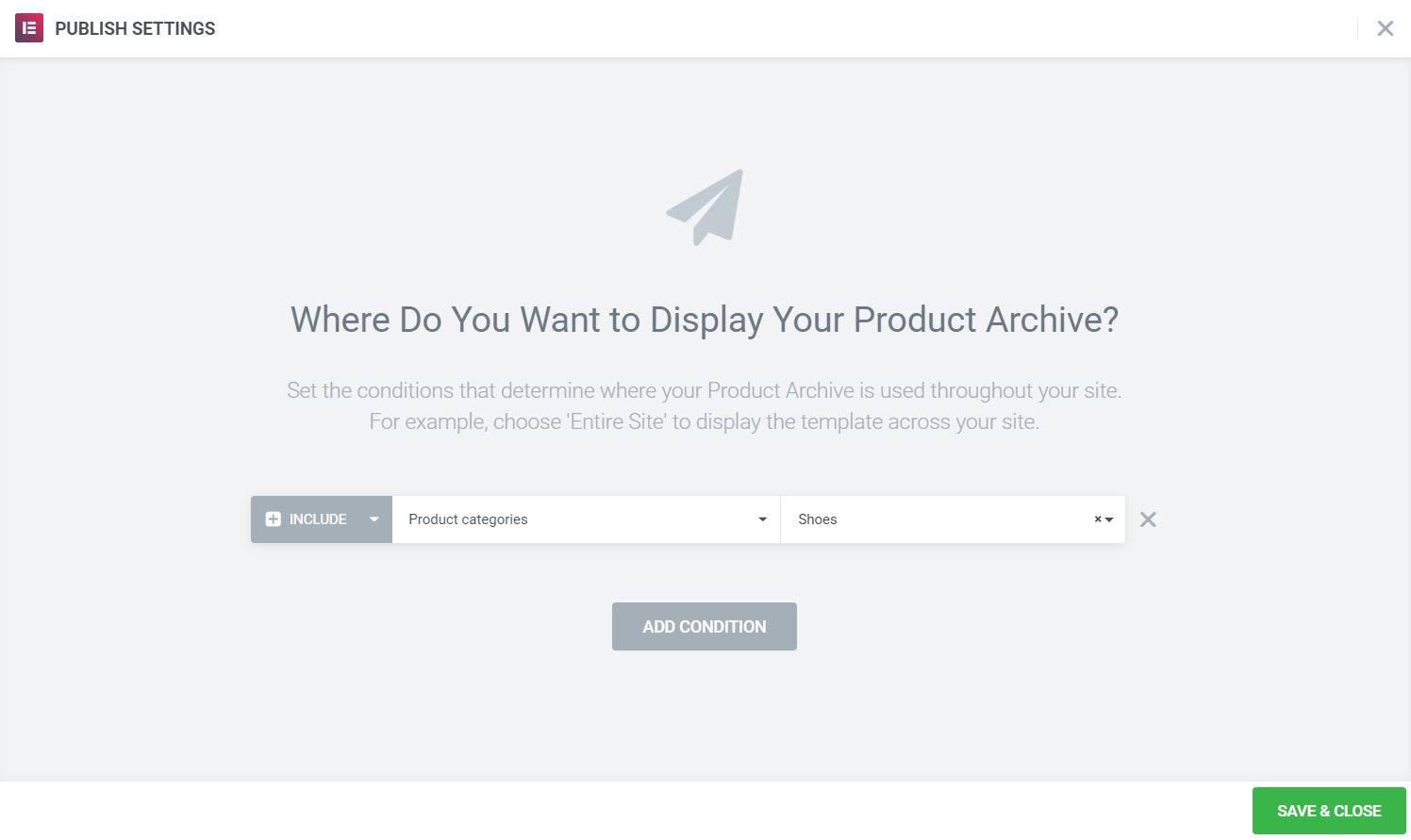
- For each template, set the Display conditions to Include: Product Categories > search and select the relevant category for each
 es un protocolo que permite determinar una conexión segura entre el servidor y el cliente, que no puede ser interceptada por personas no autorizadas. En resumidas cuentas, es la versión segura de el http (Hyper Text Transfer Protocol) Cómo funciona Una conexión HTTP estándar en Internet puede ser fácilmente secuestrada por partes no autorizadas. El propósito de una conexión HTTPS es evitar esto: encriptar<span class="glossaryai-more-link"> <a href="https://rmarketingdigital.com/en/wiki/https/" data-wpel-link="internal">más</a></span></span></span></span></span>://rmarketingdigital.com/wp-content/uploads/2020/09/file-39desrIfOr-6248686.jpg)
Diseñe la ventana emergente y su contentsEl contenido puede ser muy difícil de definir con precisión. Es una definición que se refiere a las declaraciones contenidas en un documento o publicación de cualquier tipo y puede incluir las tecnologías de la información y la comunicación. Esto cubre todos los tipos de medios como imágenes y texto. A parte de esto, en el campo de la optimización de motores de búsqueda, los términos duplicar contenido, contenido único, plus
- Go Templates> Pop-ups> Add New and give your new popup a name. (An alternative method is to press CMD + E or CTRL + E open Discoverer, search for Popup, choose Add new popupand give it a name.)
- Choose a predesigned popup template or close the library overlay and design your popup from scratch. Because this pop-up will be closely integrated with the design of the product file templates, it is best to design your own.
- Design pop-up content with category in mind. Leave an area at the top of the pop-up window with some white space, so that the file template image can be well overlapped.
- In Popup Settings> Layout, set up Entrance animation to Swipe left.
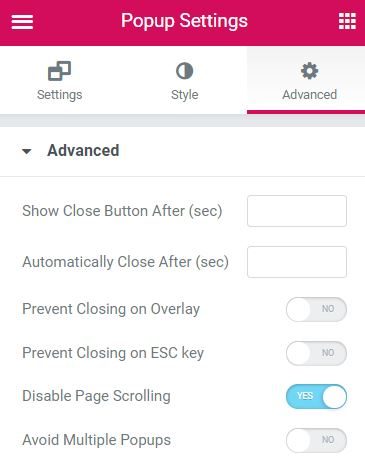
- In Popup Settings> Advanced, set up Disable page scrolling to yes.
Set publishing options
- Go Publish Settings> Conditions, and establish Include> WooCommerce> Product Categories> Find and select the appropriate category.
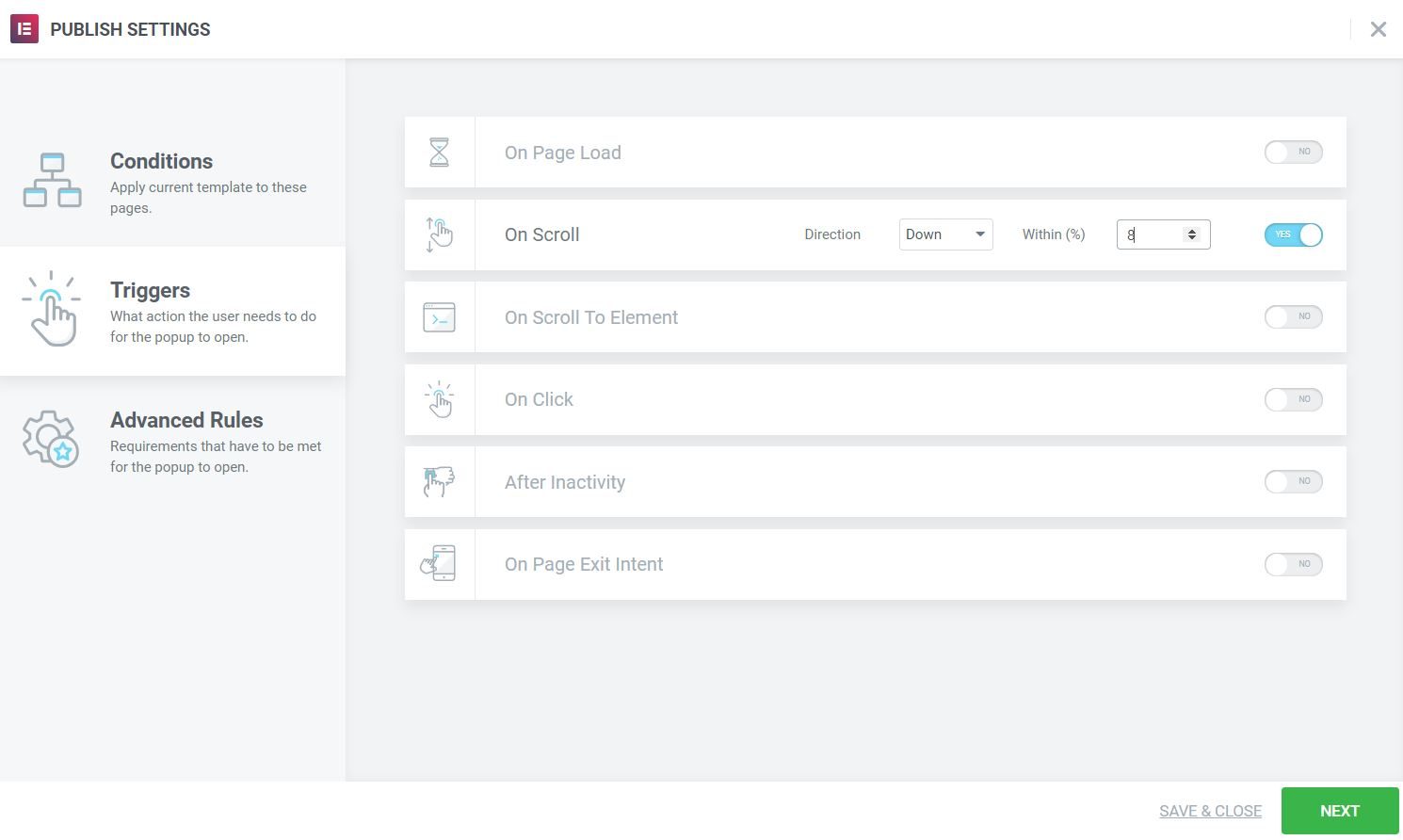
- Go Triggers and establish In direction of travel to Down and Within 8% displacement. Of course, adjust the percentage to suit your layout so that the pop-up will coordinate with where your category image is displayed on the product archive page.
- Go Advanced rules and establish Show on devices only for Deskas this design concept will not work as well on laptops or mobile devices. You can always create different pop-ups and layout schemes for those devices if you want.
Adjust the product file template
- Go Templates> Theme Builder To edit your product file template you will use this pop-up window.
- Edit the category image widget and go to your Advanced tab, and set the Z-Index to 10,000. This will allow the category image to appear on top of the overlay and pop-up window.
Repeat the steps for each product category, creating a relevant popup for each. Make sure each pop-up is focused on a product in the category that matches well with the image in the category. Use Conditions to assign each pop-up window that you design to its product category.
All ready. Now visit the live product category pages and see how your pop-ups blend seamlessly with your files.