
 es un protocolo que permite determinar una conexión segura entre el servidor y el cliente, que no puede ser interceptada por personas no autorizadas. En resumidas cuentas, es la versión segura de el http (Hyper Text Transfer Protocol) Cómo funciona Una conexión HTTP estándar en Internet puede ser fácilmente secuestrada por partes no autorizadas. El propósito de una conexión HTTPS es evitar esto: encriptar<span class="glossaryai-more-link"> <a href="https://rmarketingdigital.com/en/wiki/https/" data-wpel-link="internal">más</a></span></span></span></span></span>://rmarketingdigital.com/wp-content/uploads/2021/04/Como-ver-mi-certificado-digital-Windows-1168242.png)
<noscriptNoScript es un complemento del navegador para Mozilla Firefox, que impide que se cargue en las páginas web contenido como JavaScript, Flash o iFrames. Su objetivo es incrementar la seguridad durante la navegación y quitar la promoción comercial más molesta al cargar sitios web. El términoNoScript tiene un significado distinto en la programación HTML. Cuando JavaScript está desactivado, la etiqueta <noscript> o </noscript> asegura que el usuario pueda ver el plus>

Digital certificates are files that contain personal information, such as data or access credentials. In Windows 10 it is common that we have installed several digital certificates during the time. When we do this, they are installed in a secure section within this operating system, for when it has to be used. In several cases we do not know how many we have installed.
Therefore, it is feasible that at a certain moment he has an interest in know what digital certificates you have installed in Windows 10. This is feasible to check in an uncomplicated way, as we are going to show you below. Therefore you can look for the digital certificate on your computer.
Steps to view your digital certificates in Windows 10
Steps to view installed digital certificates in Windows is it so:
- Open Cortana to search for a file by name.
- Enter certlm.msc in the search bar.
- Click on the result and the certificate manager will open.
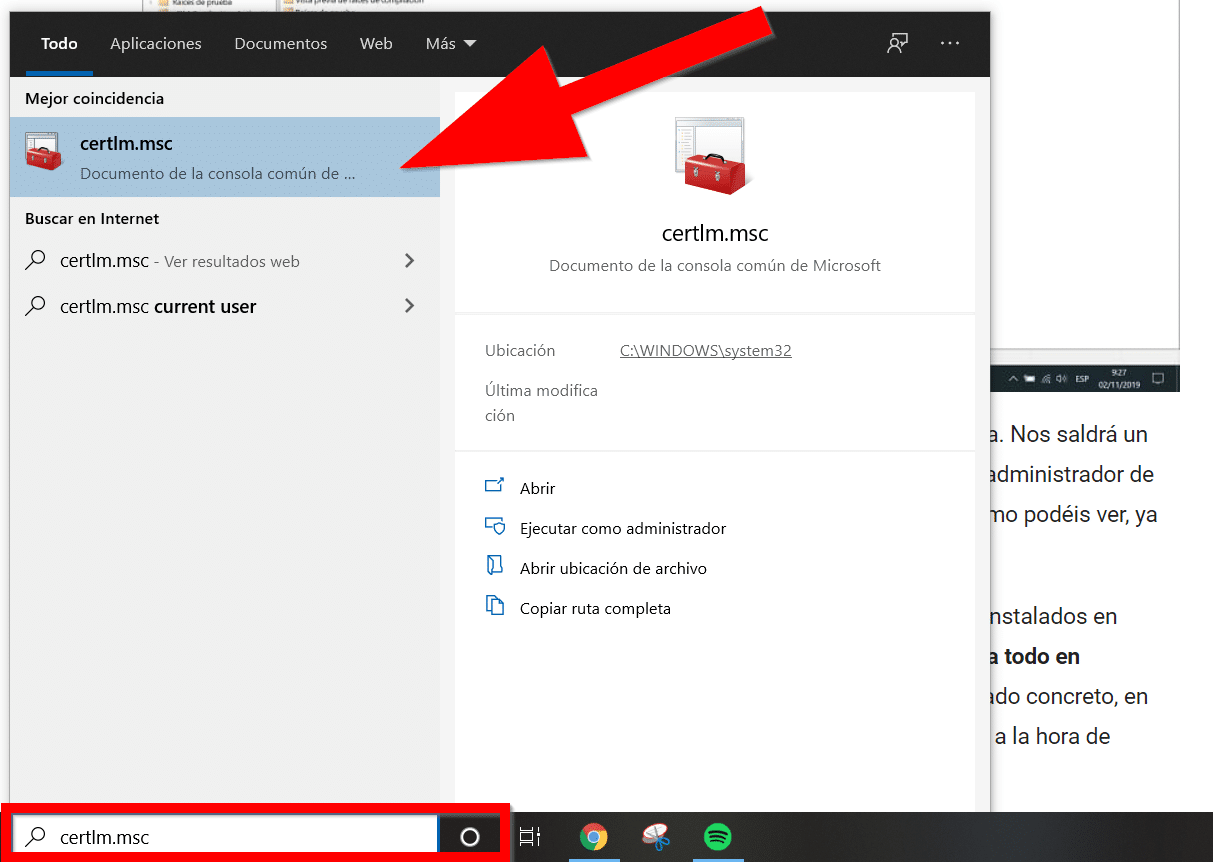

In this certificate manager in Windows 10 you can see them all, also delete a certificate if you need. Therefore, if you want to manage something in this case, you will have no problems and you can do everything directly in it.
The normal thing is that you have the certificates that you use inside the folder Personal but, as we indicated, you can consult others of a different category.
Where are digital certificates stored in Windows 10?
As we have seen above digital certificates in Windows 10 are saved in certificate manager. So if we long to see them at a certain time, all we will do is open said manager and we will have access to them. To enter this administrator we will basically use a command in the search bar.
We just have to have access certlm.msc in the search bar. We will obtain a result that matches and later we will have access to this certificate manager that is in the operating system. Pretty fast as you can see, since in a few seconds we are inside.
Here we will see all the digital certificates that are installed in Windows 10. As you can see, the admin organizes everything into categories, to make it easy to locate a specific certificate, in case we are looking for it. We will not have problems when navigating in this administrator.









