
 es un protocolo que permite determinar una conexión segura entre el servidor y el cliente, que no puede ser interceptada por personas no autorizadas. En resumidas cuentas, es la versión segura de el http (Hyper Text Transfer Protocol) Cómo funciona Una conexión HTTP estándar en Internet puede ser fácilmente secuestrada por partes no autorizadas. El propósito de una conexión HTTPS es evitar esto: encriptar<span class="glossaryai-more-link"> <a href="https://rmarketingdigital.com/en/wiki/https/" data-wpel-link="internal">más</a></span></span></span></span></span>://rmarketingdigital.com/wp-content/uploads/2021/04/extraer-imagen-video-vlc-2-5747756.jpg)
<noscriptNoScript es un complemento del navegador para Mozilla Firefox, que impide que se cargue en las páginas web contenido como JavaScript, Flash o iFrames. Su objetivo es incrementar la seguridad durante la navegación y quitar la promoción comercial más molesta al cargar sitios web. El términoNoScript tiene un significado distinto en la programación HTML. Cuando JavaScript está desactivado, la etiqueta <noscript> o </noscript> asegura que el usuario pueda ver el plus>

Surely on more than one occasion you have wanted to take a photo with your mobile device, but you have ended up recording a video. If we have time to spare, no problem, we can modify the settings of our mobile device to capture the moment again. But What if it is not feasible?
If it is not feasible, but at least we have recorded a video, even if it is short, we can extract from that video the image that we wanted to have taken from the beginning. There are many applications that allow us to do this, however, the best of all is VLC, a free application that is also a excellent video player.
And when I say videos, I mean any video, since VLC is compatible with each and every one of the different formats that we can find. But it also has a series of functions that many users are unaware of and that make it a very versatile application. If we don't use VLC we can download it directly from the Videolan web portal, developer of this softwareConcepto de Software¿Qué es el Software y cuál es su función?Un Software es la parte lógica, o más bien el soporte lógico, de cualquier sistema de tipo informático. Sea un PC, un teléfono teléfono celular o inclusive una tablet, es todo aquel programa que se ejecuta en él gracias a la coordinación de la parte física, es decir, el hardware, para llevar adelante alguna tarea concretamente o un recopilatorio de plus libre.
To extract images from videos, we must perform the following steps.
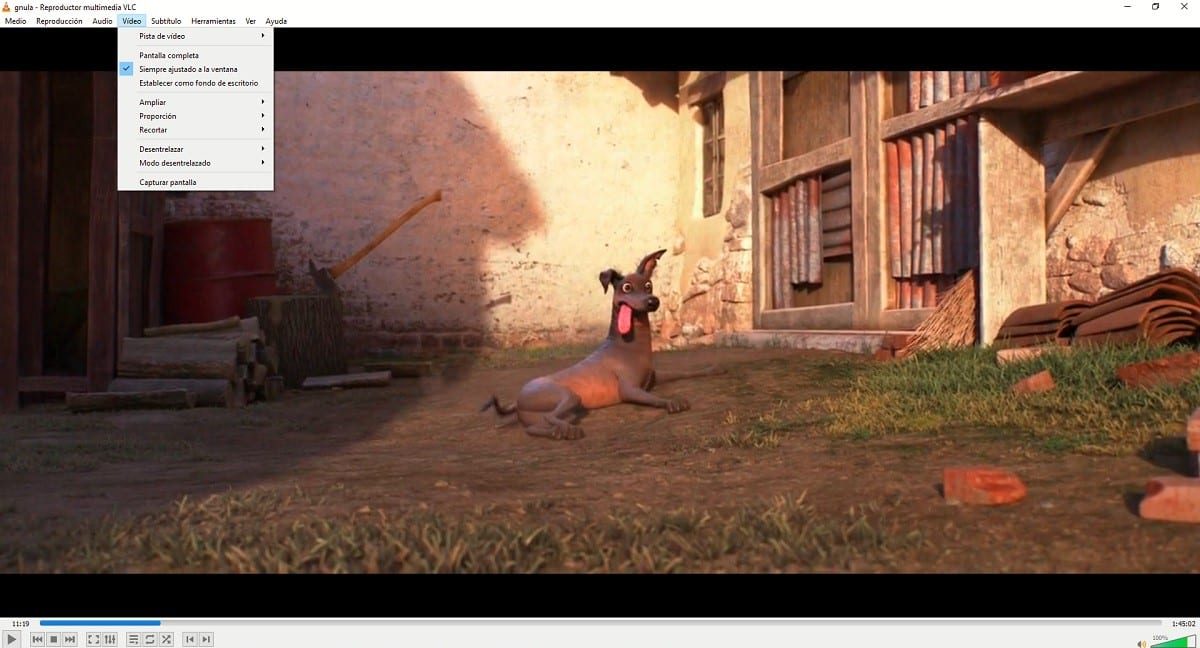

Once we have downloaded the application and it is already installed on our PC, we must open the video from which we want to extract the images with this application. For this, we just have to click on the video in question with the Right mouse button and Open with choose VLC.
Once the video has started to play, while it is not in full screen, we must click on Video and choose Screenshot. Previously, we must have paused the video at the right moment we long to capture.
The images that we obtain from the video will be located directly in the folder My documents / images and include the file name and the time in the movie when the capture was made.









