
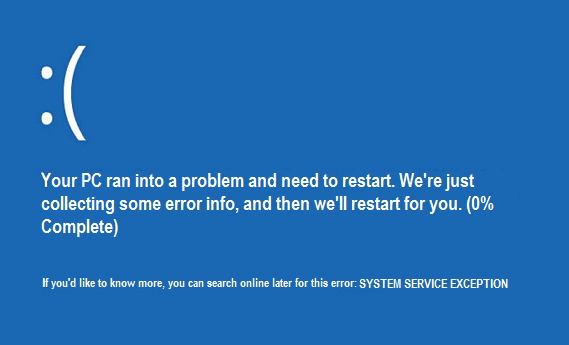
[SOLVED] Windows 10 System Service Exception Error: SYSEM_SERVICE_EXCEPTION is a Blue Screen of Death (BSOD) error that has error code 0x0000003B. This error indicates that your system process has malfunctioned. In other words, this means that your Windows installation and its drivers are incompatible with each other.
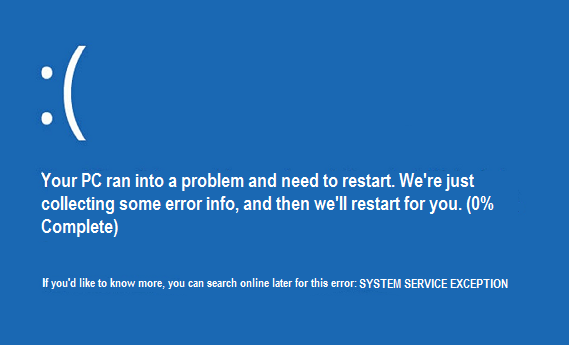
The system service exception error in Windows 10 occurs when the system performs its routine check and encounters a process that changes from non-privileged code to privileged code. Also, this error occurs when the graphics card drivers are crossing over and passing incorrect information to the kernel code.
The most common cause of the SYSEM_SERVICE_EXCEPTION error is corrupt, outdated, or malfunctioning drivers. Sometimes this error is also due to bad memory or incorrect registry settings. Let's see what this error is about and how to fix Windows 10 system service exception error easily by following this guide.
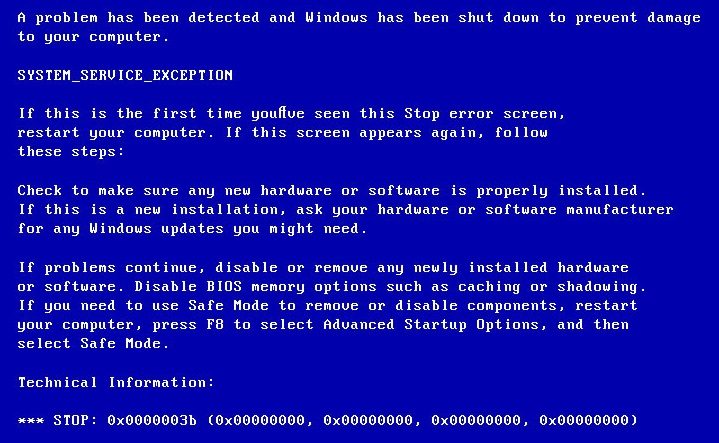
Causes of SYSTEM_SERVICE_EXCEPTION Blue Screen Errors:
- Corrupt or outdated device drivers
- Microsoft security update KB2778344
- Virus o MalwareEl malware (compuesto por las palabras malicia y software) es un programa que ha sido desarrollado para realizar funciones indeseables que generan daño al usuario. Al principio, el objetivo del malware era irritar a los individuos, pero esto se ha expandido rápidamente hacia el espionaje sistemático y el robo de información personal. Las víctimas ya no son sólo individuos, sino además grandes instituciones como los bancos. El alcance del uso plus en su sistema
- Corrupt Windows Registry
- Faulty hard drive
- Damaged or corrupted operating system files
- RAM problems
Various fixes that can solve this problem:
1. Make sure your Windows update is up to date. 2. Run a full system scan using your licensed antivirus. 3.Update your drivers (make sure your graphics card driver is up to date). 4. Make sure that only one antivirus is running if you have purchased another make sure you turn off Windows Defender. 5.Undo the recent changes using System Restore.
[SOLUTION] System service exception error in Windows 10
Note: If you normally cannot boot into your Windows, then enable the Legacy Advanced Boot option from here and then try all the steps below.
Method 1: Run Boot Repair
1.When the system reboots press the Shift + F8 key to open the legacy advanced boot options and if pressing the keys does not help then you have to enable the legacy advanced boot option by following this entry.
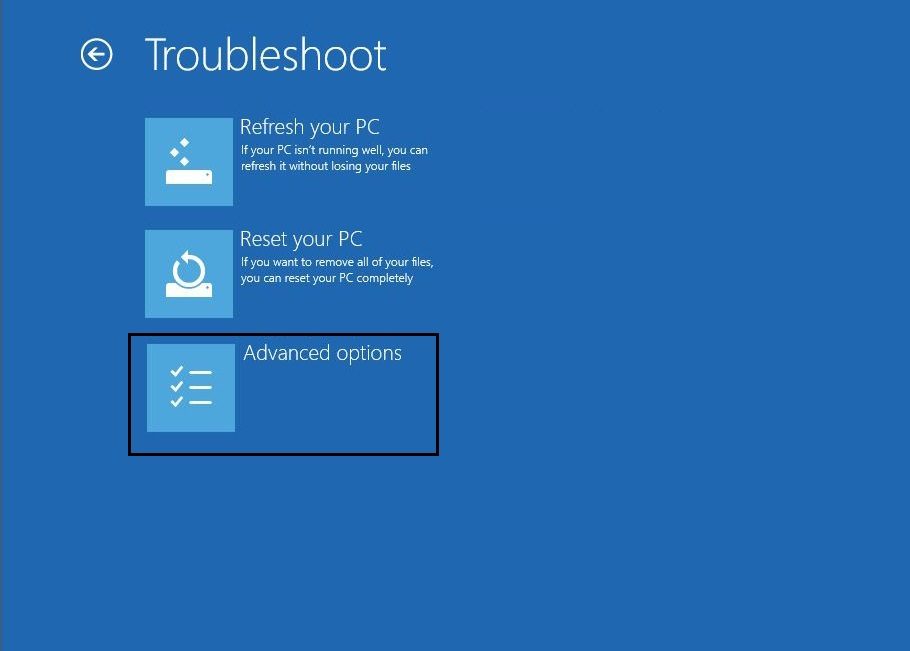
2.Then on the Choose an option screen, select Troubleshoot.
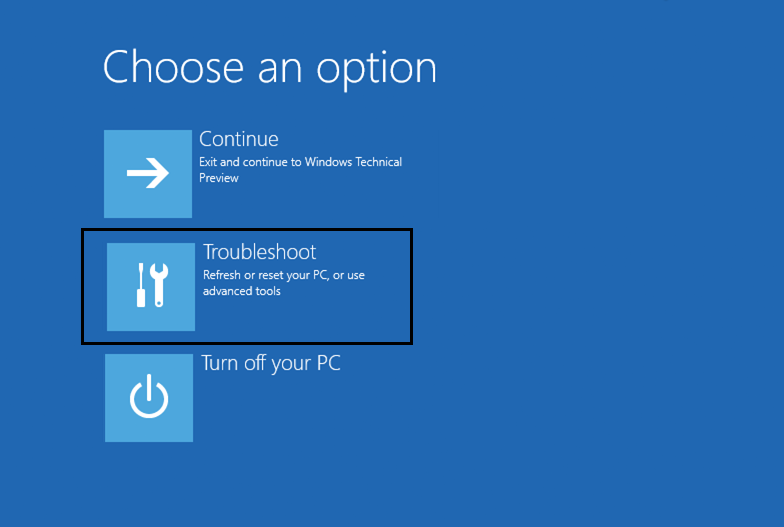
3.On the troubleshooting screen, select Advanced Options.
4.Now in the advanced options select Start / Automatic repair.
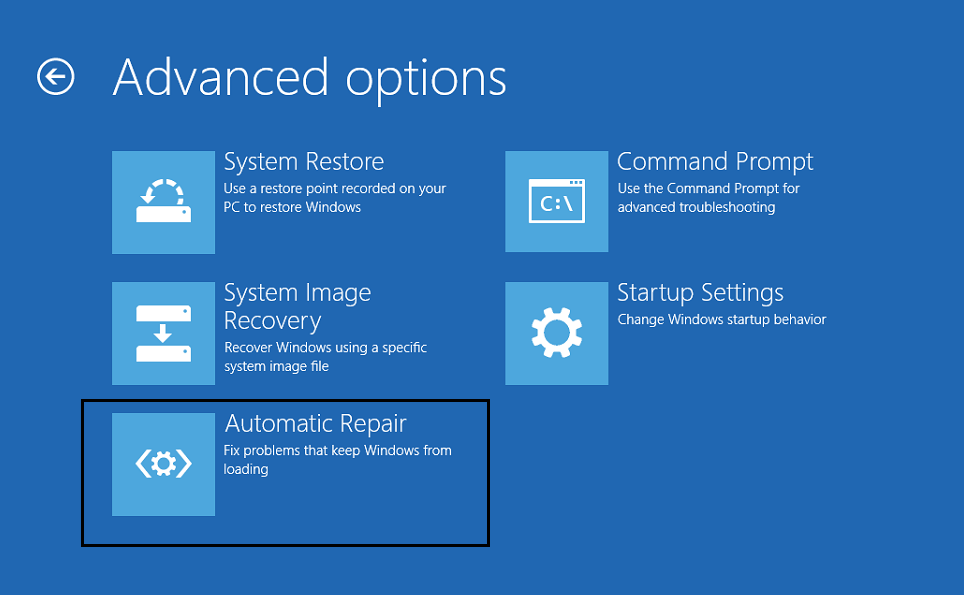
5.This will check for problems with your system and fix them automatically.
6.If the automatic boot / repair fails, try to fix the automatic repair.
7.Restart your PC and this should be able to easily fix System Service Exception Error in Windows 10 if not then proceed to next method.
Method 2: Run Disk Check and System File Check
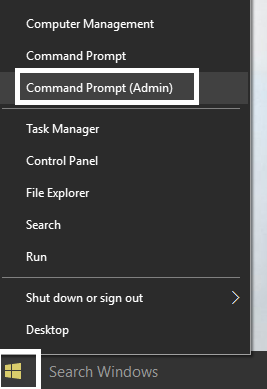
1.Press Windows Key + X and select Command Prompt (Admin).
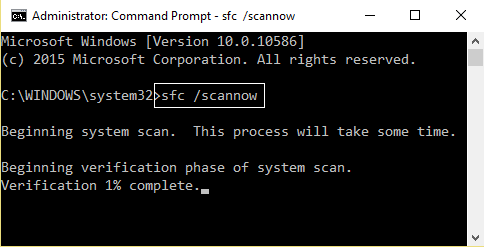
2.At the command prompt type the following command and hit enter after each one:
sfc / scannow chkdsk / f C:
3. Let the above processes run and identify, repair, and fix bad sectors, if any, on your hard drive.
4.Restart your PC to apply the necessary changes.
Method 3: Install Microsoft Hotfix
1.Haga clic aquí para ir al linkConcepto de Dominio¿Qué es un Enlace?En Internet, un link, además conocido como enlace o hipervínculo, es cualquier texto o imagen que se encuentra en una página web y en la que el usuario puede pulsar o clicar para ser dirigido a otro contenido distinto. Es el principal medio de “desplazamiento” en la red, puesto que se encuentra presente en prácticamente cualquier portal que visites a día de hoy, inclusive en plus de soporte técnico de Microsoft.
2. Click Download Available Hotfix and install the hotfix.
3. Restart your PC.
Method 4: Install the Latest Drivers
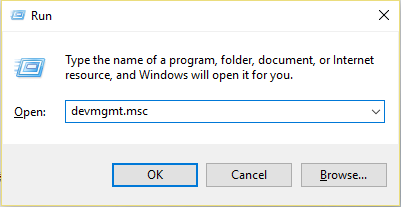
1.Press Windows key + R and type "devmgmt.msc" and press enter to open Device Manager.
2.Now update the driver with the yellow exclamation mark, including drivers for your video card, sound card, and so on.
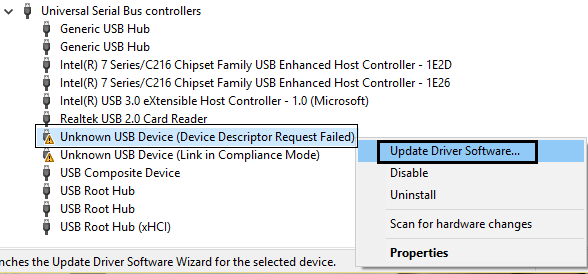
3.Follow the on-screen instructions to finish the driver updates.
4.If the above does not work, then uninstall the driver and restart your PC.
5.After the system reboots, it will automatically install the drivers.
6. Next, download and install the Intel Driver Update Utility.
7.Run the Driver Update Utility and click Next.
8. Accept the license agreement and click Install.
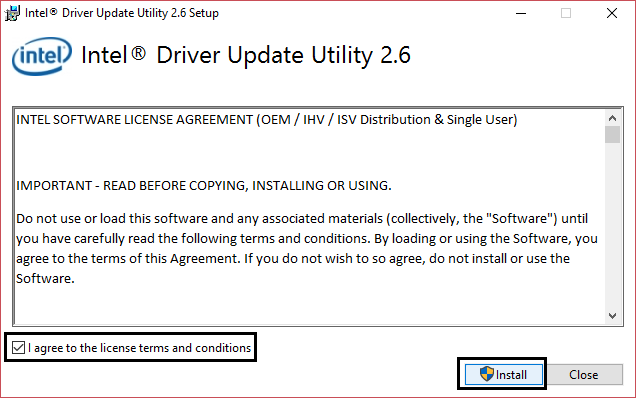
9.After the system update has finished, click Launch.
10. Next, select Start Scan and when the driver scan is complete, click Download.
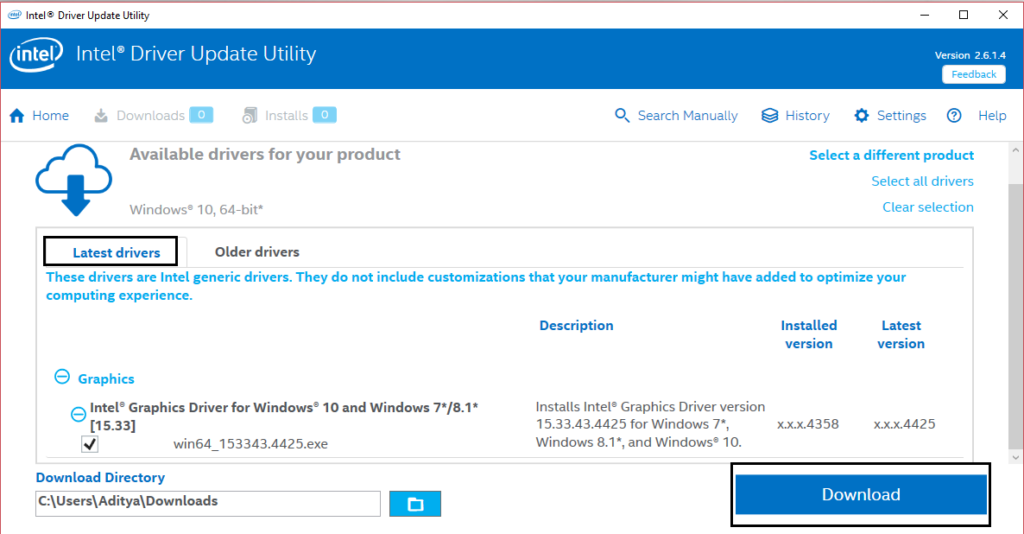
11.Finally, click Install to install the latest Intel drivers for your system.
12.When the driver installation is complete, restart your PC.
Method 5: Run CCleaner and Antimalware
1.Download and install CCleaner and Malwarebytes.
2. Launch Malwarebytes and let it scan your system for harmful files.
3.If malware is found, it will automatically remove it.
4.In the "Cleaner" section, under the Windows tab, we suggest that you check the following selections to be cleaned:
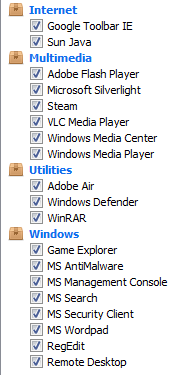
5.Once you make sure the correct points are checked, simply click Run Cleaner, and let CCleaner run its course.
6.To clean your system, select the Registry tab and make sure the following is checked:
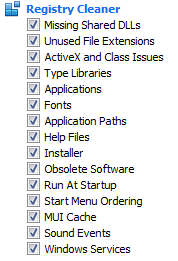
7.Select Scan by problem and allow CCleaner to scan it, then click Fix selected problems.
8.When CCleaner asks "Do you want to backup the registry changes?" select Yes.
9.Once your backup is complete, select Fix all selected issues.
Method 6: Remove Windows Update number KB2778344
1.It is recommended to boot into safe mode to uninstall Windows security update KB2778344.
2. Next, go to Control Panel> Programs> Programs and Features.
3.Now click View installed updates in the upper left area.
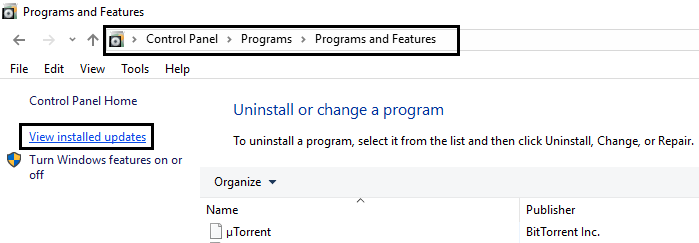
4.In the search bar at the top right type "KB2778344".
5.Now right-click Security Update for Microsoft Windows (KB2778344) and select Uninstall to remove this update.
6.If you are prompted for confirmation, click yes.
7.Restart your PC and this should be able to fix the system service exception error in Windows 10.
Method 7: Run Windows Memory Diagnostic
1.Type the memory in the Windows search bar and select "Windows Memory Diagnostic".
2.In the set of options displayed, select "Restart now and check for problems".
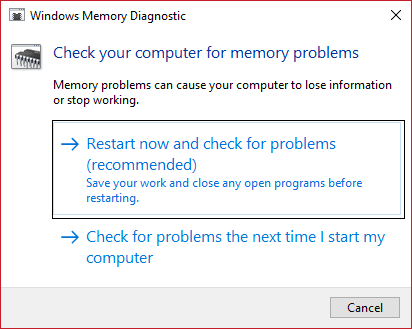
3.After which Windows will reboot to check for possible RAM errors and hopefully display the possible reasons for getting the Blue Screen of Death (BSOD) error message.
4.Restart your PC and check whether the problem is resolved or not.
5.Si el problema sigue sin resolverse, entonces ejecute Memtest86, que se puede encontrar en este postConcepto de Post¿Qué es un Post?Un Post es todo aquel contenido, sea post, opinión, noticia u otro género, que un autor publica en un blog. Este puede ser de carácter corporativo o meramente ocioso; pero siempre tiene como meta arrojar información o reflejar una idea, al mismo tiempo de facilitar que los usuarios encuentren la web donde se recoge por medio de de buscadores y demás plataformas online.Generalmente, se han plus Arreglar el fallo de la comprobación de seguridad del kernel.
Method 8: Run the Windows BSOD Troubleshooting Tool (only available after Windows 10 Anniversary update)
1.Type "Troubleshooting" in the Windows search bar and select Troubleshooting.
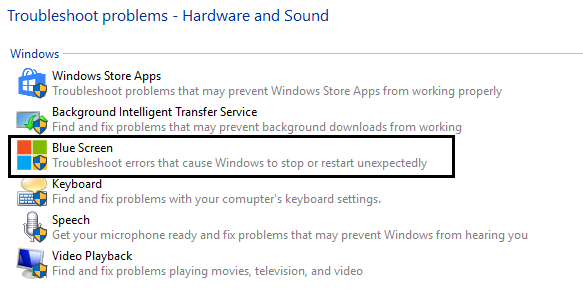
2.Then click HardwareEn informática, el término hardware se refiere a cualquier componente de un sistema informático que sea un objeto físico real, al contrario que el software que existe en forma digital. Esto incluye el disco duro y las unidades incorporadas, es decir, todos los componentes que son "duros", de ahí su nombre. Desarrollo El desarrollo del hardware informático comienza con la creación de los primeros ordenadores y tiene su verdadero origen plus y Sonido y desde allí seleccione Pantalla Azul en Windows.
3.Now click on Advanced and make sure "Apply repairs automatically" is selected.
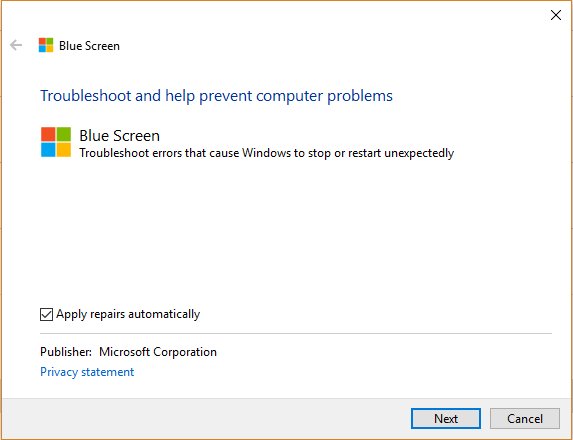
4. Click Next and let the process finish.
5.Restart your PC which should be able to fix the system service exception error in Windows 10.
Method 9: Run the Driver Checker
This method is only useful if you can log into your Windows normally not in safe mode. Next, make sure to create a system restore point.
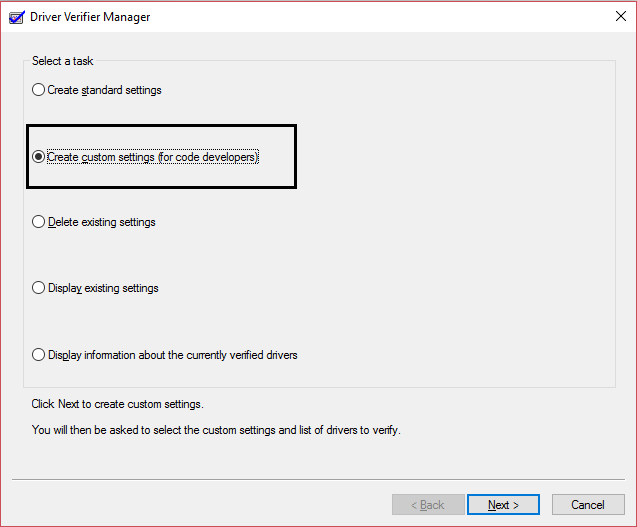
To run the driver checker to fix the system exception error, go here.
Method 10: Uninstall Specific Programs
First, try to disable / uninstall the following programs one by one and check if the problem is resolved:
1.McAfee (Apagar, no desinstalar) 2.Webcam (Deshabilite su webcam) 3.Unidad de clonación virtual 4.BitDefender 5.Xsplit 6.MSI Live Update 7. Cualquier softwareConcepto de Software¿Qué es el Software y cuál es su función?Un Software es la parte lógica, o más bien el soporte lógico, de cualquier sistema de tipo informático. Sea un PC, un teléfono teléfono celular o inclusive una tablet, es todo aquel programa que se ejecuta en él gracias a la coordinación de la parte física, es decir, el hardware, para llevar adelante alguna tarea concretamente o un recopilatorio de plus de VPN 8.AS Media dispositivo USB 9.Controlador Western Digital o cualquier otro controlador de disco duro externo. 10.Nvidia o software de tarjeta gráfica AMD.
If you've tried all of the above but still haven't been able to fix the System Service Exception Error, then try this post which addresses all the individual issues related to this error.
That's it, you have successfully learned how to fix the system service exception error in Windows 10, but if you still have any doubts regarding this post, feel free to ask in the comment section.









