The barsLas trailing slashes son las barras que aparecen al final de una URL ( "https://es.ryte.com/" ) y representan un directorio. Si la URL no finaliza con una barra representa un archivo. No obstante, esto son solo guías, no un requerimiento. No obstante, usar una barra como representación de un directorio ha sido aceptado como estándar con el tiempo. Uso de las barras "https://es.ryte.com/" y SEO A pesar de que dichas plus inferiores se pueden utilizar por diversas razones, incluidos anuncios u opciones. Otro uso común de una barra inferior emergente es cumplir con la ley de consentimiento de cookies de la UE. En este ejemplo, crearemos rápidamente un bannerConcepto de Banner¿Qué es un Banner?El Banner es un formato publicitario bastante presente en internet, por no decir que es el que más presencia posee. Consiste en una pieza de promoción comercial de contenido gráfico que se introduce en cualquier portal online para dar visibilidad a una marca, negocio o campaña de cualquier tipo y puede ser tanto estática como dinámica. La variedad es una de las facetas más importantes plus de consentimiento de cookies. La barra satisfará varios requisitos:
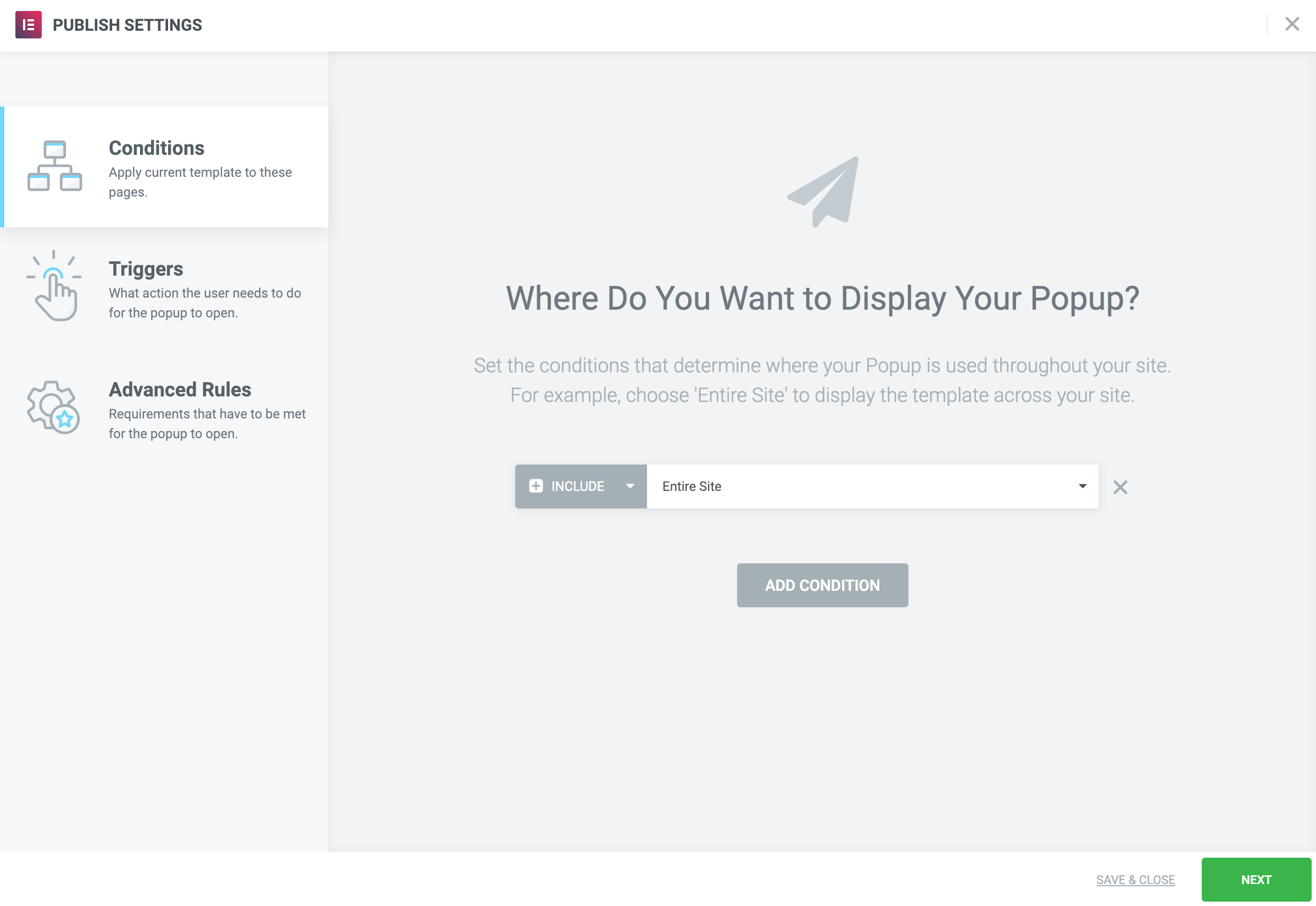
- Show on any page of the site. (Publish Settings> Conditions)
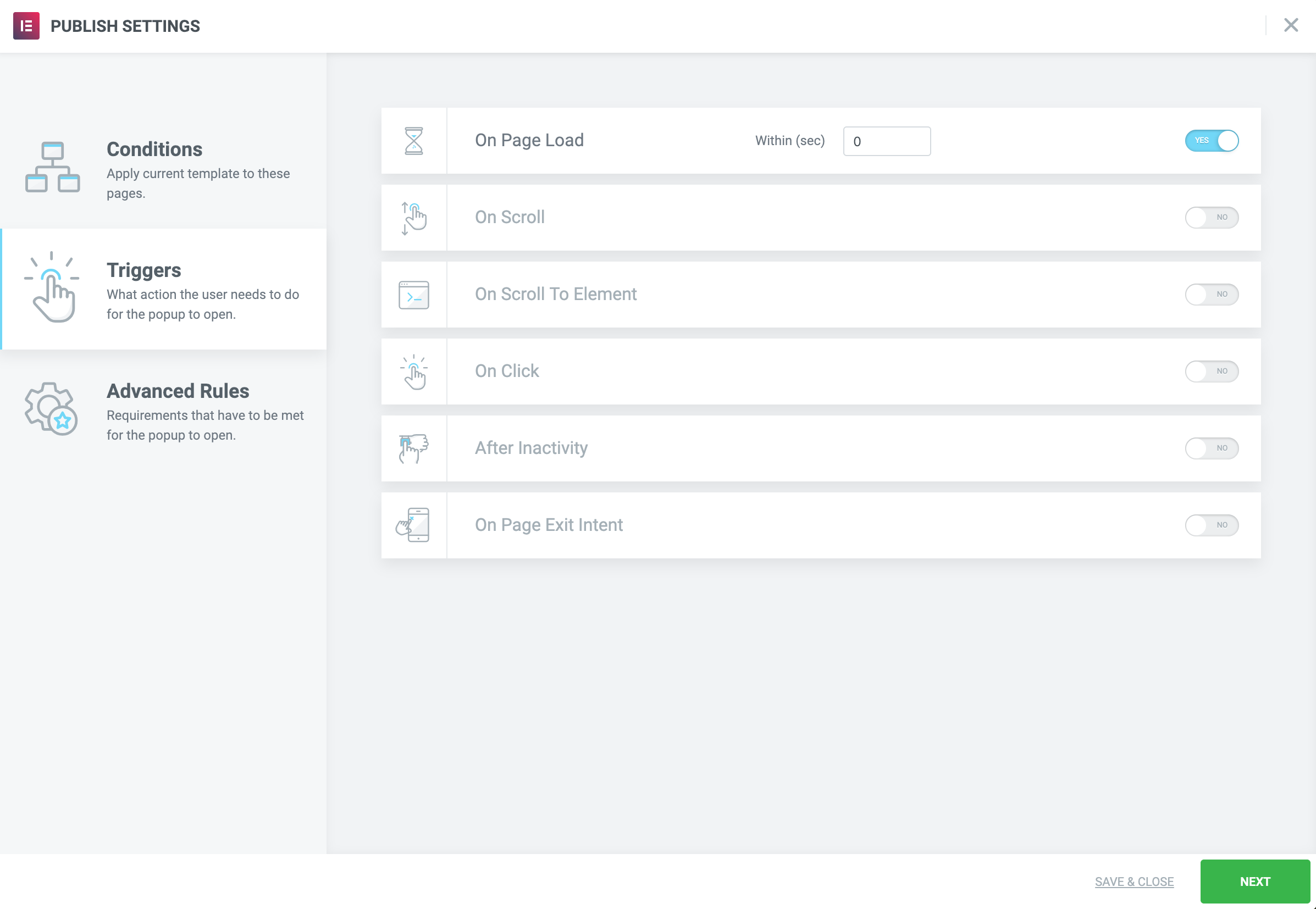
- Show immediately when the page loads. (Publish Settings> Triggers)
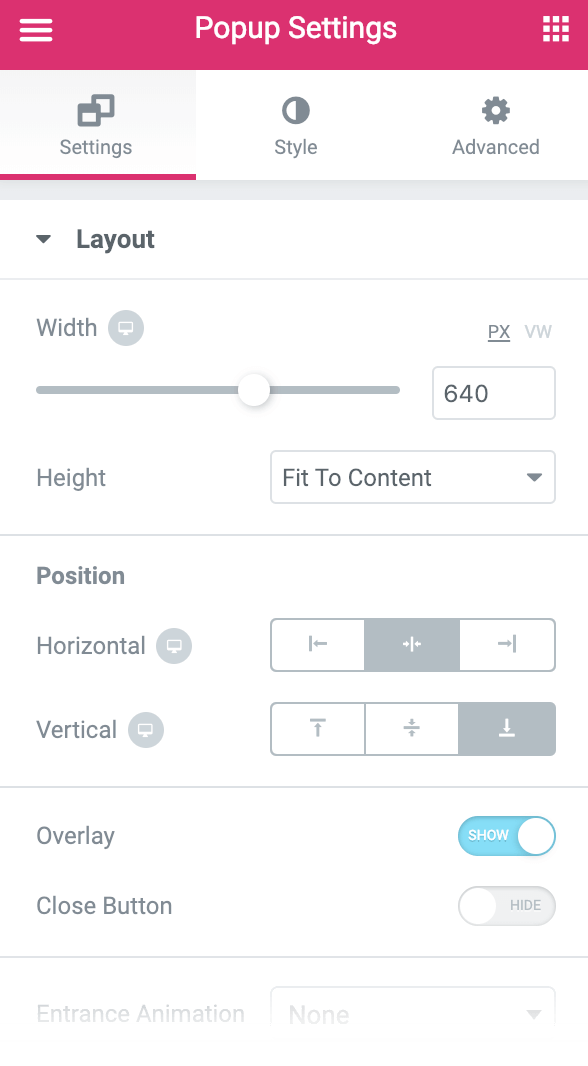
- Show an overlay to hide the site underneath. (Popup Settings> Settings tab)
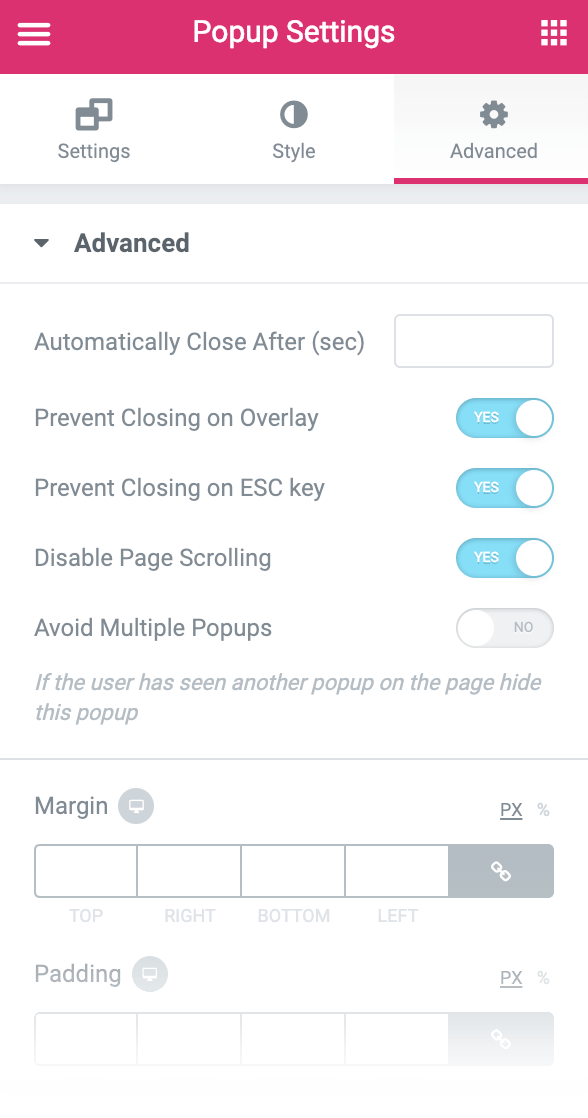
- Avoid scrolling the site below. (Popup Settings> Advanced tab)
- Only close when the user clicks the OK button, making sure to avoid closing when clicking the overlay or pressing ESC. (Popup Settings> Advanced tab)
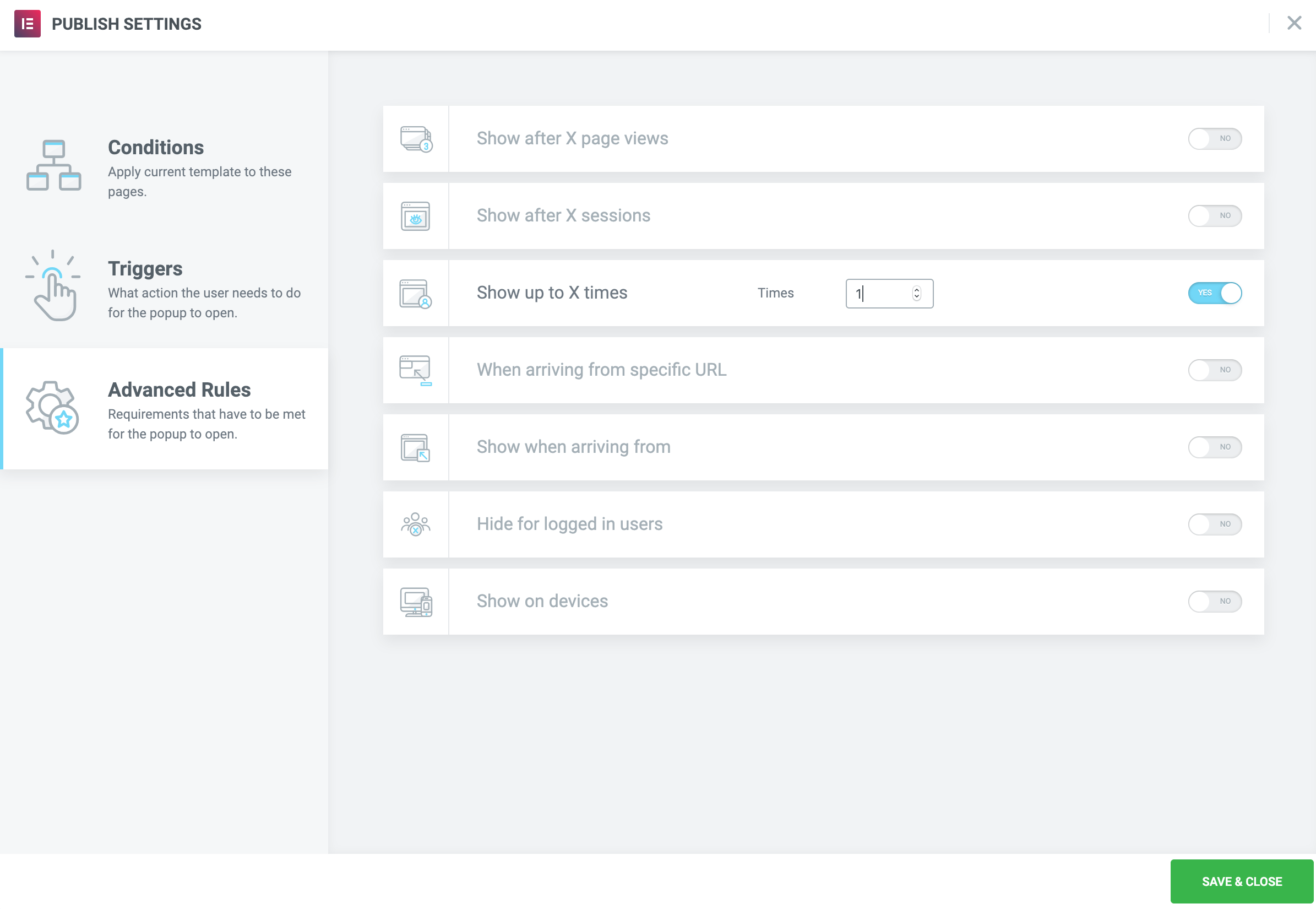
- Show the popup only once, so the user doesn't have to continually deal with it on subsequent visits to the page. (Publish Settings> Advanced Rules)
To adjust Popup Settings, click Popup Settings gear icon 
Create popup window
- Go Control Panel> Templates> Pop-ups> Add New
- Give your template a name and click 'Create template‘
- Choose a template from the library or create your own design
 es un protocolo que permite determinar una conexión segura entre el servidor y el cliente, que no puede ser interceptada por personas no autorizadas. En resumidas cuentas, es la versión segura de el http (Hyper Text Transfer Protocol) Cómo funciona Una conexión HTTP estándar en Internet puede ser fácilmente secuestrada por partes no autorizadas. El propósito de una conexión HTTPS es evitar esto: encriptar<span class="glossaryai-more-link"> <a href="https://rmarketingdigital.com/en/wiki/https/" data-wpel-link="internal">más</a></span></span></span></span></span>://rmarketingdigital.com/wp-content/uploads/2020/09/file-jsbcpqivUu-2967153.png)
Popup Settings
Configurations
- Set the horizontal position to Center and the vertical position to the bottom.
- Show overlay
- Hide Close button
Style
Configure the style as you like
Advanced
- Avoid overlapping closure: yes
- Avoid closing with the ESC key: yes
- Disable page scrolling: yes
Publish Settings
Terms: Include: Entire Site
Triggers: Page load: in 0 seconds
Advanced rules: Show up to X times: 1