
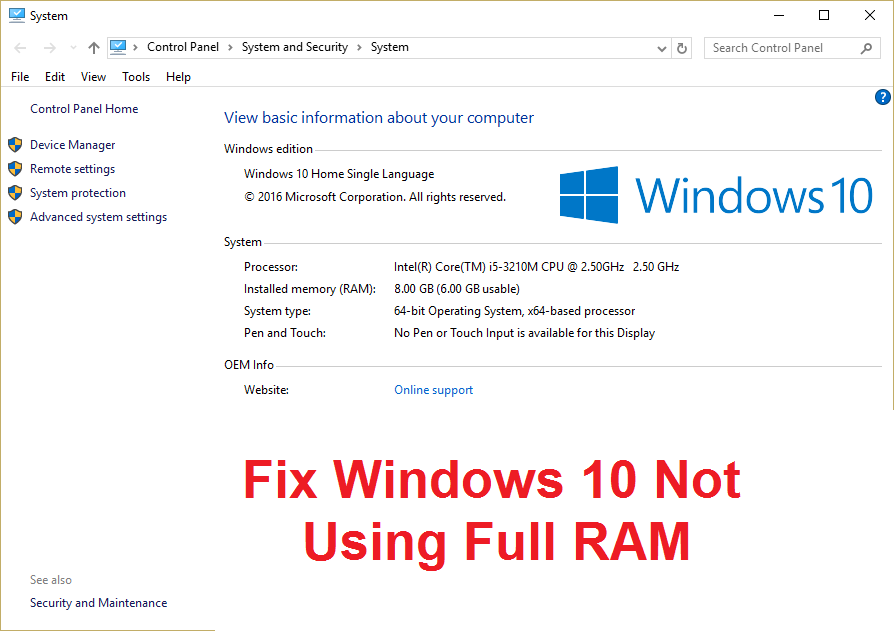
Fix Windows 10 not using all RAM: Many users have reported that their system is not using available installed memory, instead only a portion of memory is displayed in Task Manager and only that memory is usable by Windows. The main question remains that where has the other part of the memory gone? Well before answering this question let's see what actually happens, for example a user has 8GB of RAM installed but only 6GB is usable and it shows up in Task Manager.
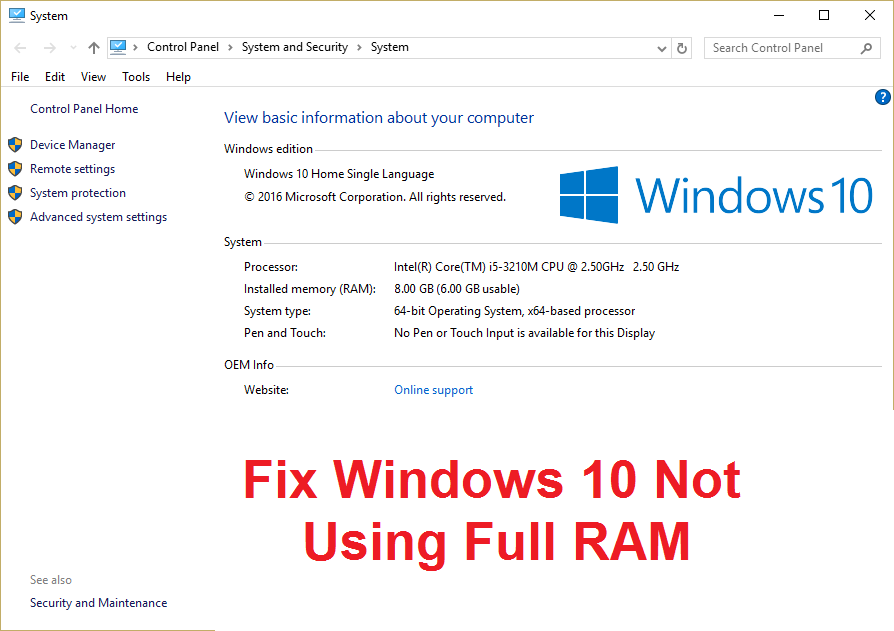
RAM (Random Access Memory) is a computer storage device that is frequently used to store the type of data that the Operating System is using to increase the overall speed of a system. Once the system is shut down, all data in RAM is erased as it is a temporary storage device and is used for faster access to data. Having more amount of RAM ensures that your system will run smoothly and perform well, as there will be more RAM available to store more files for faster access. But having a good amount of RAM but not being able to use it is very annoying for anyone and that is what happens here. You have programs and games that require a minimal amount of RAM to run, but again, you won't be able to run these programs as you have less RAM available (even if you've installed a large amount of memory).
Why isn't Windows 10 using all the RAM?
In some cases some portion of RAM is a reserved system, also sometimes some amount of memory is also reserved by the graphics card if you have an integrated one. But if you have a dedicated Graphics Card then this shouldn't be a problem. Obviously the 2% of the RAM is always free, for example if you have 4GB of RAM installed then the usable memory would be between 3.6GB or 3.8GB, which is perfectly normal. The above case for users who have installed 8GB of RAM but only 4GB or 6GB is available in Task Manager or System Properties. Also, in some cases, the BIOS may reserve some amount of RAM, which makes it unusable by Windows.
Important notice for users with 32-bit Windows installed
For users who have a 32-bit operating system installed on their system, they will only be able to access 3.5 GB of RAM, no matter how much RAM they have physically installed. To access the full RAM, you need to clean the installation of the 64-bit version of Windows and there is no other way to do it. Now, before going ahead with the solutions for users who have the 64-bit version of Windows and still cannot access the full RAM, first check what type of operating system you have installed:
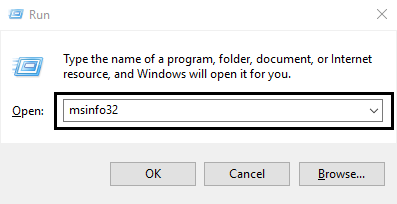
1.Press Windows key + R, then type "msinfo32" and press Enter to open System Information.
2.Now in the new window that opens, look for the System Type in the right pane of the window.
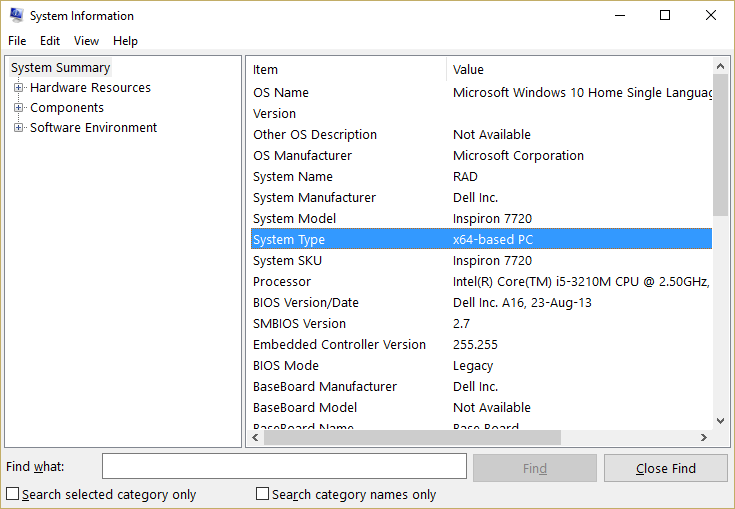
3. If you have an x64-based PC, it means you have a 64-bit operating system, but if you have an x86-based PC, then you have a 32-bit operating system.
Now that we know what kind of operating system you have, let's see how to fix this problem without wasting time.
Fix Windows 10 not using all RAM
Also, make sure the RAM is properly placed in its placeholder, sometimes silly things like this can also cause this problem, so before proceeding make sure to swap RAM slots to check for memory slots. Bad RAM.
Method 1: Enable the memory rebuild feature
This feature is used to enable / disable the memory remap feature that is mainly used for 64-bit operating systems that have 4GB of RAM installed. Basically, it allows you to reallocate the overlapping PCI memory on top of the total physical memory.
1.Restart your PC, when it powers on simultaneously press F2, DEL or F12 (depending on your manufacturer) to enter BIOS setup.
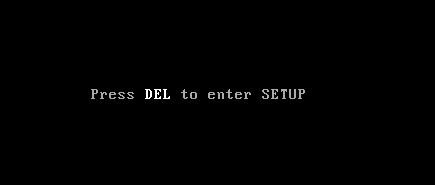
2.Go to Advanced Chipset Features.
3. Then, under North Bridge Configuration or Memory Characteristic, you will find the Memory Remediation Characteristic.
4.Change the setting of the reset memory function to enable it.
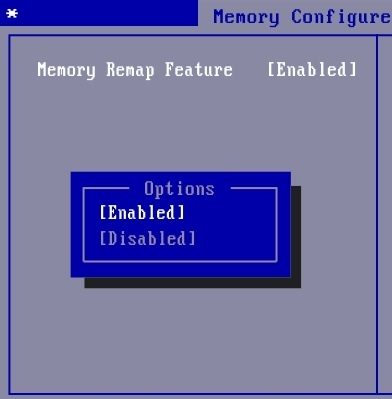
5.Save and exit the changes and then restart your PC normally. Enabling the memory reclamation features seems to fix Windows 10 problems not using all the RAM, but if this method doesn't help, then move on to the next one.
Method 2: Uncheck the maximum memory option
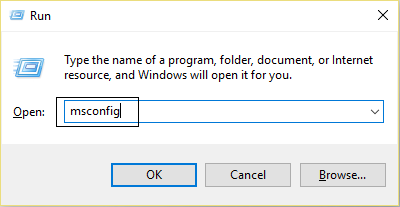
1.Press Windows Key + R, then type msconfig and hit Enter to open system settings.
2.Switch to the boot tab and make sure you have highlighted the currently installed operating system.
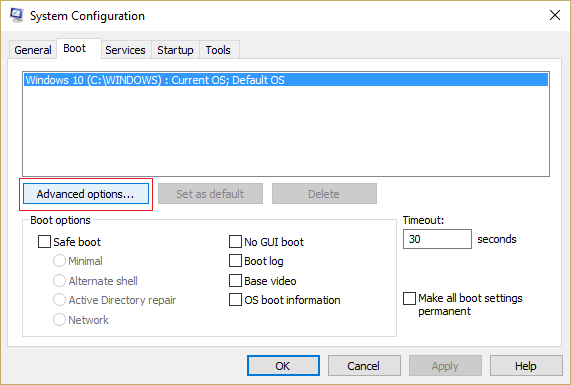
3.Then click Advanced Options and uncheck the Maximum Memory option and then click OK.
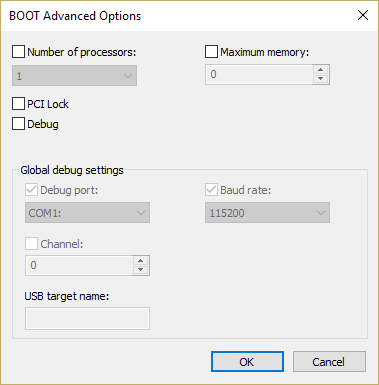
4.Now click Apply followed by OK and close everything. Restart your PC to save the changes.
Method 3: Update BIOS (Basic Input / Output System)
Performing the BIOS update is a critical task and if something goes wrong it can seriously damage your system, therefore expert supervision is recommended.
1.The first step is to identify your BIOS version, to do this press Windows key + R, then type "msinfo32" (without quotes) and press enter to open System Information.
2.Once the System Information window opens, locate the BIOS Version / Date and note the manufacturer and BIOS version.
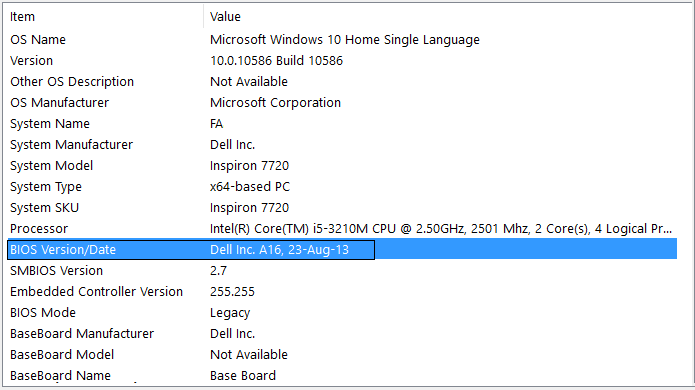
Then go to the manufacturer's website, for example in my case it's Dell, so I'll go to the Dell website and then enter my computer's serial number or click the auto-detect option .
4.Now from the list of drivers shown I will click on BIOS and download the recommended update.
Note: Do not turn off the computer or disconnect from the power source while updating the BIOS, as it may damage the computer. During the update, your computer will restart and you will briefly see a black screen.
5.Once the file is downloaded, just double-click the Exe file to run it.
6.Finally, you have updated your BIOS and this can also fix Windows 10 not using all RAM.
Method 4: Run Windows Memory Diagnostic
1.Type the memory in the Windows search bar and select "Windows Memory Diagnostic".
2.In the set of options displayed, select "Restart now and check for problems".
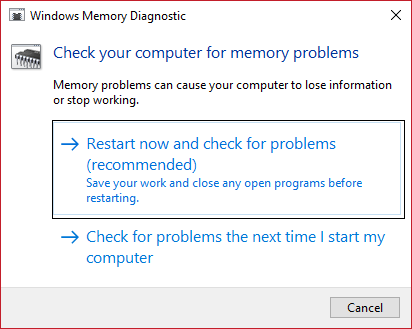
3.After which Windows will restart to check for possible RAM errors and is expected to show possible reasons why Windows 10 is not using all RAM.
4.Restart your PC to save the changes.
Method 5: Run Memtest86 +
Ahora ejecuta el Memtest86+ que es un softwareConcepto de Software¿Qué es el Software y cuál es su función?Un Software es la parte lógica, o más bien el soporte lógico, de cualquier sistema de tipo informático. Sea un PC, un teléfono teléfono celular o inclusive una tablet, es todo aquel programa que se ejecuta en él gracias a la coordinación de la parte física, es decir, el hardware, para llevar adelante alguna tarea concretamente o un recopilatorio de plus de terceros, pero elimina todas las posibles excepciones de errores de memoria ya que se ejecuta fuera del entorno de Windows.
Note: Before you begin, make sure you have access to another computer as you will need to download and burn the software to disc or USB flash drive. It is best to leave the computer overnight when Memtest is running as it will most likely take some time.
1.Connect a USB flash drive to your system.
2. Download and install the Windows Memtest86 Auto-Installer for the USB key.
3.Right-click on the image file you just downloaded and select the "Extract here" option.
4.Once extracted, open the folder and run the Memtest86 + USB installer.
5.Choose your plugged in USB drive to burn the MemTest86 software (This will format your USB drive).
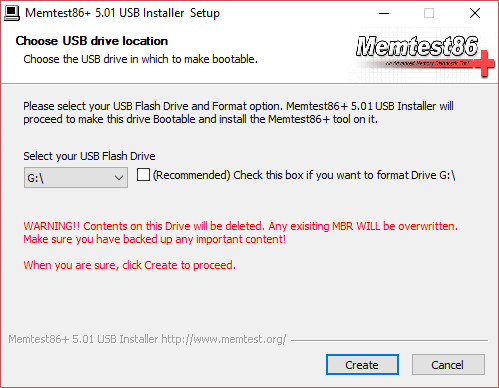
6.Once the above process is finished, please insert the USB into the PC where Windows 10 does not use all the RAM.
7.Restart your PC and make sure USB flash drive boot is selected.
8.Memtest86 will start to test for memory corruption on your system.
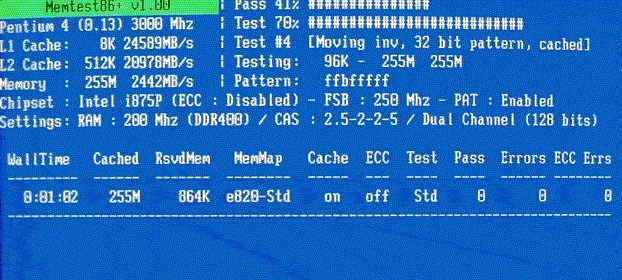
9.If you have passed all the tests, you can be sure that your memory is working properly.
10.If some of the steps were unsuccessful then Memtest86 will find memory corruption which means Windows 10 cannot use all RAM due to bad / corrupted memory.
11.To fix Windows 10 not using all RAM, you will need to replace your RAM if bad memory sectors are found.
Recommended for you:
- Fix REGISTRY_ERROR blue screen errors
- How to fix Windows 10 won't remember saved WiFi password
- Fix Internet Explorer has stopped working due to iertutil.dll
- Fix WiFi disconnection problem in Windows 10
That's it, you have successfully fixed Windows 10 without using all the RAM, but if you still have any doubts regarding this post, feel free to ask in the comment section.









