
Fix NVIDIA Drivers Constantly Crashing in Windows 10 - Users are reporting that NVIDIA drivers are still crashing in Windows 10 and may not be able to play games, plus they are experiencing lag and rendering issues. In addition to this, they are also experiencing screen freezing or stuck for a few minutes and then the NVIDIA drivers recover again, bringing everything back to normal. But the main problem is that this happens every 5-10 minutes which is very annoying, fortunately there are different ways to fix this problem in Windows 10.
The possible reason for this problem seems to be corrupt or outdated drivers, but in some cases newer drivers are the main reason for the crash and uninstallation and then reverting to older drivers seems to fix the problem. So, without wasting any time, let's see how to fix this problem with the following troubleshooting steps.
Fix NVIDIA Drivers Constantly Crashing on Windows 10
Make sure to create a restore point in case something goes wrong.
Method 1: Enable the graphics card and try to update the drivers manually
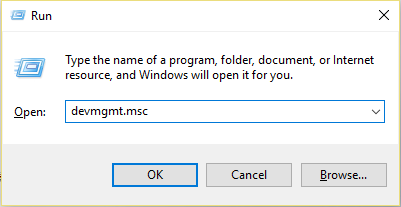
1.Press Windows key + R and type "devmgmt.msc" (without quotes) and press enter to open Device Manager.
2.Next, expand Display Adapters and right-click on your Nvidia graphics card and select Enable.
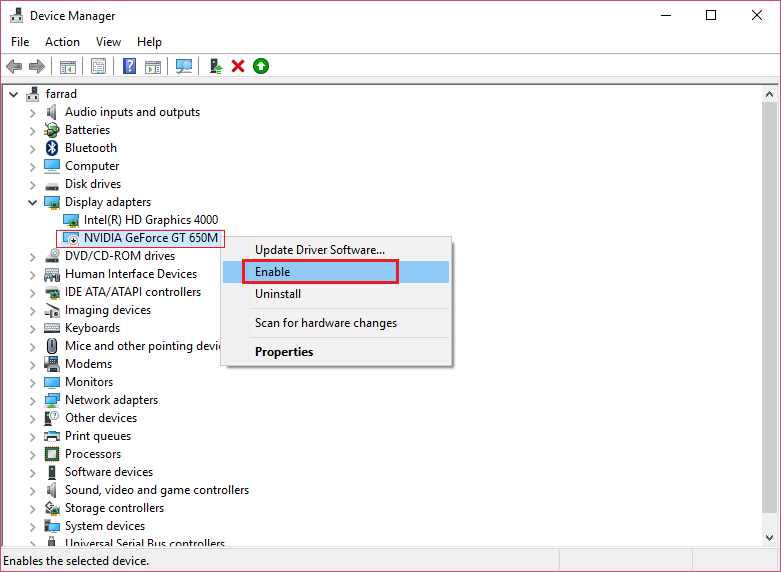
3.Una vez que haya hecho esto de nuevo, haga clic con el botón derecho del ratón en su tarjeta gráfica y seleccione «Actualizar el softwareConcepto de Software¿Qué es el Software y cuál es su función?Un Software es la parte lógica, o más bien el soporte lógico, de cualquier sistema de tipo informático. Sea un PC, un teléfono teléfono celular o inclusive una tablet, es todo aquel programa que se ejecuta en él gracias a la coordinación de la parte física, es decir, el hardware, para llevar adelante alguna tarea concretamente o un recopilatorio de plus del controlador».
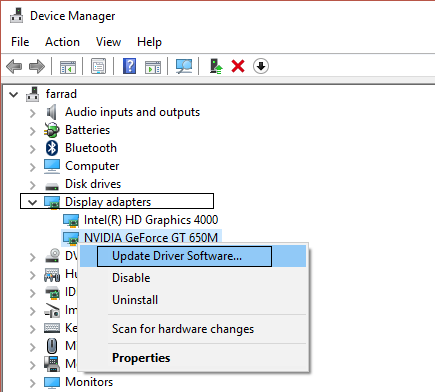
4.Select "Search automatically for updated driver software" and let the process finish.
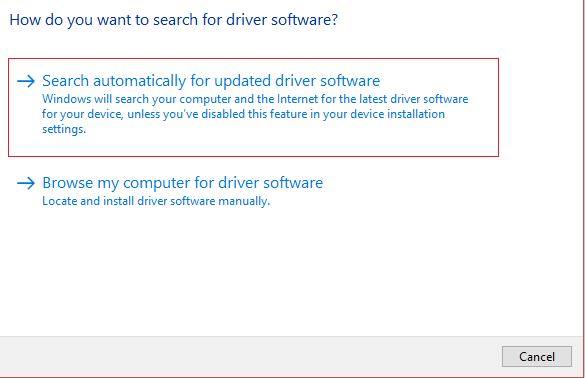
5.If the previous step was able to fix your problem then fine, if not then continue.
6.Again select "Update driver software", but this time on the next screen select "Browse my computer for driver software".
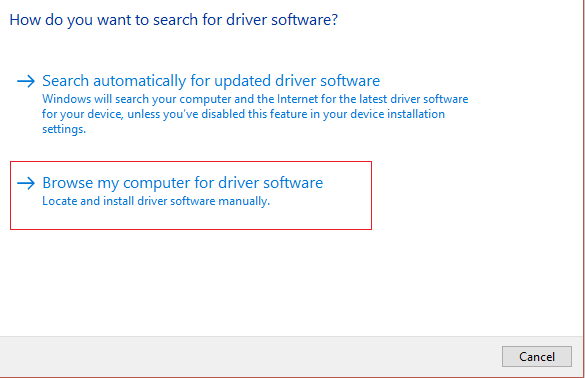
7.Now select "Let me choose from a list of device drivers on my computer."
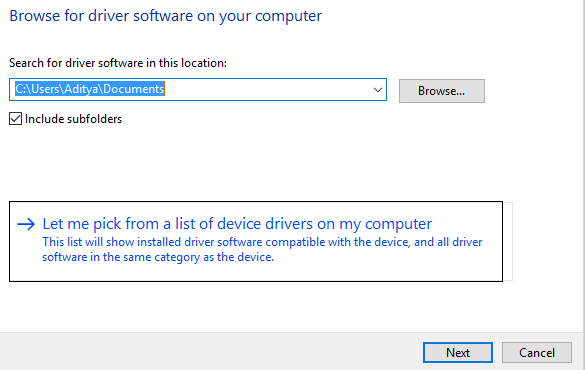
8.Finally, select the compatible driver from the list for your Nvidia graphics card and click Next.
9.Let the above process finish and restart your PC to save the changes. After updating the graphics card, you may be able to fix NVIDIA drivers constantly to crash on Windows 10.
Method 2: Update your drivers from the NIVIDA website
1.En primer lugar, deberías saber qué hardwareEn informática, el término hardware se refiere a cualquier componente de un sistema informático que sea un objeto físico real, al contrario que el software que existe en forma digital. Esto incluye el disco duro y las unidades incorporadas, es decir, todos los componentes que son "duros", de ahí su nombre. Desarrollo El desarrollo del hardware informático comienza con la creación de los primeros ordenadores y tiene su verdadero origen plus gráfico tienes, es decir, qué tarjeta gráfica Nvidia tienes, no te preocupes si no lo sabes, ya que se puede encontrar fácilmente.
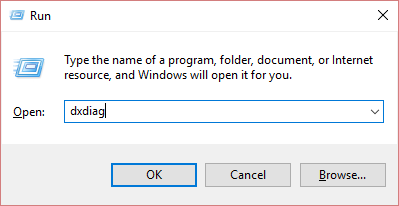
2.Press Windows key + R and in the dialog box type "dxdiag" and press enter.
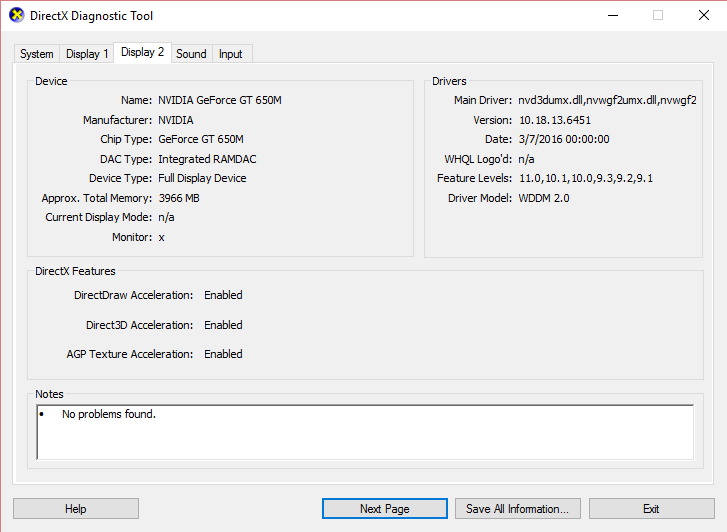
3.After that display tab search (there will be two display tabs, one for the integrated graphics card and one for Nvidia's) click on the display tab and find your graphics card.
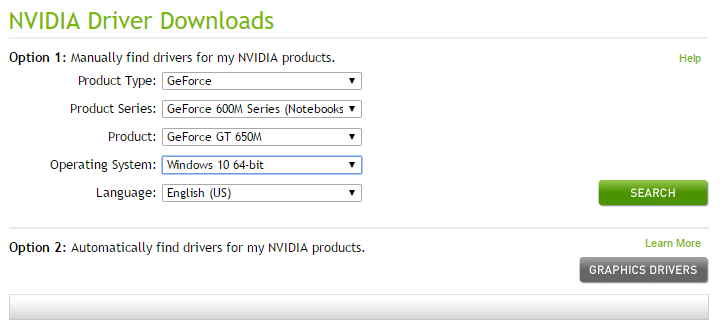
4.Now go to the Nvidia driver download web page and enter the details of the product we just discovered.
5. Search for your drivers after entering the information, click OK and download the drivers.
6.After a successful download, install the driver and you have successfully updated your Nvidia drivers manually. This installation will take some time but after that you will have successfully updated your driver.
Method 3: Back Up Your Drivers
1.Go back to Device Manager and expand Display Adapters and right click on your NVIDIA graphics card and select Properties.
2.Now switch to the Controller tab and click Back Controller.
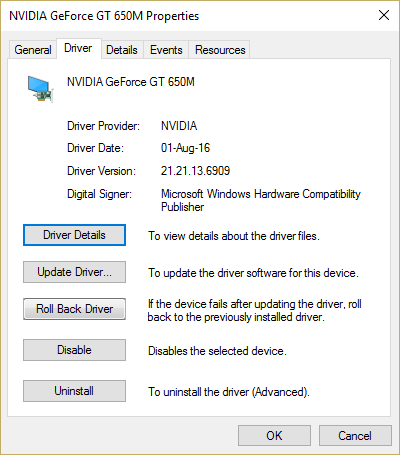
3.Once the drivers have been removed, restart your PC to save the changes.
4.This would definitely fix NVIDIA drivers constantly crashing on Windows 10 and then proceed to the next method.
Method 4: Uninstall the drivers and install an older version of the Nvidia drivers
1.Right-click your NVIDIA graphics card in Device Manager and select Uninstall.
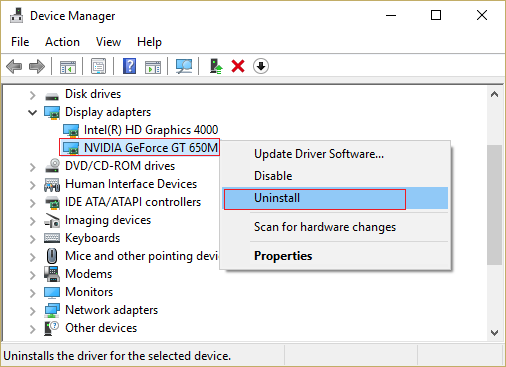
2.If you are prompted for confirmation, select Yes.
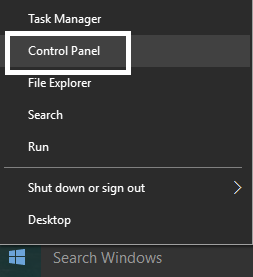
3.Press Windows key + X and then select Control Panel.
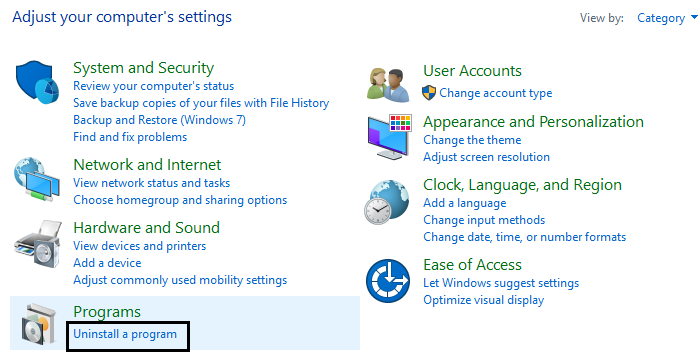
4.From the Control Panel click Uninstall a program.
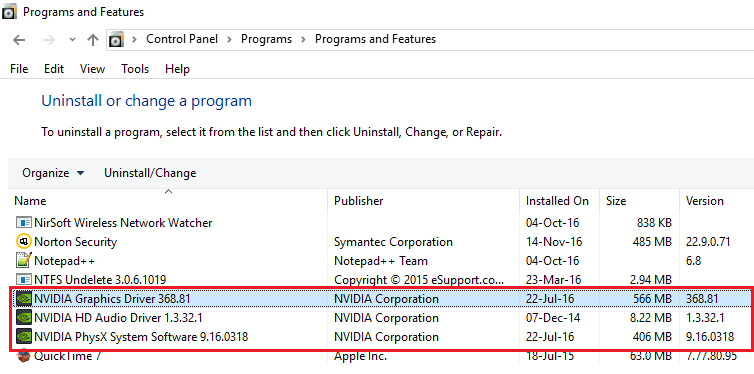
Next, uninstall everything related to Nvidia.
6.Reboot the system to save the changes and download the configuration again (follow method 2). But this time make sure to download only the previous version of the installation program, not the latest version.
5.Once you are sure you have removed everything, try installing the drivers again. The installation should work without problems.
Method 5: Disable Vsync and Select Maximum Performance in the Nvidia Control Panel
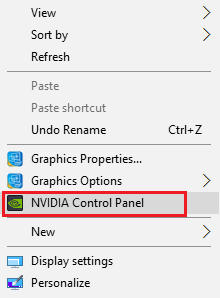
1.Right-click on the desktop area, and then click NVIDIA Control Panel.
2.Now click Manage 3D Settings.
3. Adjust the power to maximum performance and deactivate the vertical sync.
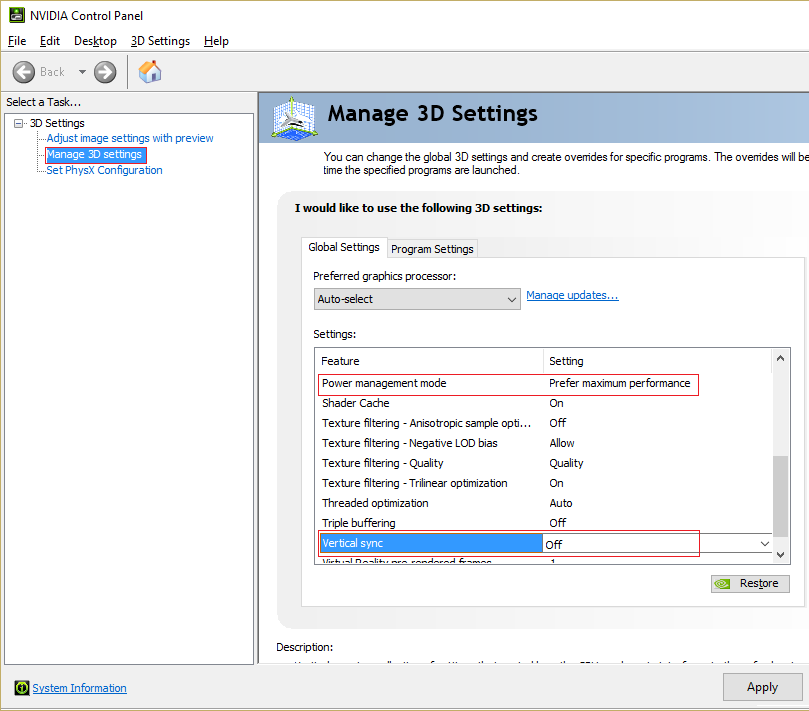
4. Click Apply to save the changes.
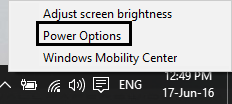
5.Right-click the battery icon in the system tray and select Power Options.
6.In the Power Options window, select High performance under Choose or customize a power plan.
7.Restart your PC to save the changes.
Method 6: Update DirectX
To fix the issue of NVIDIA drivers constantly dropping on Windows 10, you should always make sure to update your DirectX. The best way to make sure you have the latest version installed is to download the DirectX Runtime web installer from Microsoft's official website. .
Method 7: Temporarily disable antivirus and firewall
Sometimes the antivirus program can cause the NVIDIA drivers to constantly crash and to verify that this is not the case, it is necessary to disable the antivirus for a limited time to be able to check if the error continues to appear when the antivirus is disabled.
1.Right-click the Antivirus Program icon in the system tray and select Disable.
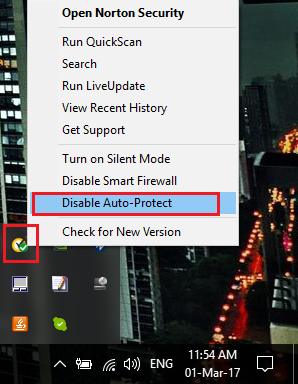
2. Next, select the time during which the Antivirus will remain disabled.
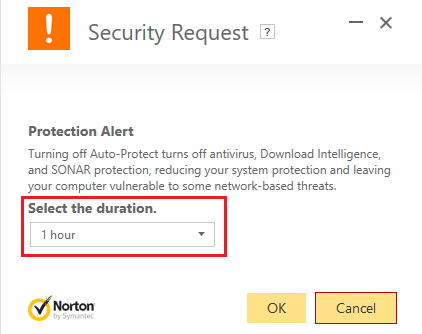
Note: Choose the shortest amount of time possible, for example 15 or 30 minutes.
3.Once done, try again to connect to the WiFi network and check if the error is resolved or not.
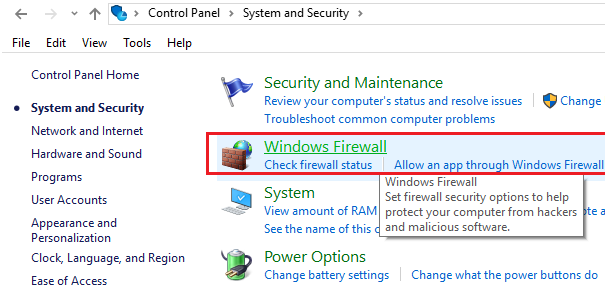
4.Press Windows key + I and select Control Panel.
5.Then click on System and Security.
6. Luego haga clic en el FirewallConcepto de Firewall¿Qué es el Firewall?El Firewall es un hardware o software que protege a un equipo de accesos no autorizados desde una red de terceros. Además se le conoce como cortafuegos y actúa como una pared entre el Internet y el PC. Es el que monitorea el tráfico de una red y limita la entrada o salida de datos. Funciona bajo ciertas reglas que permiten autorizar una conexión, bloquear plus Windows.
7.Now, from the left pane of the window, click Turn Windows Firewall on or off.
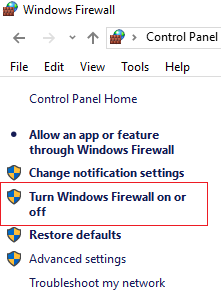
8.Select Turn off Windows Firewall and restart your PC. This would definitely fix NVIDIA drivers constantly crashing on Windows 10.
If the above method doesn't work, make sure to follow the exact same steps to turn the Firewall back on.
Recommended for you:
- How to remove file type associations in Windows 10
- The repair setup failed to start correctly. Please restart your PC and run the setup again
- 4 ways to pin the red X on the volume icon
- Fix Windows Update error 0x8024a000
That's it, you have managed to fix NVIDIA Constantly Crash drivers on Windows 10. If you still have any questions about this post, feel free to check it out in the comments section.









