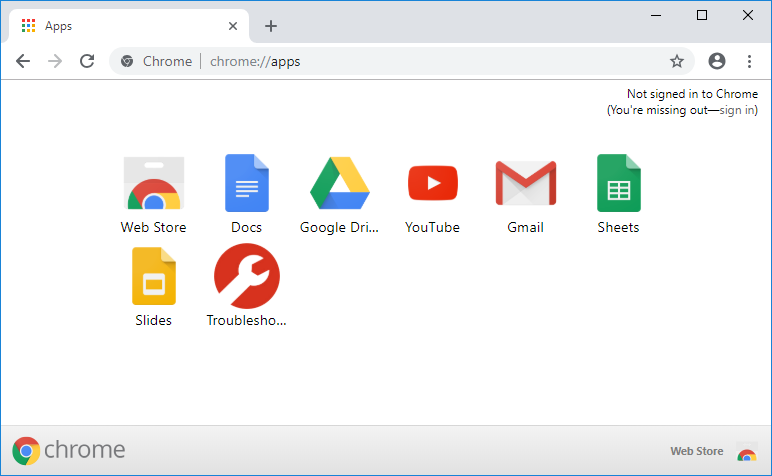
How to create a website desktop shortcut in Chrome: You can easily use bookmarks in Chrome to open your favorite websites on the go, but what if you need to create a website shortcut on the desktop so that every time If you double click on the shortcut, you will be taken directly to the website itself. Well, this can be easily achieved by using the function called "Create Shortcut" which can be found in More Tools.
Through the previous function, Chrome allows you to create shortcuts to your favorite website's apps on the desktop, which can later be added to the start menu or the taskbar for faster access. Of course, without giving up time, let's see how to create a desktop shortcut of a website in Chrome with the help of the tutorial below.
How to create a website desktop shortcut in Chrome
Make sure to create a restore point in case something goes wrong.
Method 1: Create a website desktop shortcut in Chrome
1.Open Google Chrome, and then navigate to the website for which you intend to create the desktop shortcut.
2.Once you are on the web page, basically click on the three vertical dots (More button) in the upper right corner and then click on "More tools".
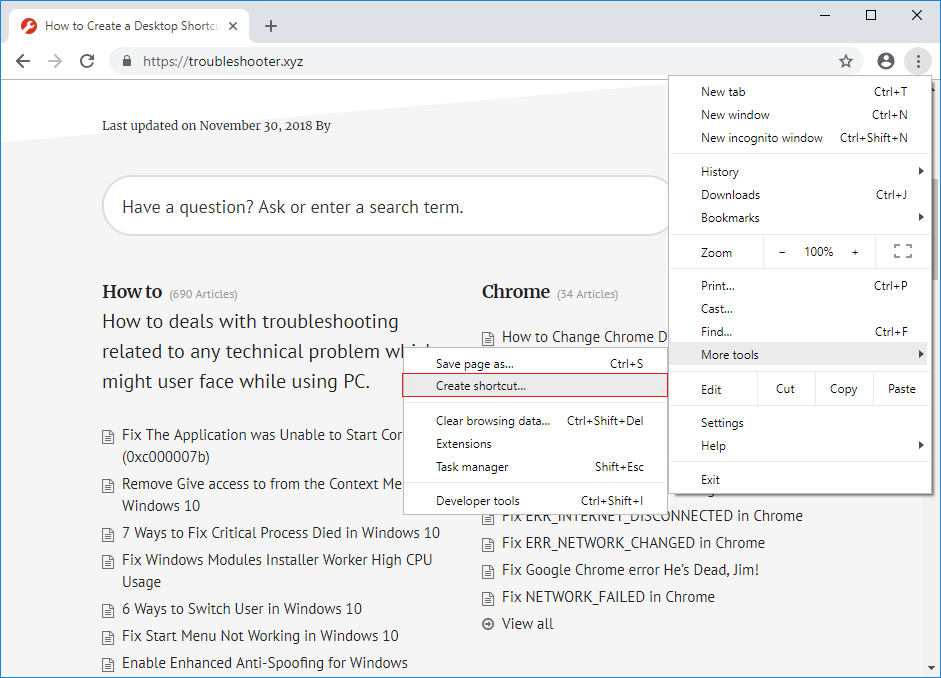
3.In the context menu select "Create shortcut" and enter a name for your shortcut, it can be anything, but labeling it according to the website name would help you distinguish between various shortcuts.
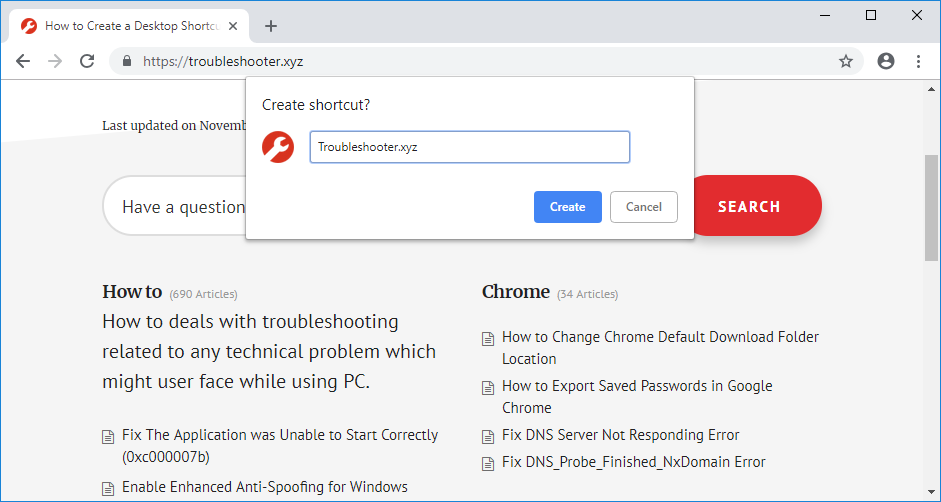
4.Once the name is entered, now check or uncheck "Open as window" and click the "Create" button.
Note: in the recent Google Chrome update, the "Open as window" option has been removed. Now by default the shortcut will open in a new window.
5. That's it, you now have a website shortcut on your desktop that you can easily pin to the taskbar or start menu.

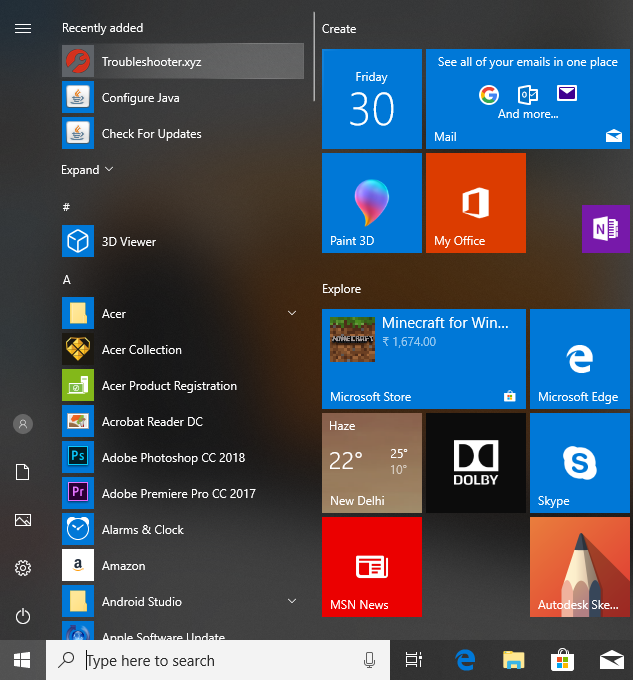
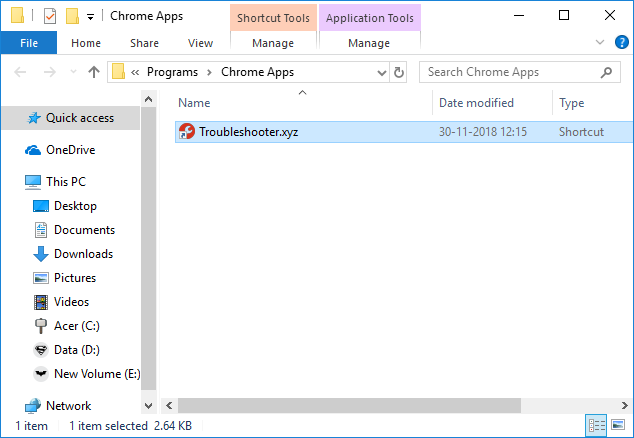
The website you create the shortcut for in Google Chrome will also have a website shortcut placed in the Chrome Applications folder in the All apps lists on the Start menu. At the same time, these websites are added to the Chrome Applications page (chrome: // applications) in Google Chrome. These shortcuts are stored in the following location:
Microsoft Windows. Start Menu. Programs. Chrome apps (tixag).
Method 2: Manually create a website desktop shortcut
1.Copy the Chrome icon shortcut to your desktop. If you already have the Chrome shortcut on your desktop, be sure to make another one and rename it.
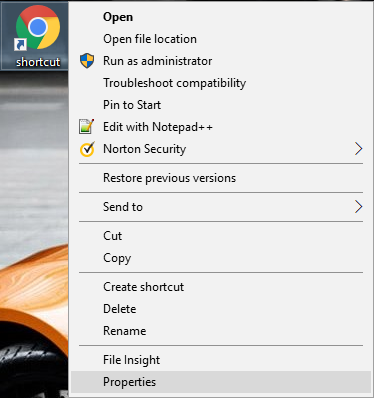
2.Now right-click on the Chrome icon and select Properties.
3.En el campo objective¿Qué es un objetivo?En marketing, un objetivo es el resultado que se pretende alcanzar en un periodo de tiempo, a través el uso de los recursos disponibles. Por tanto, se debe formular de una forma clara y hace falta que sea accesible y medible. plus, al final asegúrese de añadir un espacio y escriba lo siguiente:
-app=httpEl HTTP (Hyper Text Transfer Protocol) es un protocolo que se usa para transmitir datos en redes. HTTP es un estándar técnico generalmente aceptado que establece cómo un cliente web se comunica con un servidor para que los datos solicitados por el cliente puedan ser cargados y mostrados. Información general Junto con el URL y el HTML, HTTP es uno de los conceptos más importantes de Internet (www). Fue desarrollado plus://example.com
Note: Replace example.com with the actual website you want to create the desktop for and click OK. For example:
«C:N-Archivos de Programa (x86)N-GoogleN-Cromo.exe» –app=httpsHTTPS (protocolo de Transferencia de Hiper-Texto) es un protocolo que permite determinar una conexión segura entre el servidor y el cliente, que no puede ser interceptada por personas no autorizadas. En resumidas cuentas, es la versión segura de el http (Hyper Text Transfer Protocol) Cómo funciona Una conexión HTTP estándar en Internet puede ser fácilmente secuestrada por partes no autorizadas. El propósito de una conexión HTTPS es evitar esto: encriptar plus://troubleshooter.xyz
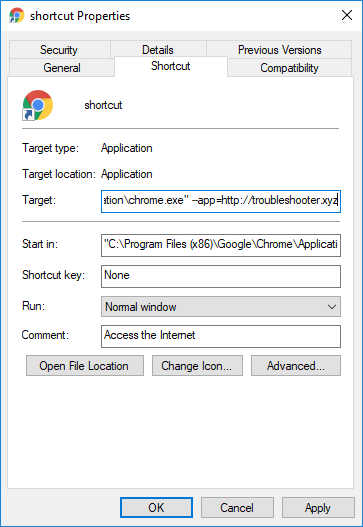
4. Click OK to save the changes.
That's all you've successfully learned How to Create a Website Desktop Shortcut in Chrome, but if you still have any questions regarding this tutorial, feel free to ask in the comment section.